




Founded in 2005 and headquartered in San Diego, California, Satechi has taken a combined passion for technology + design and created a leading consumer electronics brand, specializing in modern USB Type-C accessories.
Satechi Bluetooth Extended Keypad
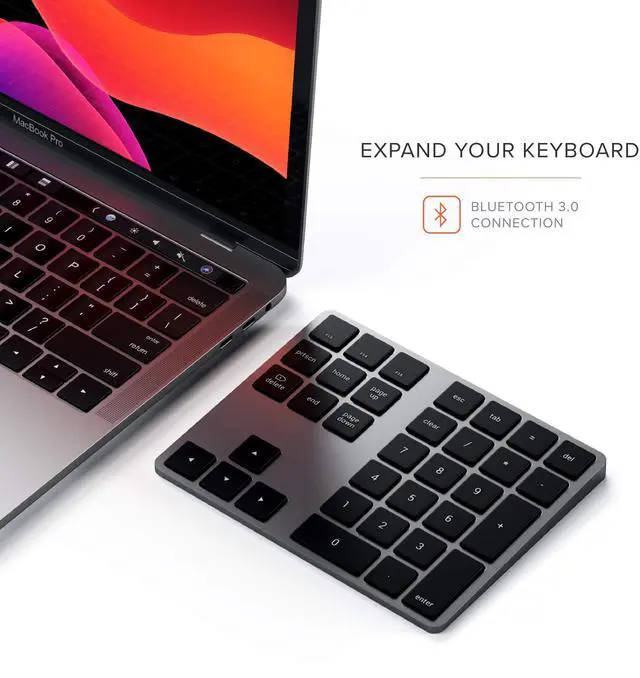
Expand your keyboard with the Satechi Bluetooth Extended Keypad.
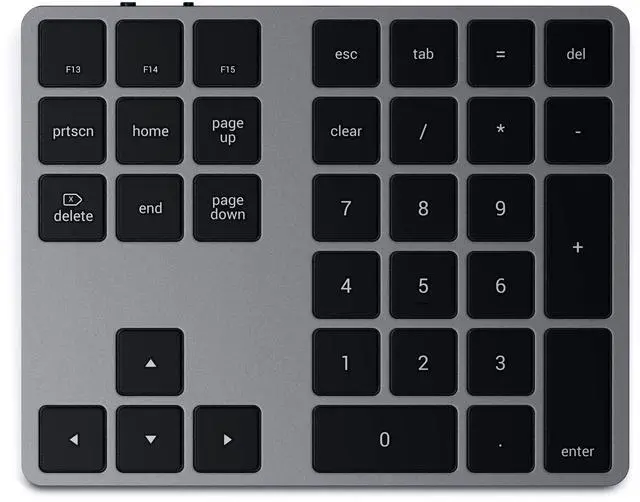
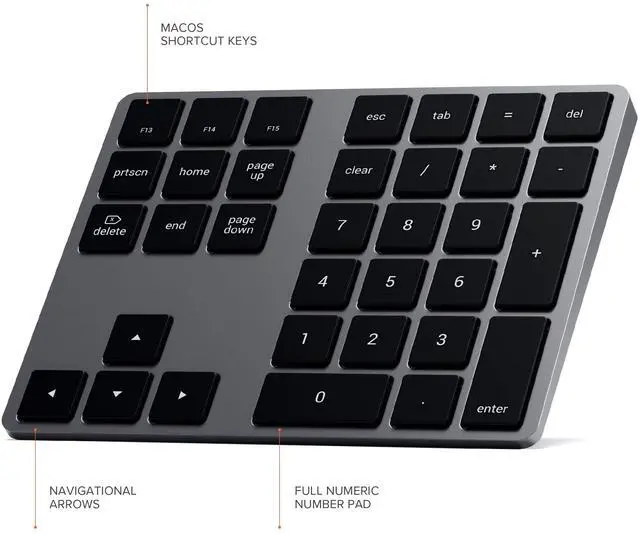
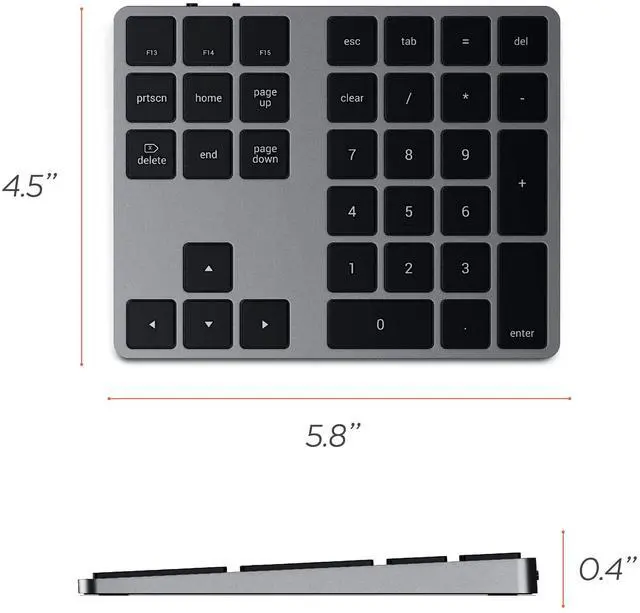
Featuring a full number pad, navigational arrows, and convenient MacOS shortcut keys, the Bluetooth Extended Keypad restores functionality of a desktop keyboard to your tablet or laptop.
With a slim, sleek design, the Keypad complements your modern setup and makes data entry a breeze – whether you’re in the office or on-the-go.
- Easy-to-use Bluetooth connection
- Full numeric keypad with navigational arrows
- Convenient macOS shortcut keys
- Rechargeable USB-C port
- Compatible with all MacOS & iOS devices

Bluetooth Connection
Ditch the messy cables and wirelessly connect to your computer with the Keypad’s Bluetooth capabilities. With no receiver needed, wireless setup is a breeze.

MacOS Shortcut Keys
Features conveniently placed navigational arrows and MacOS shortcut keys to help improve productivity. Windows OS may not support all shortcuts.

Rechargeable USB-C Port
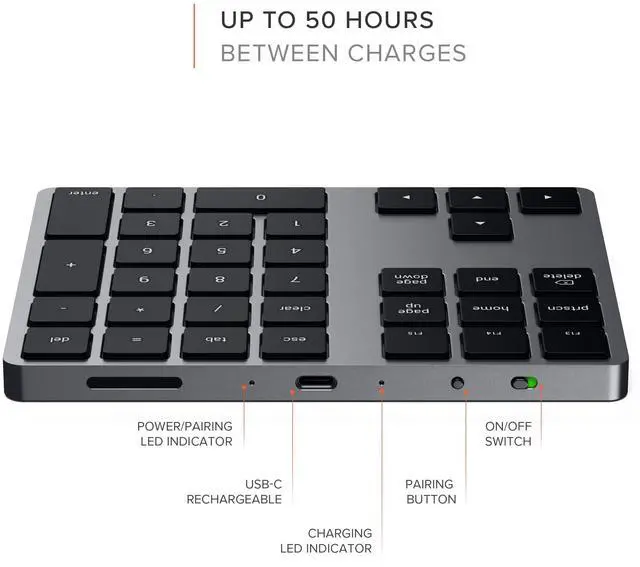
Its rechargeable USB-C port allows you to continue work wirelessly while the keypad charges – so nothing interrupts your workflow. Note: Keypad cannot be used by plugging directly into your computer.

- Move the power switch to the “On” position to turn 2 on the keypad
- Press and hold the “Connect” button for ~5 seconds then release. Fast blinking blue light means pairing mode
- Open Bluetooth settings on your device and find the name from Bluetooth menu to complete connection process. Connection is indicated by solid blue light for ~5 seconds, then light turns off
- It will not pair automatically when you turn on the keypad first time, after first time paired, it will connect automatically next time. If you need switch this keypad to other device, repeat the pairing action.
- To preserve battery life, the keypad will enter automatically sleep mode after ~1 hour of inactivity. Press any key to wake up the keypad
- The keypad can be continuously used for up to 50 hours between full charges. Low battery is indicated by slow blinking blue light
- Please use the included cable to recharge your keypad for 2-3 hours or until red light turns off. Solid red light means charging. When solid red light turns off keypad is fully charged
- Device will not be activated for pairing if battery lower than 5%. Please make sure the keypad has battery recharged
 Slim Aluminum Keypad |  Bluetooth Extended Keypad |  Slim X2 Bluetooth Backlit Keyboard |  Slim X3 Bluetooth Backlit Keyboard | |
|---|---|---|---|---|
| Customer Reviews | — | — | — | — |
| Price | — | — | — | — |
| Connection Type | Bluetooth | Bluetooth | Bluetooth | Bluetooth |
| Rechargeable Port | Micro USB | USB-C | USB-C | USB-C |
| Numeric Keys | ? | ? | ? | ? |
| Navigational Arrows | - no data | ? | ? | ? |
| Backlit Keys | - no data | - no data | ? | ? |

Just Dropped
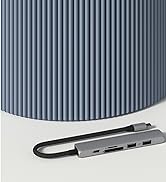
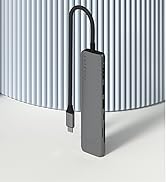
OntheGo 7-in-1 Multiport Adapter
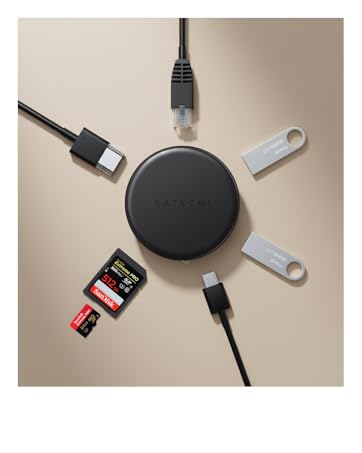
Clutter-Free Connectivity.


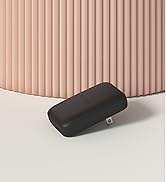
OntheGo Collection
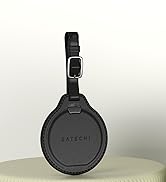
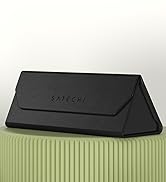
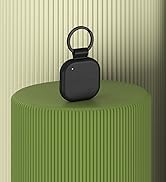
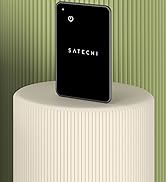
FindAll Collection
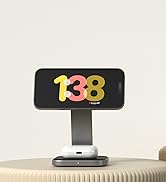

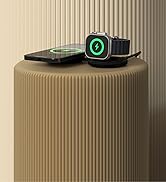
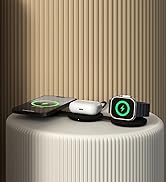
Qi2 Charging Collection
Connectivity & Expansion
Docking Stations
Power & Charging

Productivity Essentials

About Satechi
We’re more than just another tech brand; we’re innovators committed to bringing you faster, more efficient solutions.
Our USB Type-C hubs, adapters, and accessories are designed to seamlessly combine performance and style. No matter what your goals are, our gear is here to make your life a little easier.

Satechi Bluetooth Extended Keypad
Founded in 2005 and headquartered in San Diego, California, Satechi has taken a combined passion for technology + design and created a leading consumer electronics brand, specializing in modern USB Type-C accessories.
Expand your keyboard with the Satechi Bluetooth Extended Keypad.
Featuring a full number pad, navigational arrows, and convenient MacOS shortcut keys, the Bluetooth Extended Keypad restores functionality of a desktop keyboard to your tablet or laptop.
With a slim, sleek design, the Keypad complements your modern setup and makes data entry a breeze – whether you’re in the office or on-the-go.
- Easy-to-use Bluetooth connection
- Full numeric keypad with navigational arrows
- Convenient macOS shortcut keys
- Rechargeable USB-C port
- Compatible with all MacOS & iOS devices
Bluetooth Connection
Ditch the messy cables and wirelessly connect to your computer with the Keypad’s Bluetooth capabilities. With no receiver needed, wireless setup is a breeze.
MacOS Shortcut Keys
Features conveniently placed navigational arrows and MacOS shortcut keys to help improve productivity. Windows OS may not support all shortcuts.
Rechargeable USB-C Port
Its rechargeable USB-C port allows you to continue work wirelessly while the keypad charges – so nothing interrupts your workflow. Note: Keypad cannot be used by plugging directly into your computer.
- Move the power switch to the “On” position to turn 2 on the keypad
- Press and hold the “Connect” button for ~5 seconds then release. Fast blinking blue light means pairing mode
- Open Bluetooth settings on your device and find the name from Bluetooth menu to complete connection process. Connection is indicated by solid blue light for ~5 seconds, then light turns off
- It will not pair automatically when you turn on the keypad first time, after first time paired, it will connect automatically next time. If you need switch this keypad to other device, repeat the pairing action.
- To preserve battery life, the keypad will enter automatically sleep mode after ~1 hour of inactivity. Press any key to wake up the keypad
- The keypad can be continuously used for up to 50 hours between full charges. Low battery is indicated by slow blinking blue light
- Please use the included cable to recharge your keypad for 2-3 hours or until red light turns off. Solid red light means charging. When solid red light turns off keypad is fully charged
- Device will not be activated for pairing if battery lower than 5%. Please make sure the keypad has battery recharged
Slim Aluminum Keypad | Bluetooth Extended Keypad | Slim X2 Bluetooth Backlit Keyboard | Slim X3 Bluetooth Backlit Keyboard | |
|---|---|---|---|---|
| Customer Reviews | — | — | — | — |
| Price | — | — | — | — |
| Connection Type | Bluetooth | Bluetooth | Bluetooth | Bluetooth |
| Rechargeable Port | Micro USB | USB-C | USB-C | USB-C |
| Numeric Keys | ? | ? | ? | ? |
| Navigational Arrows | - no data | ? | ? | ? |
| Backlit Keys | - no data | - no data | ? | ? |
Just Dropped
OntheGo 7-in-1 Multiport Adapter
Clutter-Free Connectivity.
OntheGo Collection
FindAll Collection
Qi2 Charging Collection
Connectivity & Expansion
Docking Stations
Power & Charging
Productivity Essentials
About Satechi
We’re more than just another tech brand; we’re innovators committed to bringing you faster, more efficient solutions.
Our USB Type-C hubs, adapters, and accessories are designed to seamlessly combine performance and style. No matter what your goals are, our gear is here to make your life a little easier.