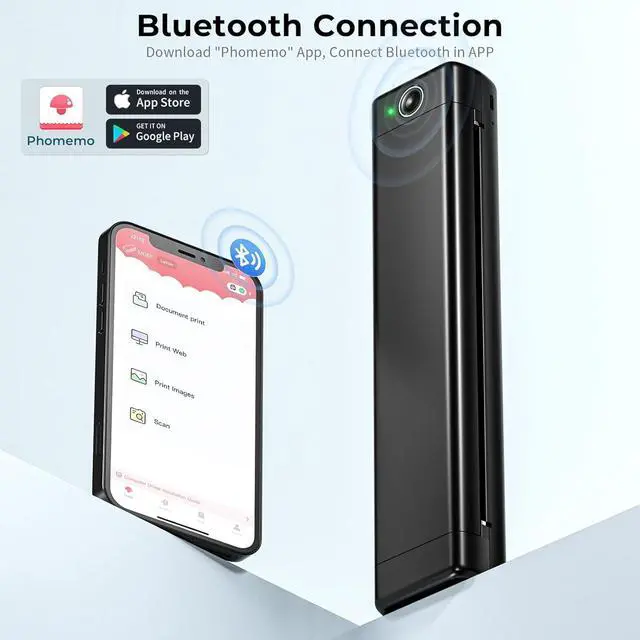
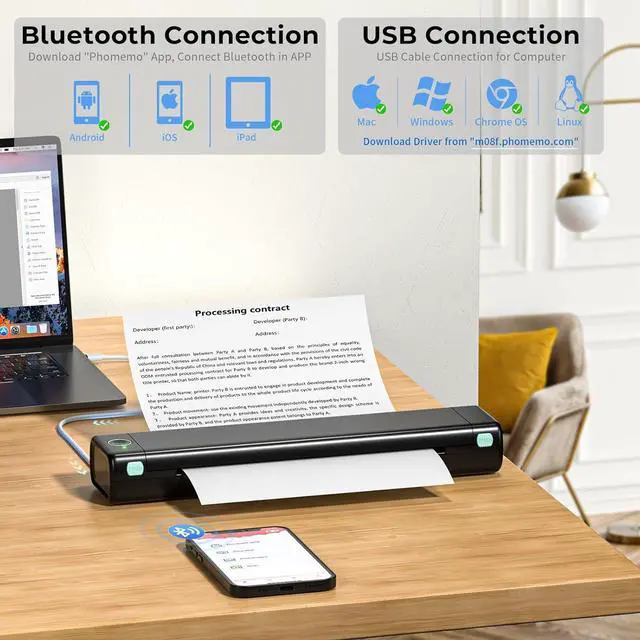
Turn on the M08F printer and open the Phomemo app, then tap the "Printer" icon in the top right corner of the app, search for the M08F printer and connect to it (please ensure that your Bluetooth function is turned on)
Start printing with one-click or explore the multifunctional app to begin your printing journey
Tip: The M08F printer cannot directly pair with Bluetooth, it needs to be connected and operated within the APP using Bluetooth
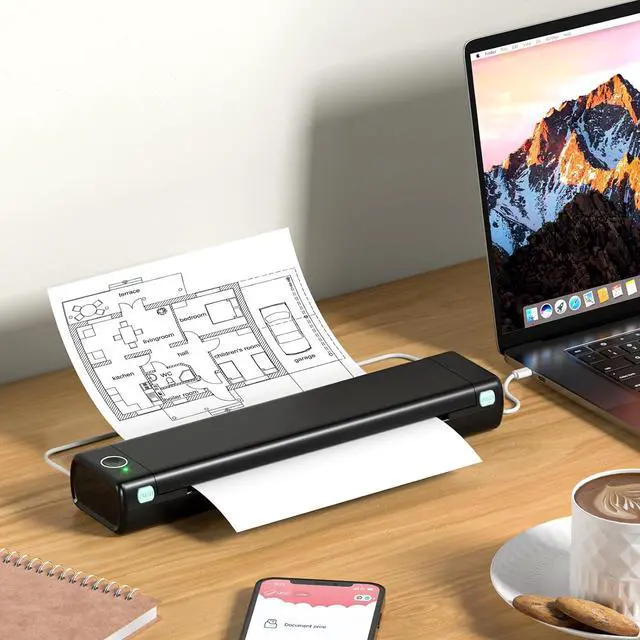
Turn on the M08F portable printer and connect it to the computer using the included USB-C cable.
After editing, select "M08F" portable printer and proceed with printing.
Tip: The M08F printer needs to be connected to a computer/laptop via a USB-C data cable with data transmission functionality. It is recommended to use the cable included in the package.
Turn on the M08F portable printer and connect it to the computer using the included USB-C cable.
After editing, select "M08F" portable printer and proceed with printing.
Tip: The M08F printer needs to be connected to a computer/laptop via a USB-C data cable with data transmission functionality. It is recommended to use the cable included in the package.
Turn on the M08F portable printer and connect it to the computer using the included USB-C cable.
After editing, select "M08F" portable printer and proceed with printing.
Tip: The M08F printer needs to be connected to a computer via a USB-C data cable with data transmission functionality. It is recommended to use the cable included in the package.
After connecting printer to the computer, Run [Terminal]
Use the [pwd] command to check the current path, use the [ls] command to view the files in the current path, Use [sudo] to gain administrator privileges, Use [install] to open the installation package and then complete the driver installation
After editing, select "M08F" portable printer and proceed with printing Enjoy Portable and Easy Printing with Phomemo M08F-Printer Phomemo Portable Wireless Printer - Make Your Printing Anywhere, Anytime Connect an M08F Printer to a Phone/PC (Windows/Mac OS/Chrome OS/Linux) Connecting Phone/Tablet to M08F via Bluetooth How to Connect M08F Printer to Windows via USB-C Cable How to Connect M08F Printer to macOS via USB-C Cable How to Connect M08F Printer to Chrome OS via USB-C Cable How to Connect M08F Printer to Linux via USB-C Cable 203DPI


 We‘re shipping as usual! The Canada Post strike only affects certain remote deliveries and PO Boxes. Details
 Holiday Shipping Details & Extended Holiday Returns


