
Your Browsing History

Meet Your Seller

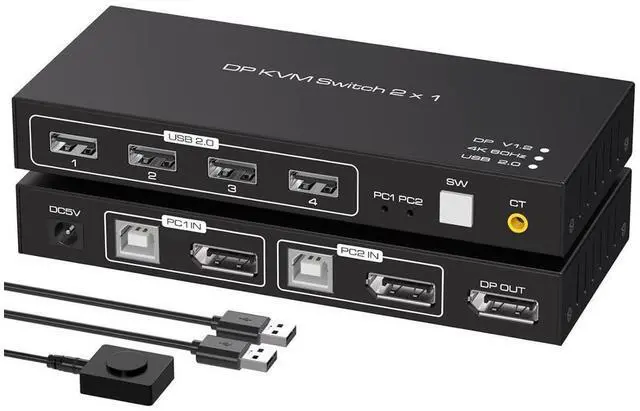


2 Port Displayport KVM Switch 4K @60Hz, USB 2.0 DP 1.2 DP KVM Switches for 2 PC 1 Monitor Switch, DP KVM Switch 2 in 1 Out Support Wire-Desktop Controller Including 2 USB 2.0 Cable eokCXOY
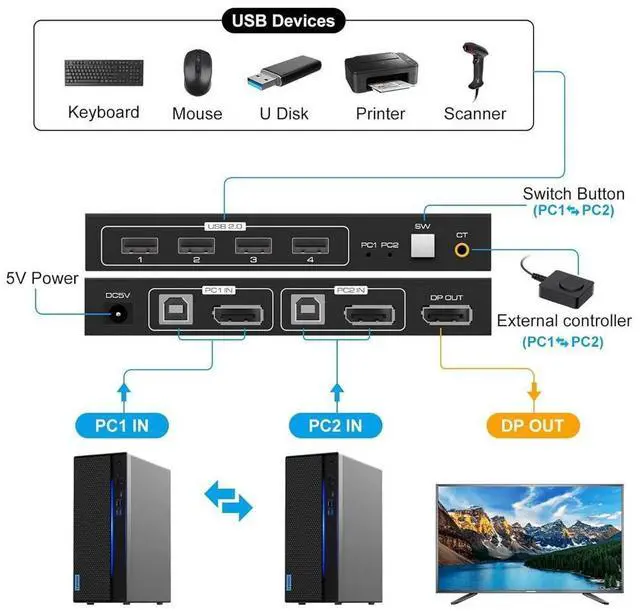
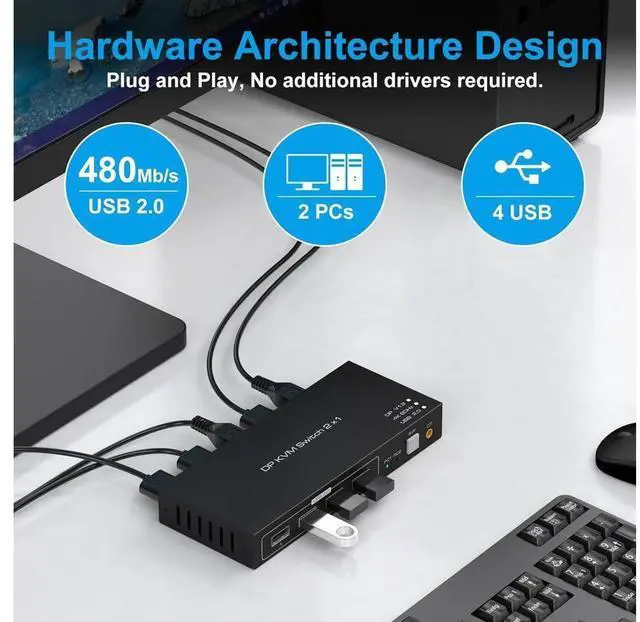
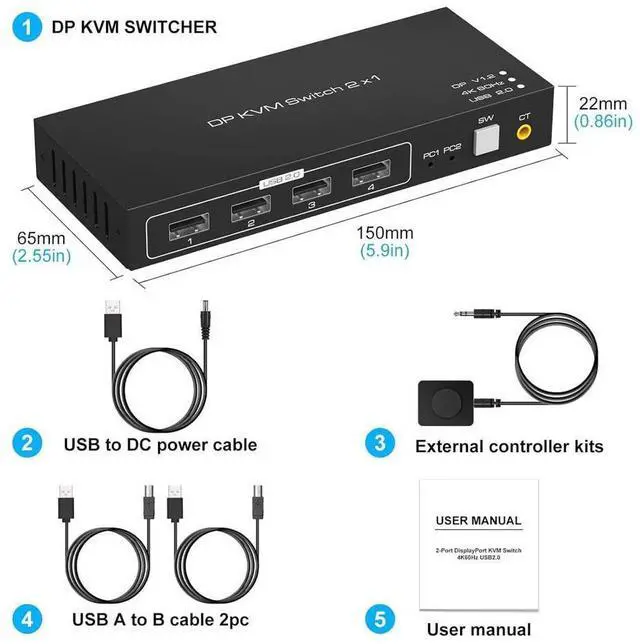
- [KVM Switch Display Port 2 Computers 1 Monitor] The KVM DP switcher allows 2 computers or 2 signal sources to share a keyboard, mouse, printer, and up to 4 USB devices. It can switch between the 2 sources on a single screen with the press of a button (SW key), without inserting and unplugging any cables. It supports 4K60Hz displays.(Note: If you cannot drive a USB device, connect to a 5V power supply).
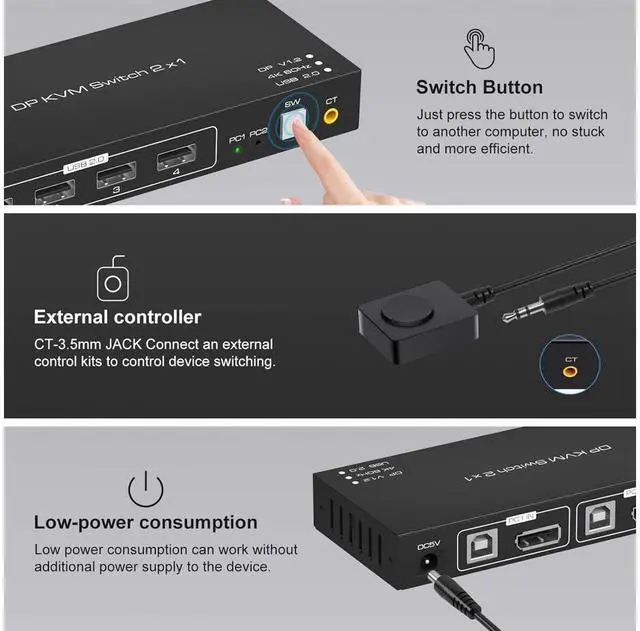
- [External Wire Desktop Controller] We have added an extension control button that allows you to hide the switcher and cable layout, making your workspace more tidy and improve work efficiency.
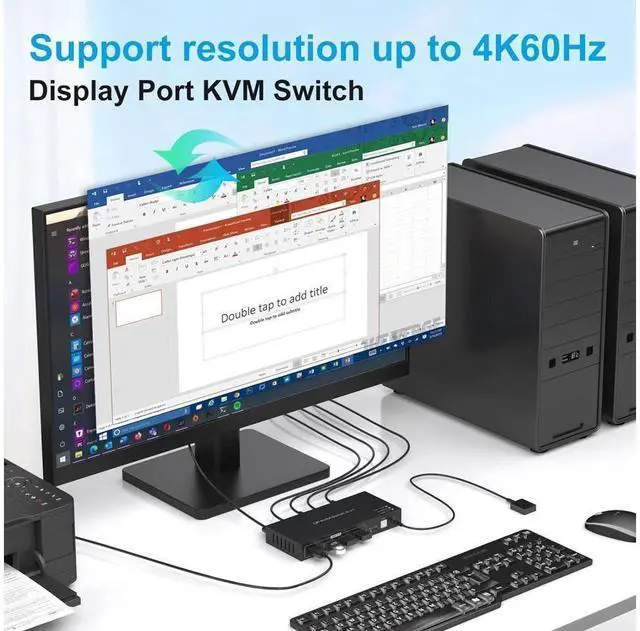
- [4K@60Hz Visual Enjoyment] Supports up to 4K60Hz resolutions, backward compatible with lower resolutions. Make image display more exquisite and realistic.
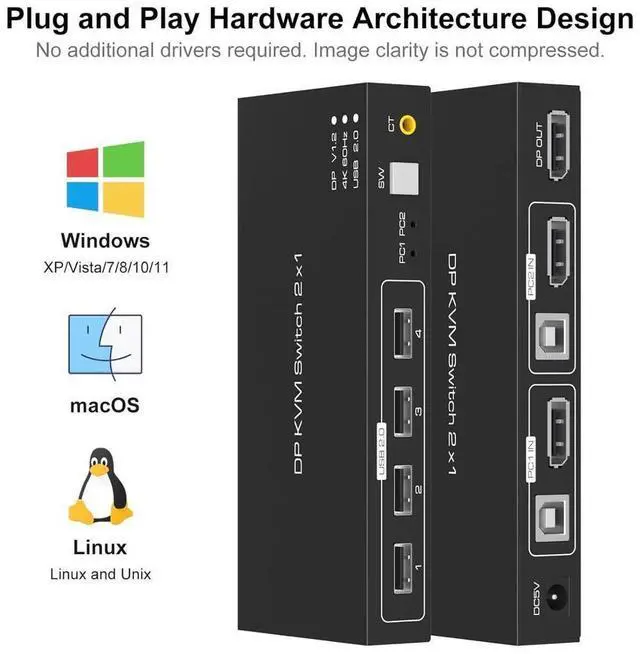
- [Plug and Play] No software driver required. One-key switch 2 computers, share 4 USB devices. The great solution for people who need to use 2 computers.
- [Widely compatible] Compatible with Windows, Linux, Mac, XP/7/8/10/11 and Chrome OS etc..
+
+
Overview
Specs
Reviews
Features:
1. High Compatibility, Can Auto-match Source and Display Device;
2. The Kvm Switch USB 2.0 Built-in Automatic Adjustment System, Make The Image Smooth, Clear and Stable;
3. No Need to Install The Driver, Support Remote Control With an External Controller;
4. Easily Switches Between Systems Via Push Buttons With LED Indicating The Active Computer;
How to Use:
1. Connect the DP output port of the computer 1 to the DP_IN1 input port on the back of the KVM switcher through an DP cable.
2. Connect the USB port of the computer 1 to the USB_IN1 port on the back of the KVM switcher through an DP cable.
3. Connect the DP output port of the computer 2 to the DP_IN2 input port on the back of the KVM switcher through an DP cable.
4. Connect the USB port of the computer 2 to the USB_IN2 port on the back of the KVM switcher through an DP cable.
5. Connect the DP_OUT behind the KVM switcher to the monitor via an Displayport cable.
6. Connect a mouse, printer, USB stick, etc. to the front USB port.
7. Switch between computer 1 and computer 2 through the buttons on the panel or external control kits.
Note: If it cannot drive USB devices, please connect to 5V power supply.
Warranty & Returns
Warranty, Returns, And Additional Information
Warranty
- Please contact the Seller directly for warranty information. Warranty information may also be found on the Manufacturer's website.
- CONTACT
Return Policies
- Return for refund within: 30 days
- Return for replacement within: 30 days
- This item is covered by GGnix Return Policy
Manufacturer Contact Info
- For a directory of all our manufacturers, please click below.
- Manufacturers Directory
LOADING...