




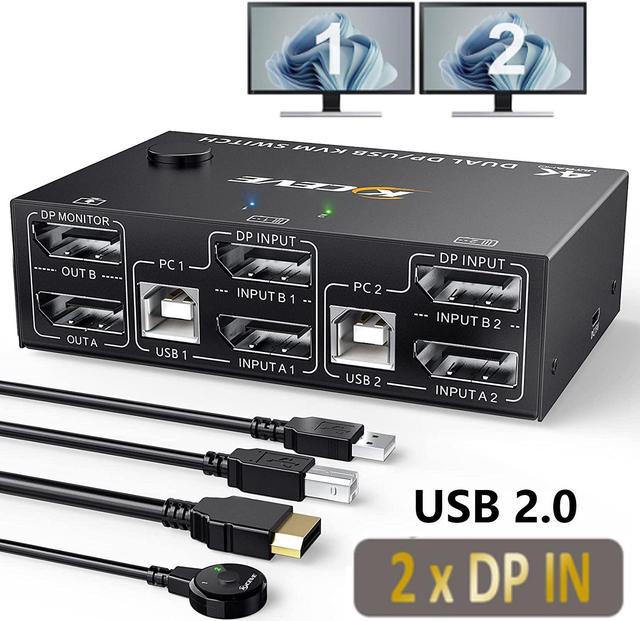


Features:
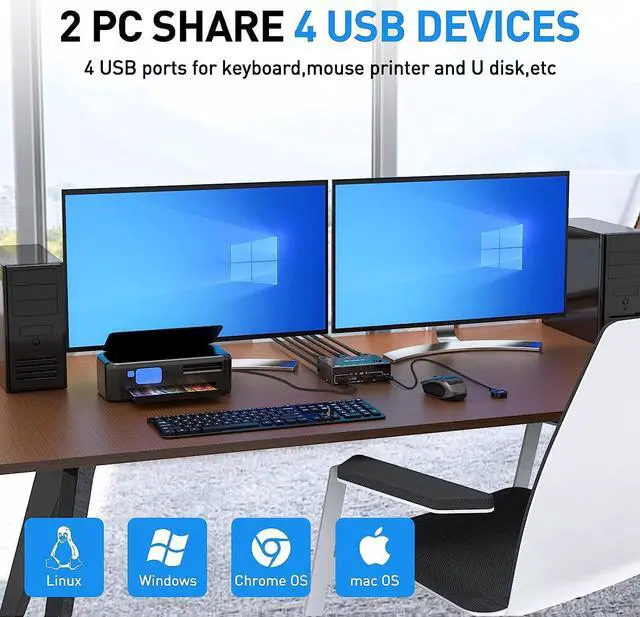
- 2 computers/laptops share a set of wired/wireless keyboard,mouse and 2 monitors,4 USB devices.
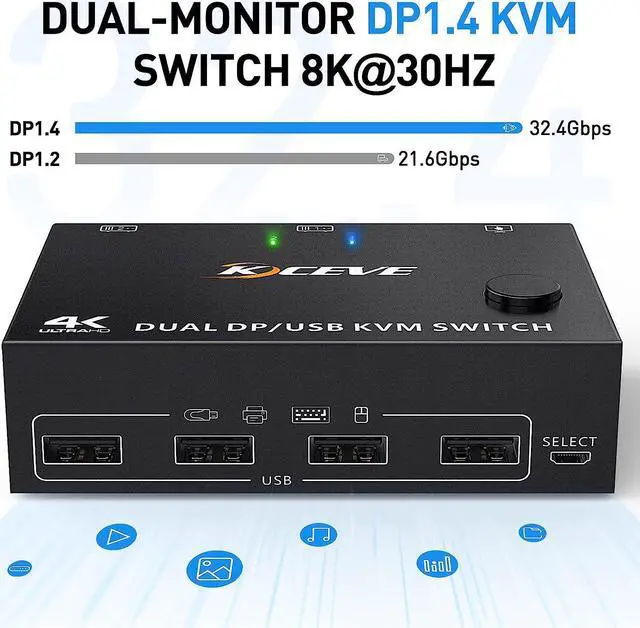
- Support the highest resolution 8K@30Hz, 4K@144Hz/100Hz,backward compatible with lower resolutions and DP1.2.
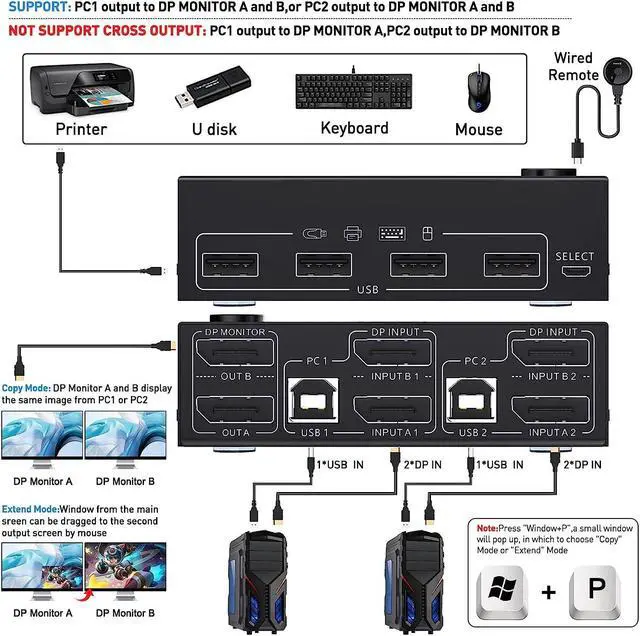
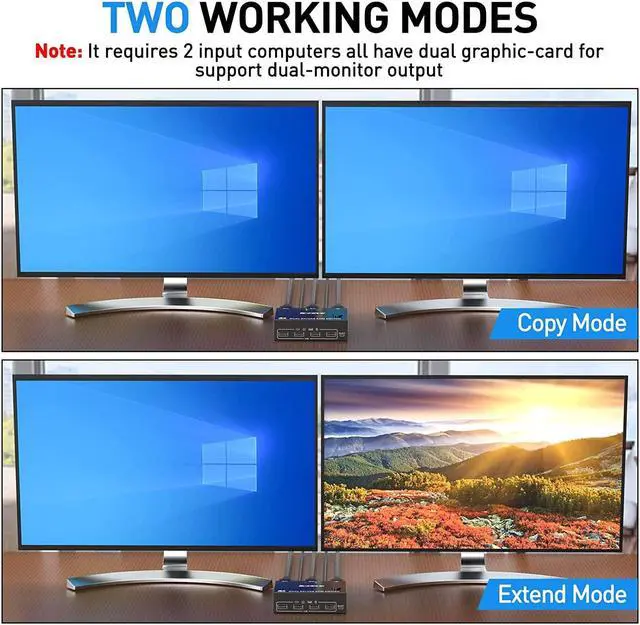
- Dual monitor output supports extended and copy display.Press [Window+P] to select the working mode, and supports most common operating systems.
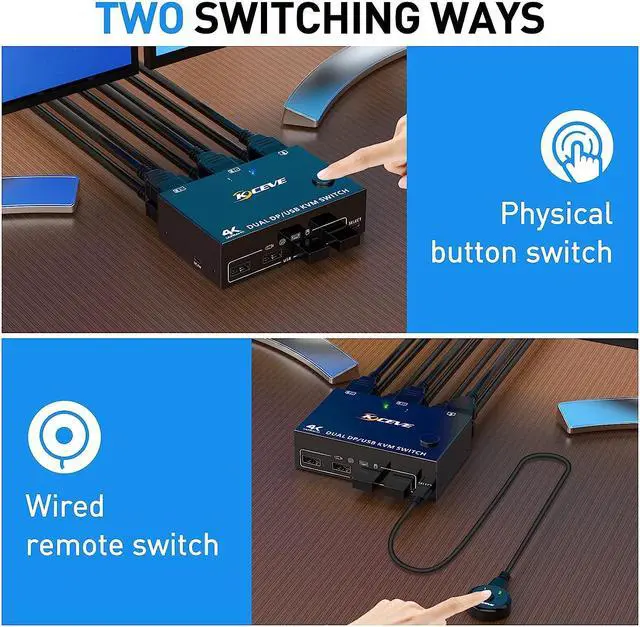
- Support push-button switch and wired remote control,two color indicator light.
Note:
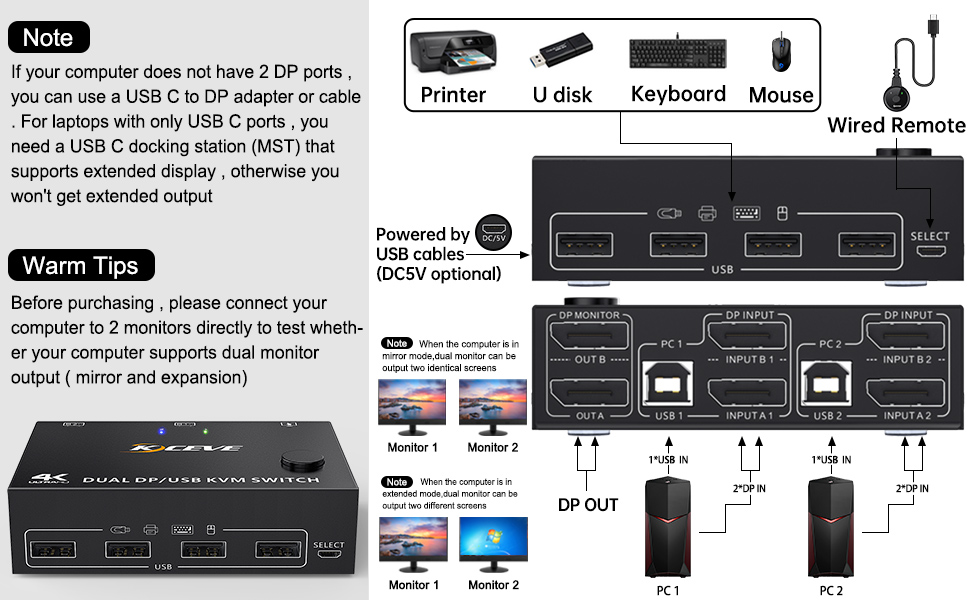
Dual monitor DP1.4 KVM switches require each computer to have 2 DP output ports and supports extended display, Support USB-C to DP adapter or cable, not compatible with VGA/DVI/HDMI to DP adapter or cable. If the computer only supports single display, then this product cannot help to get dual display function.
Installation Guide Tips (incorrect connection will cause malfunction):
Each computer must connection 2 DP cables and 1 USB cable to ensure keyboard, mouse and monitors to work correctly.
Connection steps:
Step 1. Connect 2*DP cables+1*USB-B cable between computer 1 and KVM (USB 1, INPUT A1, INPUT B1).
Step 2. Connect 2*DP cables+1*USB-B cable between computer 2 and KVM (USB 2, INPUT A2, INPUT B2).
Step 3. Connect 2*DP cables between the KVM (OUT A, OUT B) and the monitors.
Step 4. Connect the keyboard and mouse to the K/M USB ports on the KVM.
Step 5. Insert your USB devices into the USB port on the KVM.
Step 6. Insert the Wired Remote into the "SELECT" port to remotely switch between PC1 and PC2.
***Notice***
1.After connecting the computers and the monitors through KVM, you need to set the screen output mode on the computer (press Windows+P) and select the output mode in the pop-up window on the screen. Otherwise, only one of the two connected monitors has an image.
2.Before purchasing this dual monitor KVM switch, please make sure that connecting your computer directly to the monitor can produce images normally,Otherwise, the KVM will not be available.
3.Most of the reasons why only one video output works is because of incorrect connection. Please make sure each computer have(2 DP cables+1 USB cable) connect to the KVM.
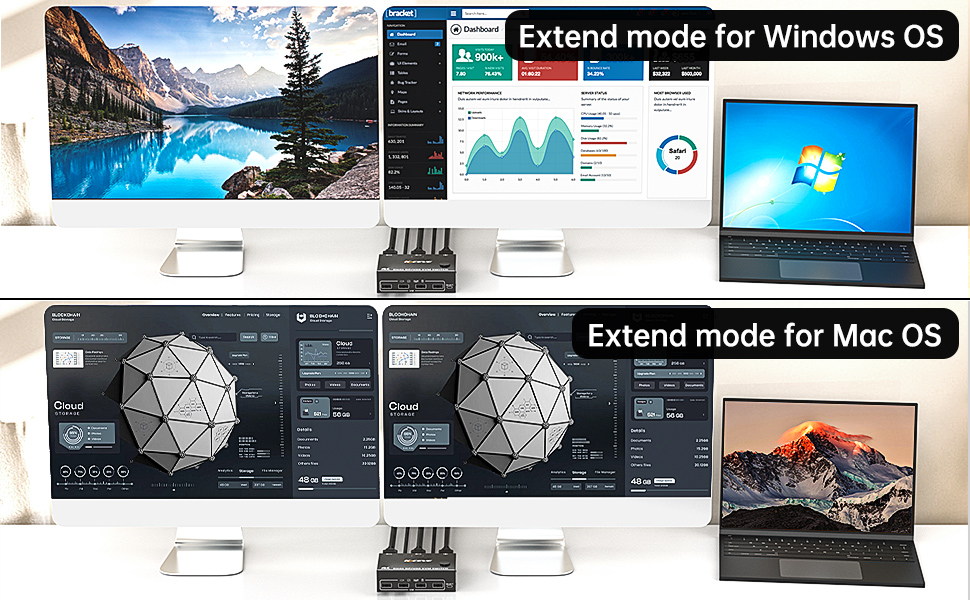
The windows system can expand 2 different screens, while the MAC system can only expand 2 identical screens.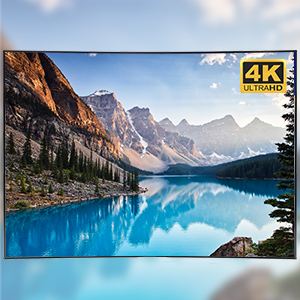
8K/4K HD Resolution
Support 8K@30Hz,4K@144Hz and backward compatible with lower resolutions.
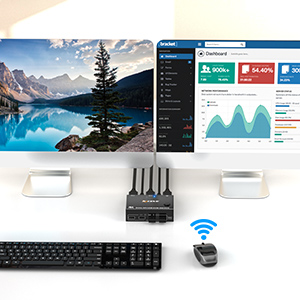
Support wireless keyboard and mouse
Support 2.4GHz wireless keyboard and mouse (not support Bluetooth)
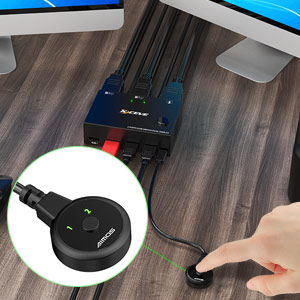
Wired Remote Controller (Length: 1.52m)
Supports remote switching of desktop controllers for easy cable management.With indicator light (green light).
important Tips:
- The premise for this dual displayport KVM to achieve dual-screen display is that each PC you connect to has the capability to support dual or multi-screen display. This has nothing to do with KVM. Detection method: You can connect the computer to 2 monitors directly (not via KVM). If both monitors have an on-screen display, the computer supports multi-monitor display.
- For laptops, this KVM switch dual displayport supports USB C docking stations, but the resolution refresh rate may be limited by the docking station, and you may need to connect DC 5V to power the KVM (depending on your docking station).
- The two monitors can only output the video source from one computer (mirror mode or expansion mode), and cannot output the signal source of PC1 and PC2 at the same time.
- The cables (2*DP cable+1*USB cable) connecting PC 1 and PC 2 to the KVM cannot be cross-connected.
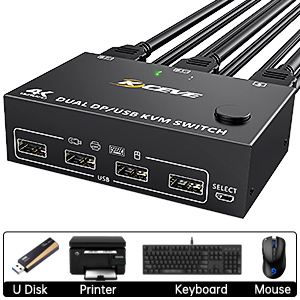
Share 4 USB 2.0 ports
4 USB ports, backward compatible with USB 2.0 and USB 1.1, share USB devices such as keyboard mouse scanner, printer, flash drive, etc.
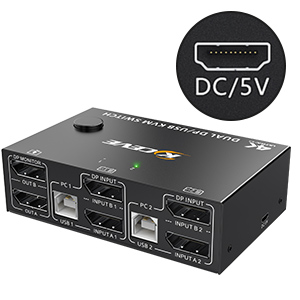
DC5V power port (optional)
When using a high-power USB device, please plug it in to provide sufficient power.(Power adapter not included)
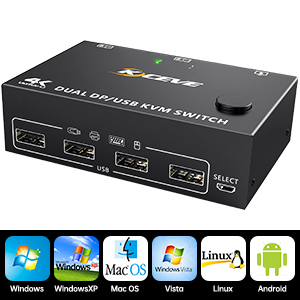
Suitable for multiple systems
Driver-free for Windows 11/10/8/7/Vista/XP and Mac OS,Linux.

Package content:
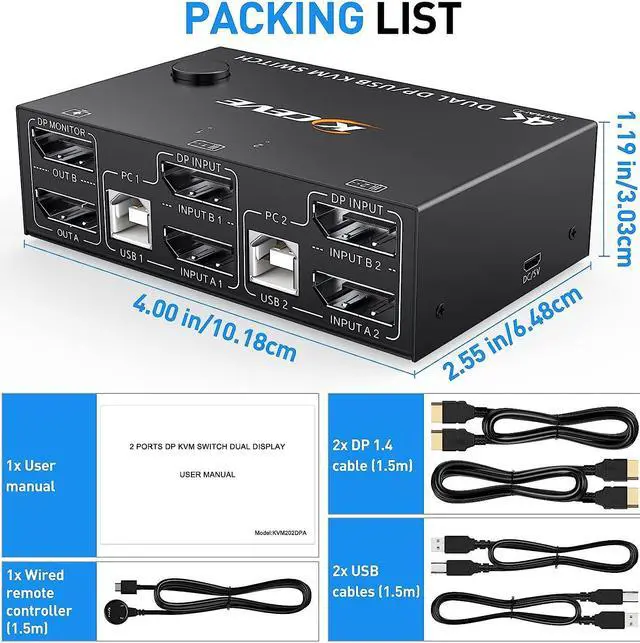
- 1*Dual Monitor Displayport1.4 KVM Switch;
- 2*DP1.4 Cables(1.5m/4.9ft);
- 2*USB2.0 Cables(1.5m/4.9ft);
- 1*Wired Remote Controller(1.52m/5ft);
- 1*DC5V Power Cable;
- 1*User Manual.
Please be Aware before Order:
- This Dual Monitor KVM Switch DisplayPort requires 2* DP+1*USB input for each computer and 2* DP output for 2 monitors. However, most computers especially laptops do not have 2 DisplayPort outputs,If so, please check if your computer / laptop has another video ports like HDMI or USB C (VGA and DVI is not recommended), If yes, you can use a powered HDMI to DP adapter (HDMI input, displayport output, with USB power), or a USB C to DP adapter for converting it to DisplayPort.
- When adapters are being used, the resolution will drop. So the less adapter the better.
- Suggest to Use DisplayPort monitor to avoid using adapters on video outputs.
- This Dual Monitor Displayport KVM Switch does not support EDID emulation (all DP KVM on the market do not support it, this is the DisplayPort specific issue and is why DisplayPort doesn't support EDID emulation, not just this product).