
Your Browsing History
- Free 15-day Returns
$75.99
Ships from China.


Meet Your Seller

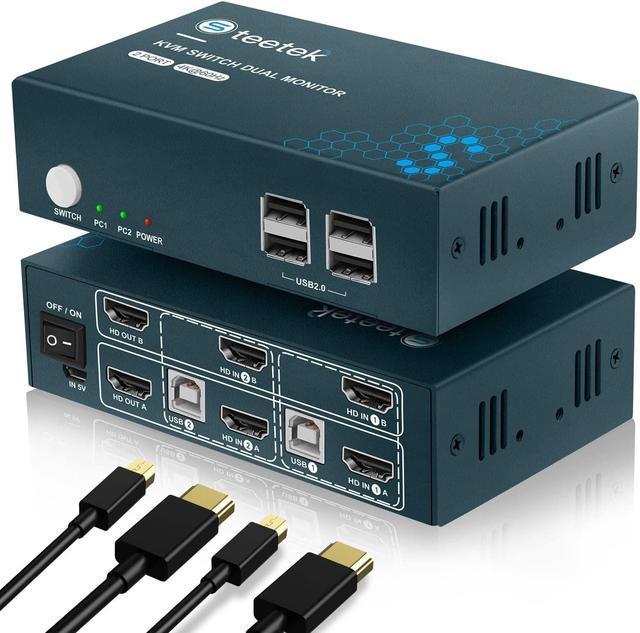


HDMI KVM Switch Dual Monitor,4K@60Hz, KVM Switch 2 Monitor, Backward Compatible with USB 1.1, KVM Switches HDMI 2.0, HDCP 2.2, Button Switch
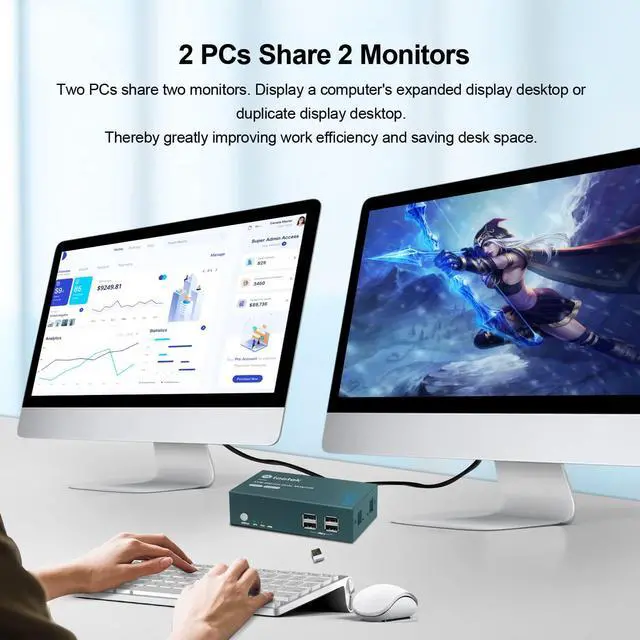
- HDMI 2 Port KVM Switch Dual MonitorThis dual monitor KVM switch can control up to 2 computers or laptops by controlling 1 set of USB keyboards and mouse, and sharing 2 monitors for extended or duplicate displays. It requires each computer to support 2 or more displays in order to achieve dual display functionality.
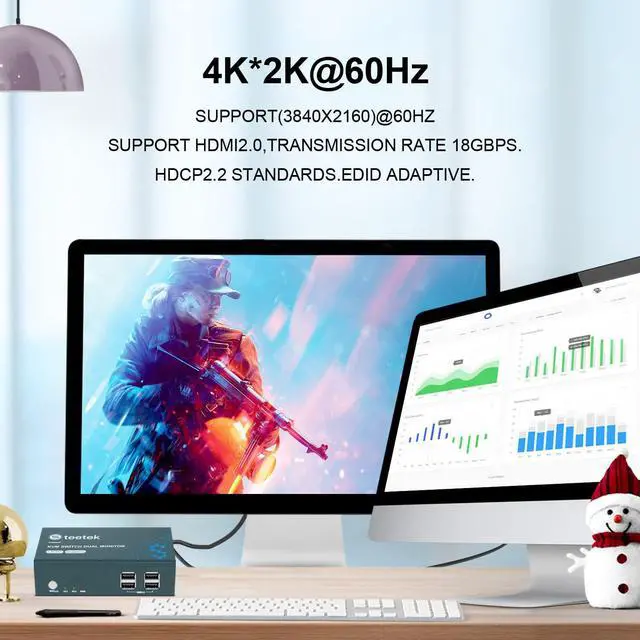
- Ultra HD 4K@60Hz HDMI Dual Monitor KVM The 2 Port KVM switch supports 3840*2160@60Hz and is backwards compatible with 1080P/720P resolutions, complies with HDMI 2.0 standards and has built-in automatic EDID, making the image output display more exquisite and realistic, bringing a better visual experience.
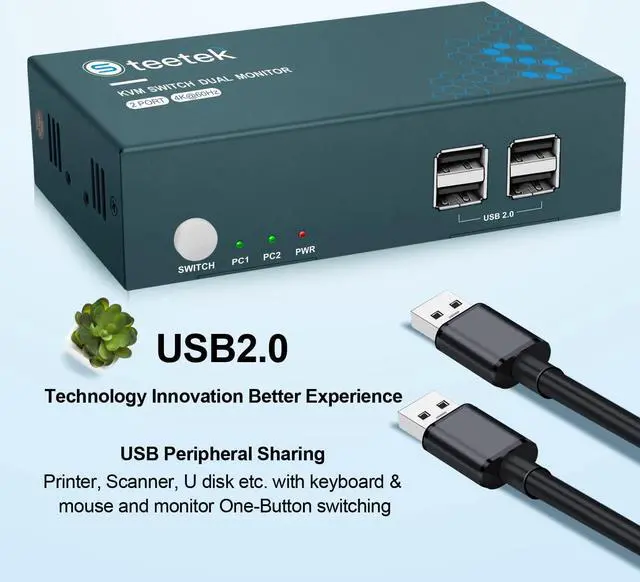
- KVM Switch HDMI with 2 USB 2.0 portThe KVM switch supports the USB 2.0 protocol and has 2 USB 2.0 ports, supporting various USB devices to be shared between 2 devices. You can use the USB devices on either computer as often as you like, and there is no need to plug and unplug them repeatedly when switching. Tip. Please connect the mouse and keyboard to the K/M port.
+
+
Overview
Specs
Reviews
HDMI KVM Switch Dual Monitor
This 2 port KVM switch can make 2 computers to share 2 monitors and 4 USB devices. It's greatly save the space. This dual monitor KVM switch can switch between 2 computers with in 2-4 seconds, quick and without delay. It's a good choice for work, gaming, teaching, etc.
Why choose this?
2 in 2 out, 2 computers share 2 monitors, saving space on the desktop.
2 USB 2.0 ports & 2 USB 1.1 ports, support different version of USB devices
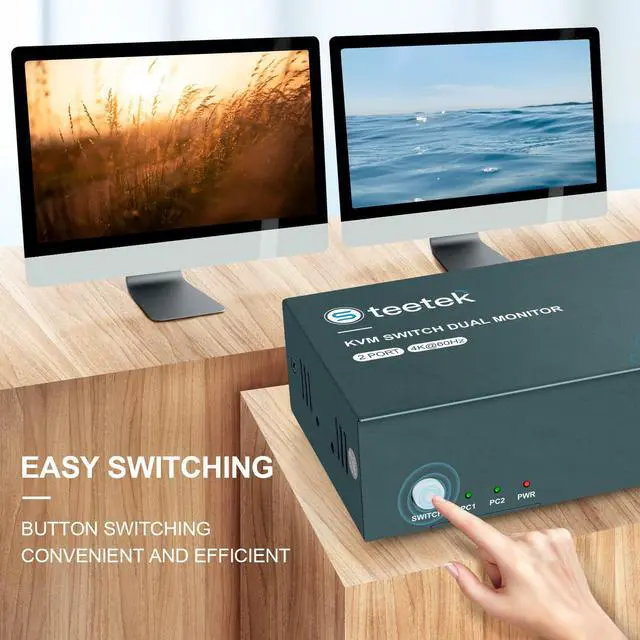
Hotkey switching and button switching, 2 model convenient and quick
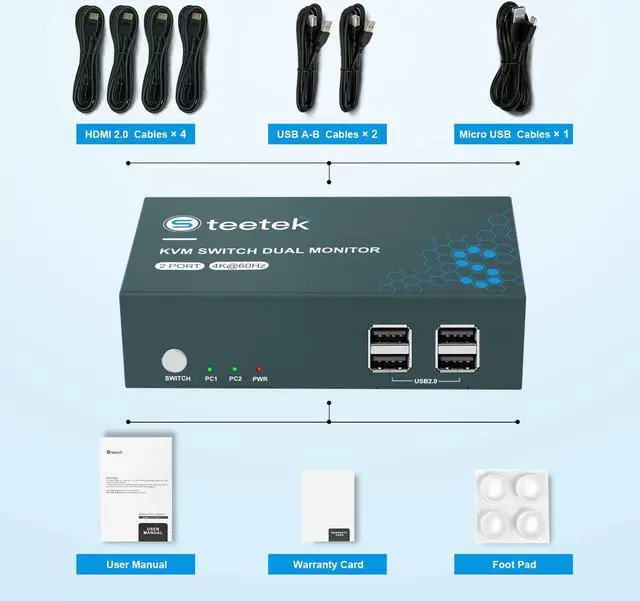
Provide the cables you needed, 2 HDMI cables, 2 USB cables, 1 Micro USB cable
KVM Switch with 2 switching methods
This KVM switch has 2 switching methods, push button switching and hot key switching. You can use either switching method according to your custom and it takes 2-4 seconds for you to switch between 2 computers.
1. Hotkey switching.
Press Scroll Lock+Scroll Lock+1/2 or press Ctrl+Ctrl+1/2.
2. One Click Switching.
There is a button on the front of the KVM panel that when you press it, switches to another computer.
dual monitor kvm switch HDMI
2 monitor 2 computer kvm switch
kvm switch 2 port
2 Display Modes
1. extended display
2. Copy display
Please adjust to your desired mode before use.
Highly Compatible with Most Systems
KVM is highly compatible and works with most systems on the market. Examples include Windows, Linux, Unix, Mac, etc.
Small Size
The KVM is small in size, about the size of a hand. It doesn't take up too much space on your desk, saving you even more space in your office life.
How to connect?
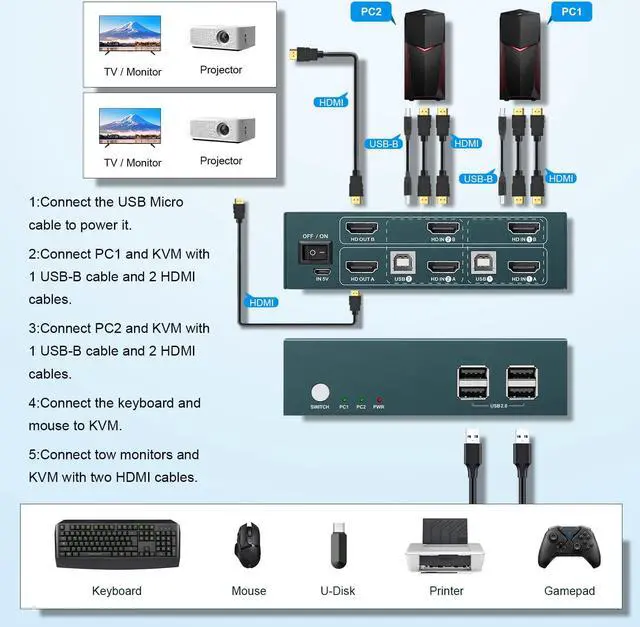
Step 1: Connect the micro USB cable to the "IN 5V" connector of KVM to ensure power supply.
Step 2: Use 1 USB cable and 2 HDMI cable to connect the "USB1" and "HD IN 1A" "HD IN 1B" of PC1 of the KVM Switch.
Step 3: Use 1 USB cable and 2 HDMI cable to connect the "USB2" and "HD IN 2A" "HD IN 2B" of PC2 of KVM Switch.
Step 4: Use 2 HDMI cable to connect the monitor to the "HD OUT A" "HD OUT B" port of the KVM switch.
Step 5: Plug the keyboard and mouse into the K/M ports of the KVM switch.
This 2 port KVM switch can make 2 computers to share 2 monitors and 4 USB devices. It's greatly save the space. This dual monitor KVM switch can switch between 2 computers with in 2-4 seconds, quick and without delay. It's a good choice for work, gaming, teaching, etc.
Why choose this?
2 in 2 out, 2 computers share 2 monitors, saving space on the desktop.
2 USB 2.0 ports & 2 USB 1.1 ports, support different version of USB devices
Hotkey switching and button switching, 2 model convenient and quick
Provide the cables you needed, 2 HDMI cables, 2 USB cables, 1 Micro USB cable
KVM Switch with 2 switching methods
This KVM switch has 2 switching methods, push button switching and hot key switching. You can use either switching method according to your custom and it takes 2-4 seconds for you to switch between 2 computers.
1. Hotkey switching.
Press Scroll Lock+Scroll Lock+1/2 or press Ctrl+Ctrl+1/2.
2. One Click Switching.
There is a button on the front of the KVM panel that when you press it, switches to another computer.
dual monitor kvm switch HDMI
2 monitor 2 computer kvm switch
kvm switch 2 port
2 Display Modes
1. extended display
2. Copy display
Please adjust to your desired mode before use.
Highly Compatible with Most Systems
KVM is highly compatible and works with most systems on the market. Examples include Windows, Linux, Unix, Mac, etc.
Small Size
The KVM is small in size, about the size of a hand. It doesn't take up too much space on your desk, saving you even more space in your office life.
How to connect?
Step 1: Connect the micro USB cable to the "IN 5V" connector of KVM to ensure power supply.
Step 2: Use 1 USB cable and 2 HDMI cable to connect the "USB1" and "HD IN 1A" "HD IN 1B" of PC1 of the KVM Switch.
Step 3: Use 1 USB cable and 2 HDMI cable to connect the "USB2" and "HD IN 2A" "HD IN 2B" of PC2 of KVM Switch.
Step 4: Use 2 HDMI cable to connect the monitor to the "HD OUT A" "HD OUT B" port of the KVM switch.
Step 5: Plug the keyboard and mouse into the K/M ports of the KVM switch.
Warranty & Returns
Warranty, Returns, And Additional Information
Warranty
- Please contact the Seller directly for warranty information. Warranty information may also be found on the Manufacturer's website.
- CONTACT
Return Policies
- Return for refund within: 15 days
- Return for replacement within: 30 days
- This item is covered by Superior Quality Return Policy
Manufacturer Contact Info
- For a directory of all our manufacturers, please click below.
- Manufacturers Directory
LOADING...