
Your Browsing History




Specification
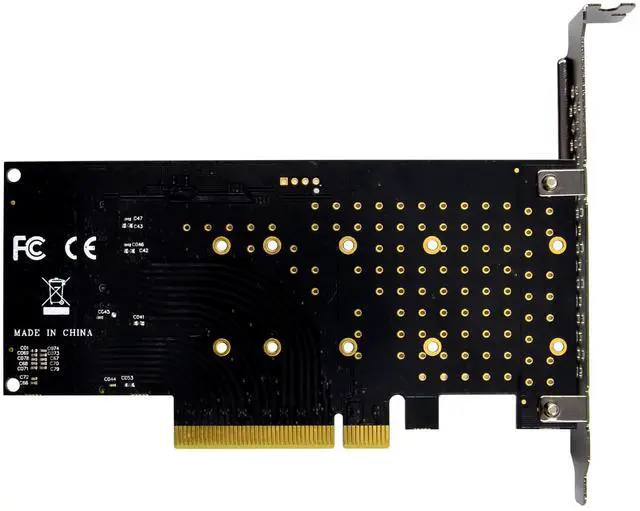
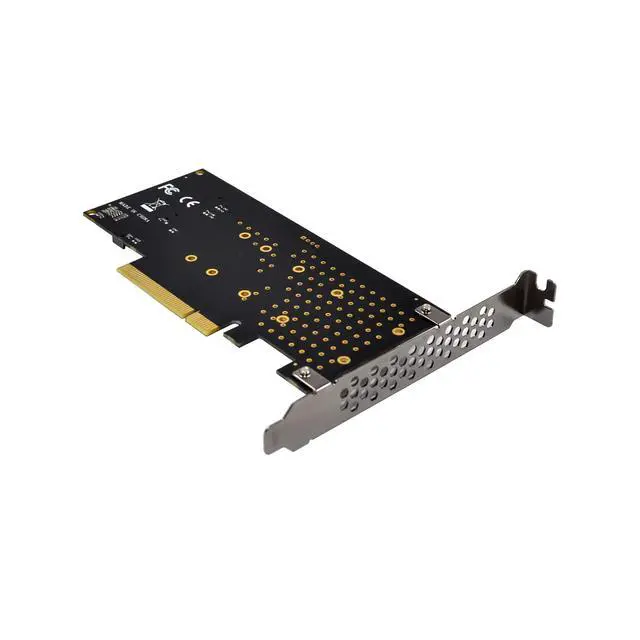
Compliant with PCI Express specification Revision v3.0
PCI Express interface x8 bandwidth with 64Gb/s
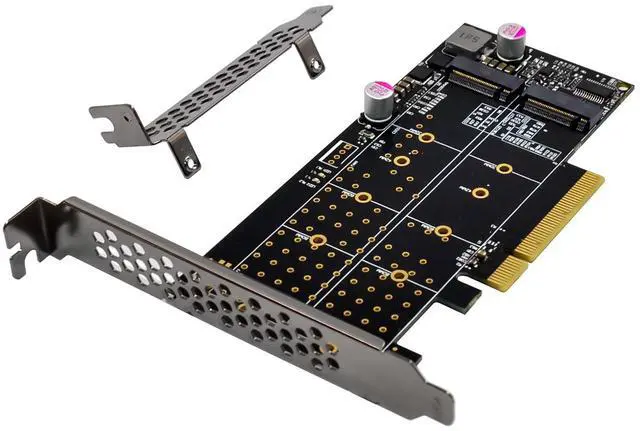
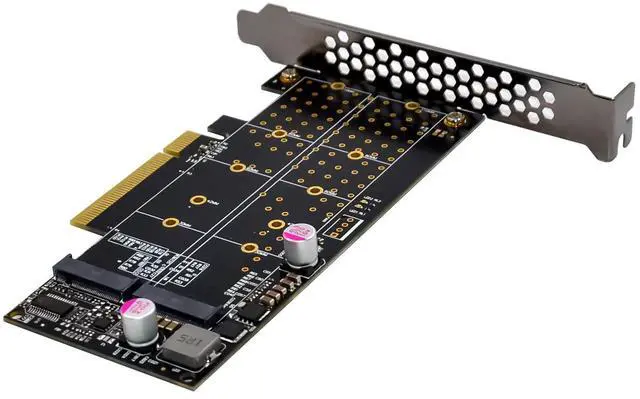
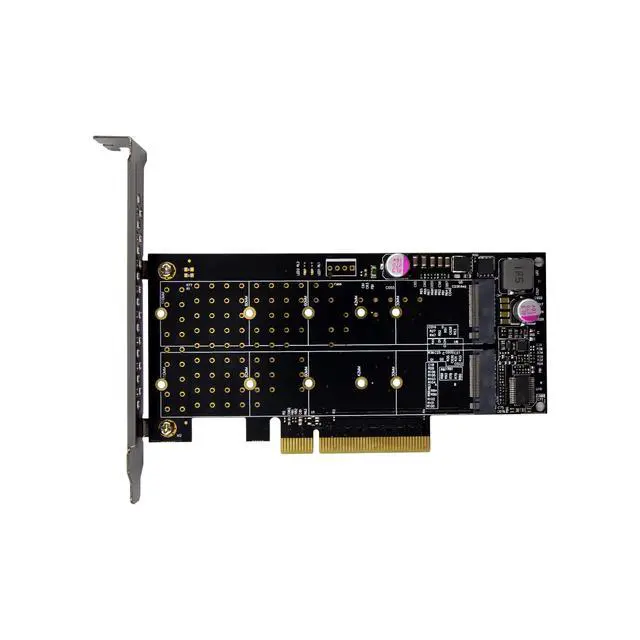
Support for two M.2 M Key PCIe Protocol NVMe SSD Drive
Support M.2 M key SSD Drive size:2230,2243,2260,2280,22110mm
Each port support transmission speeds up to 4GB/s
Onboard with LED indictor
The M.2 SSD gets its power supply form the motherboard PCIe BUS
It must need your motherboard support PCIe 3.0 bifurcation function
Industrial operating temperature range:-40~85°C
Support operating system:Windows11,Windows10,Windows 8,Windows8.1, Windows Server 2012 R2,Linux, Fedora, SUSE, Ubuntu, Red hat native drivers support PCIe NVMe
No driver is required because the driver is transparent to the operating system, need to support NVMe protocol
Package content
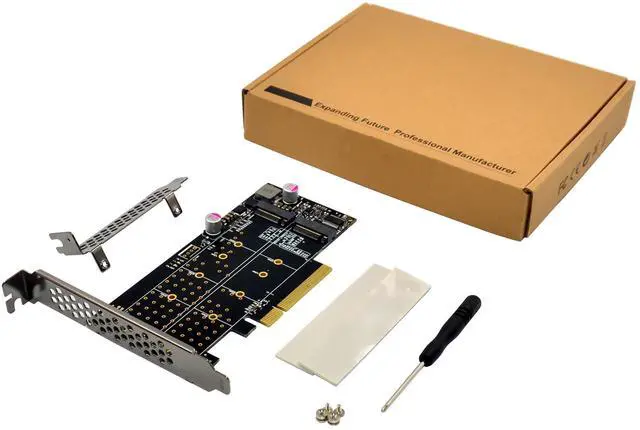
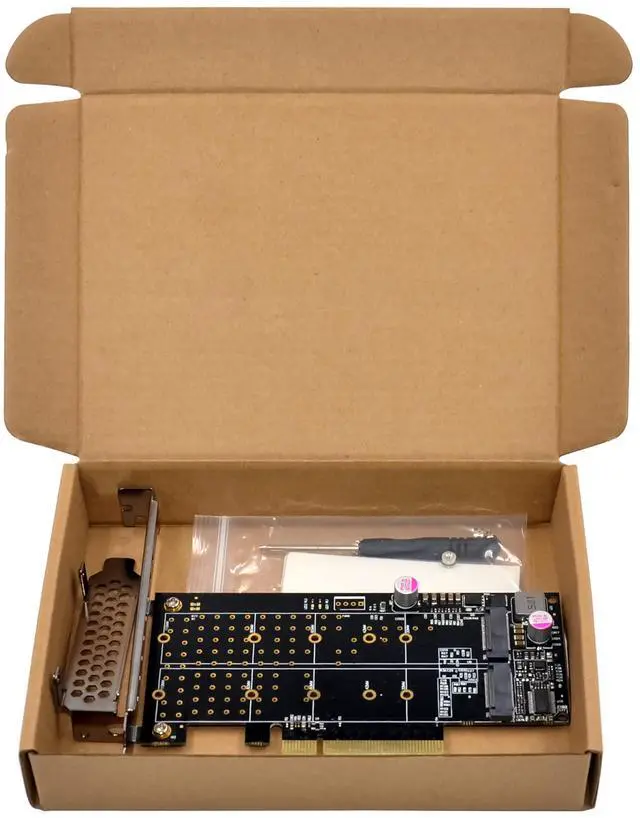
1 x PCIe x8 2-Port Hyper M.2 NVMe SSD Adapter
1 x Users Manual
Accessories
System Requirements
Windows11, Windows10,Windows 8,Windows8.1, Windows Server 2012 R2,Linux 32bit or 64 bit
One available PCI-Express x16 slot
Hardware installation
Please first installed the M.2 SSD into the adapter, then follow these steps:
1.Turn Off the power to your computer.
2. Unplug the power cord and remove your computers cover.
3. To install the card, carefully align the cards bus connector with the selected PCIe slot on the motherboard. Push the board down firmly.
4. Replace the slot brackets holding screw to secure the card.
5. Replace the computer cover and reconnect the power cord.
More information and settings please refer to the User Guides or you can contact us.
Motherboard BIOS Setting
Please refer to your motherboard instructions before setting up, or you can ask your motherboard vendor if the motherboard support PCIe x16 bifurcation function. Because the BIOS of most motherboards defaults to PCIe in X16 mode. so we must set it at the boot time. And different motherboard setup are also different, please refer your motherboard user manual for details