shippingWe‘re shipping as usual! The Canada Post strike only affects certain remote deliveries and PO Boxes. Details
shipping Holiday Shipping Details & Extended Holiday Returns
  • $69.49
  • Free 30-day Returns
Ships from China.
Price alert

Best Sellers

Top Rated
4.3 (6 total ratings)
  • $74.99
  • + FREE SHIPPING
Shop it at NeweggBusiness.

Capture Card, Audio Video Capture Card with Microphone 4K HDMI Loop-Out, 1080p 60fps Video Recorder for Gaming/Live Streaming/Video Conference, Works for Nintendo Switch/PS4/OBS/Camera/PC

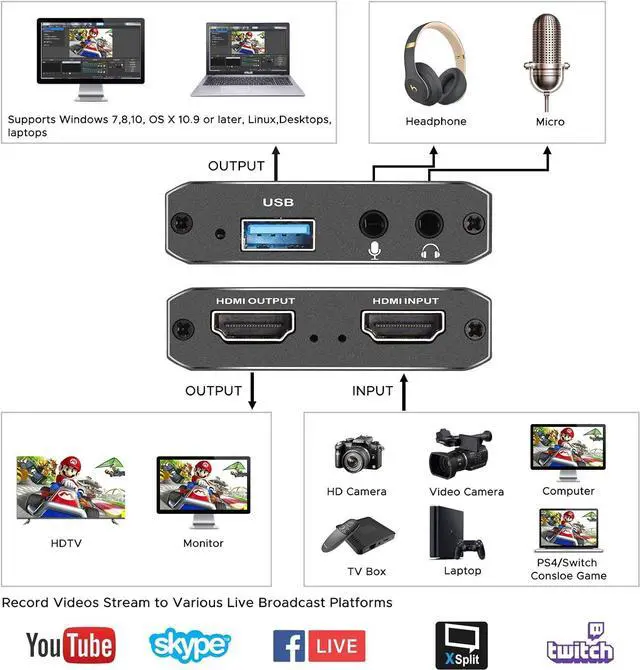
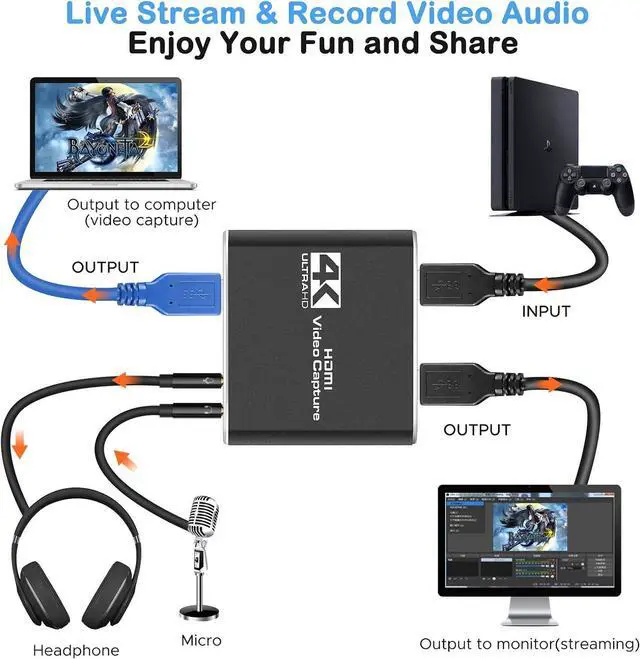
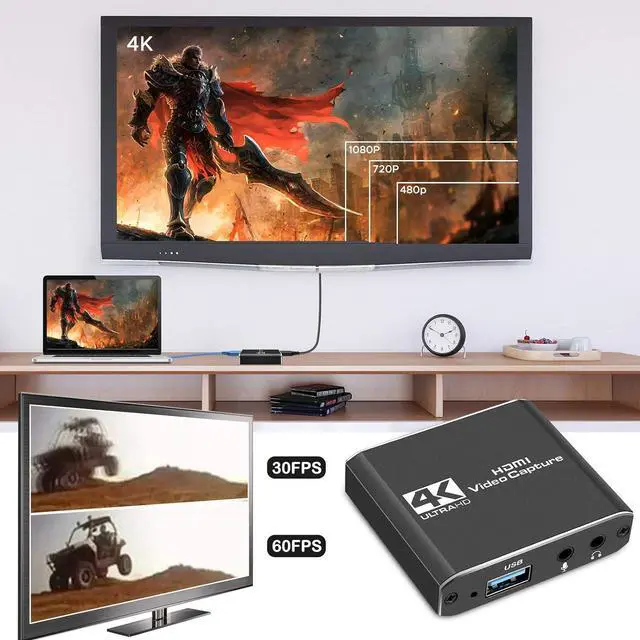
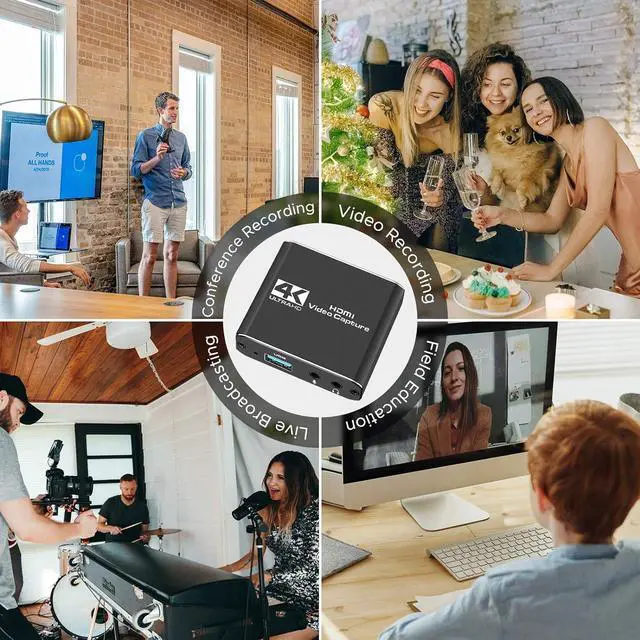
  • 4K HDMI Game Capture Card: TKHIN game video capture card is designed with high-end smart chip, stylish and compact by decent Aluminum Alloy shell. Supports up to 4K@60fps HDMI input, plug and play let the device work instantly with stream media like OBS. Ideal for live streaming, gaming broadcast, video recording, conference rooms, etc.
  • HD 1080P 60fps Signal Loop Out: This HDMI capture card for Nintendo Switch has maximum HDMI output resolution up to 4K@30fps, and streams 1080p@60fps video signal through USB 3.0 port. It outputs a clean and clear excellent inage quality without frame lag. You can enjoy recording specific moments in video game adventures.
  • 3.5mm Microphone and Audio Input/Output Port: You can connect the audio video capture device with your earphone with 3.5.mm audio out port, you can also connect the video capture device with 3.5mm Microphone so that you can stream your voice and record your voice by the ports easily.
+
+
Overview
Specs
Reviews
High Performance Chip
Super Performance Chip makes video conferencing, game live broadcasting, etc. clearer and smoother. No delay, no blue screen

Ult-HD 1080P Clear Image
Full HD 1080P video capture, 60Fps video recording and live broadcast.
High-intensity reproduction of video delicate colors, clear, vivid picture quality

Wide Compatibility for Muti APP/devices
Works well with most mainstream game consoles, Camera, DSLR; OBS Studio, QuickTime Broadcaster (OS X), etc.

Select the Capture Card 1-1
In the red arrow column, select "USB Video" and the current audio and video capture. As shown in Figure 1-1

Select the Capture Card 2-1
A. Custom Resolution: The Resolution/FPS Type column is set to custom. As shown by the white arrow in Figure 2-1.

B. Set Resolution: Select the appropriate resolution at the up and down arrows on the far right of this column. As shown by the yellow arrow in Figure 2-1.

C. Set FPS : Select the appropriate frame rate at the up and down arrows on the far right of this column. As shown by the red arrow in Figure 2-1.


Drag the drop-down bar on the far right to set the desktop audio and MIC mixing. 3-1

A. Select the "Output Desktop Audio" item at the up and down arrows on the far right of the "Audio Output Mode" column.As shown by the red arrow in Figure 3-1.

B. Mark the "" in the red box. As shown below:

C. Select the MIC input of the collector at the up and down arrows on the far right of the "Audio Device" column. As shown by the yellow arrow in Figure 3-1.

The OBS is set up and it can be used normally.

Warranty & Returns

Warranty, Returns, And Additional Information

Warranty

  • Please contact the Seller directly for warranty information. Warranty information may also be found on the Manufacturer's website.
  • CONTACT

Return Policies

Manufacturer Contact Info

LOADING...
LOADING...