



Meet Your Seller

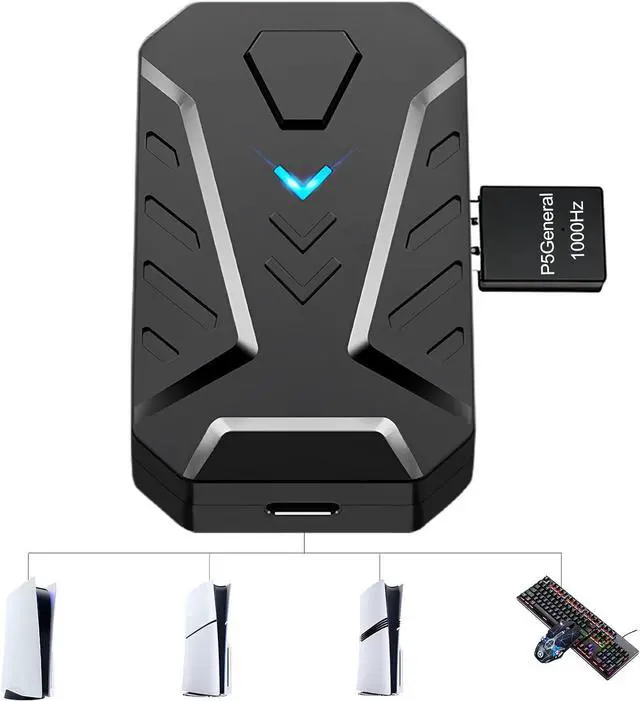
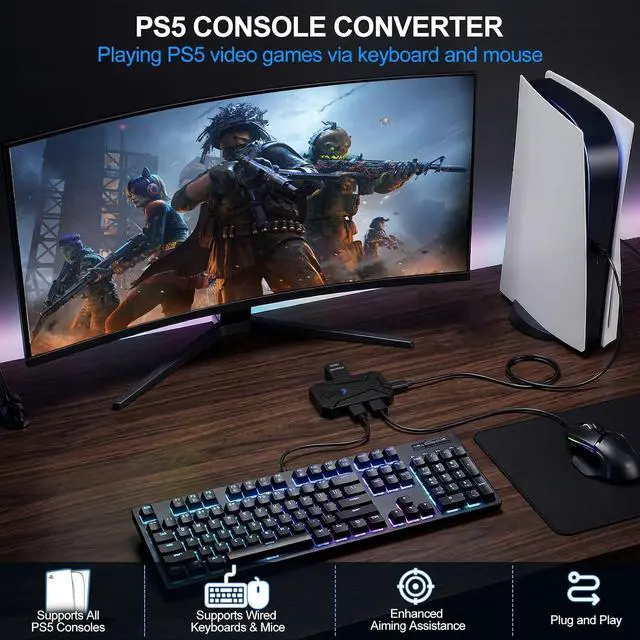




Keyboard and Mouse Adapter for PS5/PS5 Slim/PS5 Pro with P5 General Adapter, 1000Hz Ultra-Low Lag Console Converter for PlayStation 5 Supports Adjust Mouse Sensitivity, Change Default Key, Plug & Play
- Specially Designed for PS5: This keyboard and mouse adapter set is designed specifically for PS5, PS5 Slim, and PS5 Pro consoles. Additionally, this PS5 general adapter is also compatible with HITBOX, XIM Matrix, ReaSnow S1, and Raspberry Pi
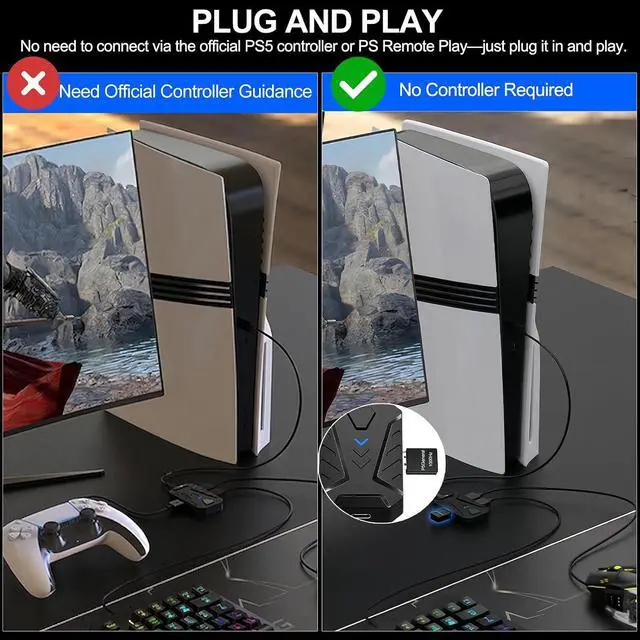
- Plug and Play: This keyboard and mouse converter with PS5 adapter requires no complicated apps, no remote PS5 console, and no original PS5 controller setup required Play Directly!
- 1000Hz Polling Rate: Our PS5 General adapter brings you an ultra-low latency gaming experience, with a 1000Hz response rate ensuring instant response to every command.
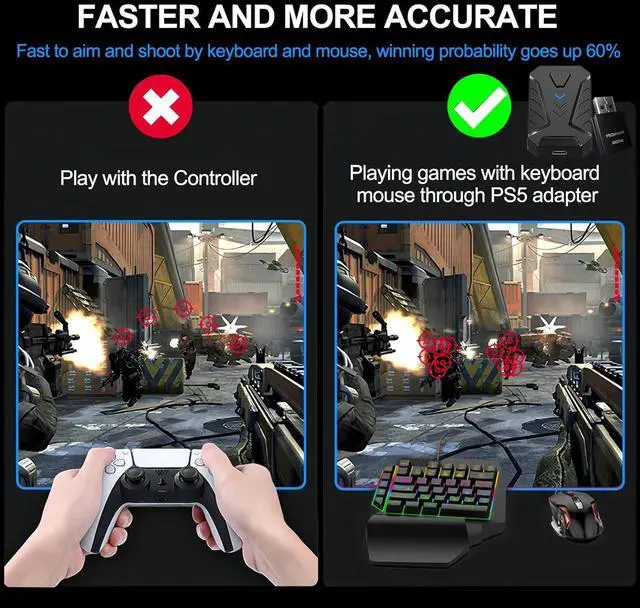
- Ultimate Gaming Experience: Our ps5 keyboard and mouse adapter can help you play games with wired or 2.4G wireless keyboard and mouse, replacing your original wireless controller, provide you with precise control without delay and enhancing game fun! This PS5 converter perfect for FPS, TPS, RPG and RTS games. for Call of duty (COD), PUBG, Fortnte and most shooting games.[Does not support Bluetooth keyb
+
+
Overview
Specs
Reviews
Our PS5 adapter enhances your gaming experience, allowing you to enjoy gaming with virtually no lag
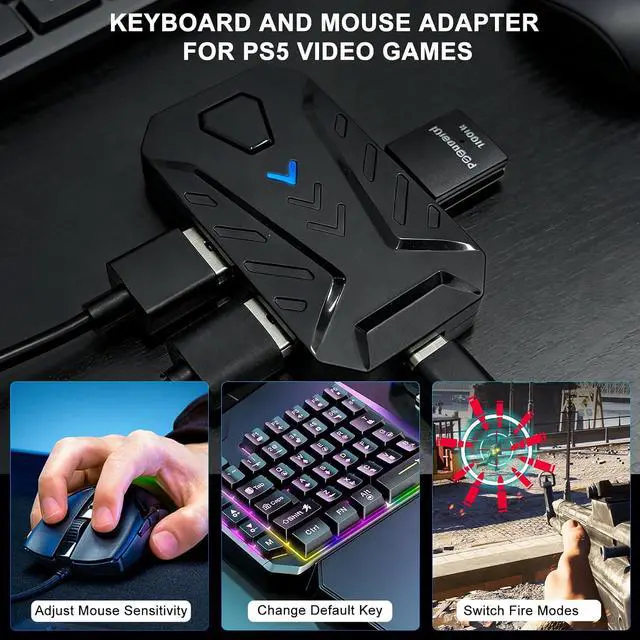
1Connect to PS5 2Change Default Key 3Firmware Updates 1Converter Interface 2Packing List Name Keyboard and Mouse Converter for PS5 Material ABS Converter Interface USB Port x3 ; Type C Port x1 For PlayStation Keyboard and mouse adapter for PS5, PS5 Slim, PS5 Pro Support Keyboard & Mouse Types Support wired keyboard and mouse; Support 2.4G Wireless keyboard and mouse [Not support Bluetooth Wireless keyboard and mouse] Adjust Mouse Sensitivity [Ctrl + Mouse Wheel Up/Down] In the game, Hold Ctrl and use the Mouse Wheel to fine-tune your general look and hip-fire aim sensitivity. Release Ctrl to save. NOTE: Aim Down Sights (ADS) sensitivity is configured independently within the aiming mode. Adjust Curve Sensitivity [Shift + Mouse Wheel Up/Down] In the game, Hold Shift and use the Mouse Wheel to adjust the sensitivity of curve. Release Shift to save. Invert Y-axia Setting [Ctrl + R] In some games, the Y-axis control may have the opposite direction to the default setting. You can press Ctrl+R in the game to toggle the direction. Switch Fire Modes [Press F4] To switch fire modes, press the F4 key to toggle between Single Shot and Rapid Fire. Important: In Rapid Fire mode, you must press and hold the left mouse button to fire continuously. Default Key Customization (1). On your PS5, go to: Settings Accessibility Controllers Custom Button Assignments for DualSense Wireless Controller "Enable Custom Button Assignments" to set to on Customize Button Assignments. (2). Select a controller button you wish to change, then assign it a new key from the available list. NOTE: W, A, S, D keys are permanently mapped to the Left Stick direction and cannot be reassigned. This feature only allows button swapping within the system's predefined options. 1000Hz Polling Rate for Elite Responsiveness Plug and play Best Gaming Accessories for Shooting Games Product ParametersCompatible DevicesFunctions
1Connect to PS5 2Change Default Key 3Firmware Updates 1Converter Interface 2Packing List Name Keyboard and Mouse Converter for PS5 Material ABS Converter Interface USB Port x3 ; Type C Port x1 For PlayStation Keyboard and mouse adapter for PS5, PS5 Slim, PS5 Pro Support Keyboard & Mouse Types Support wired keyboard and mouse; Support 2.4G Wireless keyboard and mouse [Not support Bluetooth Wireless keyboard and mouse] Adjust Mouse Sensitivity [Ctrl + Mouse Wheel Up/Down] In the game, Hold Ctrl and use the Mouse Wheel to fine-tune your general look and hip-fire aim sensitivity. Release Ctrl to save. NOTE: Aim Down Sights (ADS) sensitivity is configured independently within the aiming mode. Adjust Curve Sensitivity [Shift + Mouse Wheel Up/Down] In the game, Hold Shift and use the Mouse Wheel to adjust the sensitivity of curve. Release Shift to save. Invert Y-axia Setting [Ctrl + R] In some games, the Y-axis control may have the opposite direction to the default setting. You can press Ctrl+R in the game to toggle the direction. Switch Fire Modes [Press F4] To switch fire modes, press the F4 key to toggle between Single Shot and Rapid Fire. Important: In Rapid Fire mode, you must press and hold the left mouse button to fire continuously. Default Key Customization (1). On your PS5, go to: Settings Accessibility Controllers Custom Button Assignments for DualSense Wireless Controller "Enable Custom Button Assignments" to set to on Customize Button Assignments. (2). Select a controller button you wish to change, then assign it a new key from the available list. NOTE: W, A, S, D keys are permanently mapped to the Left Stick direction and cannot be reassigned. This feature only allows button swapping within the system's predefined options. 1000Hz Polling Rate for Elite Responsiveness Plug and play Best Gaming Accessories for Shooting Games Product ParametersCompatible DevicesFunctions
Warranty & Returns
Warranty, Returns, And Additional Information
Warranty
- Please contact the Seller directly for warranty information. Warranty information may also be found on the Manufacturer's website.
- CONTACT
Return Policies
- Return for refund within: 30 days
- Return for replacement within: 90 days
- This item is covered by PartsPro Store Return Policy
Manufacturer Contact Info
- For a directory of all our manufacturers, please click below.
- Manufacturers Directory
LOADING...