
Your Browsing History
- Free 15-day Returns
$87.78
Ships from China.


Meet Your Seller

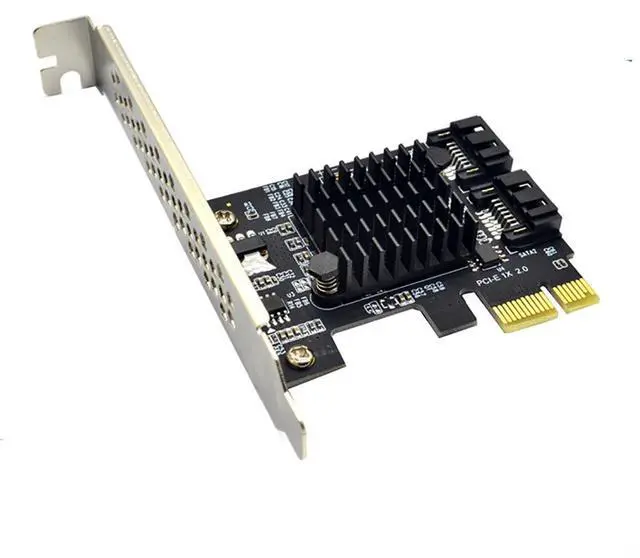
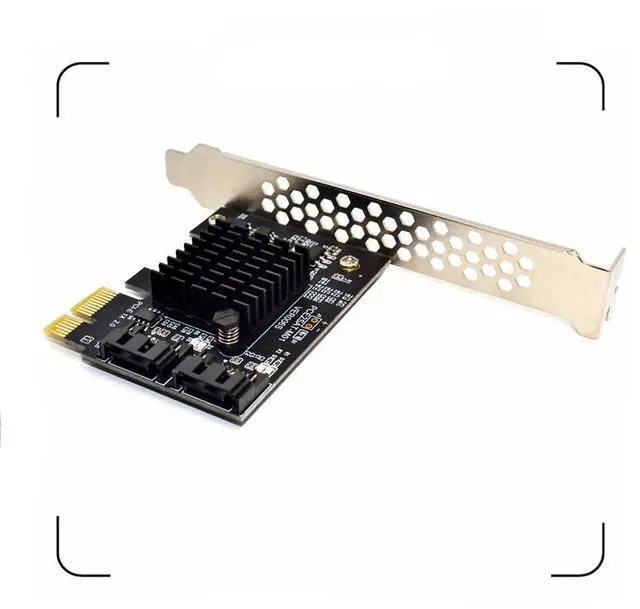
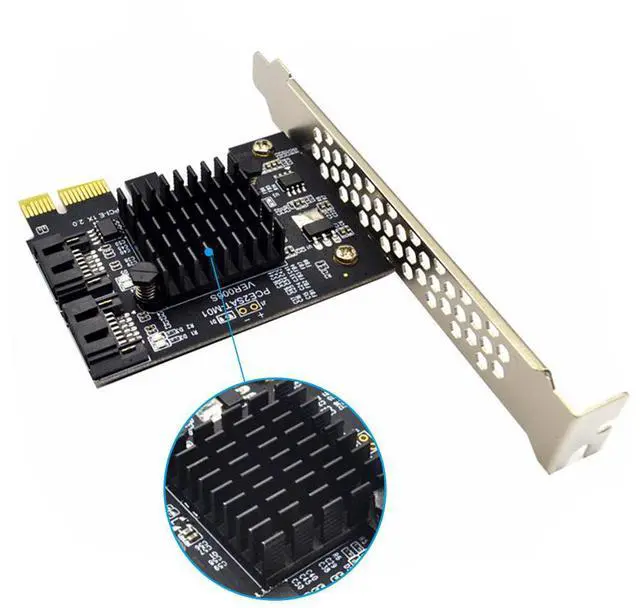
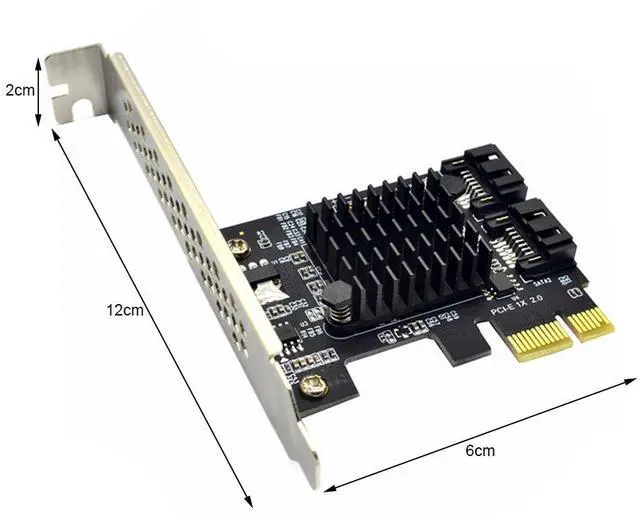
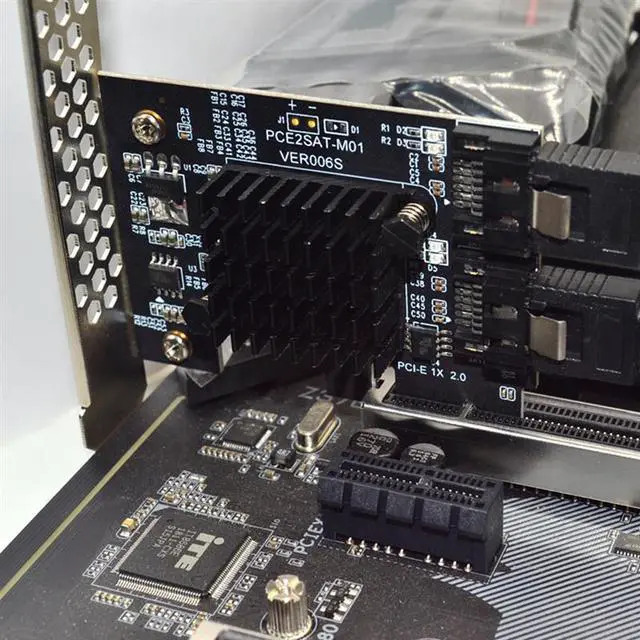


BUCIER 2 Port SATA III PCIe 3.0 X1 Controller Card, PCI Express to SATA 3.0 6G, Marvell 88SE91XX
- Meets Serial ATA 3.0 specification, backward compatible with SATA2.0 SATA1.0;
- Compliant with PCI-Express v2.0 specification, backward compatible with PCI-Express v1.0;
- Supports communication speeds of 6.0 Gbps, 3.0 Gbps, and 1.5 Gbps;
- Support Gen 1i, Gen 1x, Gen 2i, Gen 2m, Gen 2x, and Gen 3i;
- Supports two SATA;
- Support AHCI1.0 mode and IDE mode;
- Support native command queue (NCQ);
- Hot-swappable and hot-swappable;
- Compatible with SATA6G, 3G and 1.5G Hard Drives;
- Bus interface: PCI-Express x1 slot(Compatible PCI-E X2 X4 X8 X16 );
- Extension ports: 2 Port SATA3.0 interfaces;
- Feature: with large heat sink for long time safe working;
- Support System: Windows 10/8/7 (32/64 bit) / Vista (32/64 bit) / XP/2003/2008/linux.
+
+
Overview
Specs
Reviews
System disk and PCIE to SATA 3.0 adapter card connection conditions and solutions: 1. PCIE to SATA 3.0 SATA interface mode is AHCI mode, if you want to insert the system disk in our card, the premise is that your system disk installed on the motherboard must be AHCI mode installation, otherwise it can not pass Our card adapter card boot system.
2. If it is determined that the system disk is inserted in the AHCI mode of the SATA interface mounting system on the mainboard, then the hard disk can be directly inserted into our card, and then the mainboard BIOS is set to start the system disk as the first boot. 3. the above two conditions are available, if you still can not start, or repeatedly restart, then the motherboard hard drive interface and our adapter card conflict, the solution is to enter the motherboard BIOS, the motherboard's hard disk interface options set to Disabled, save and restart to boot the system
Attention: Don't Support as
System Kind Tips:
1. With SATA 3.0 data cable to achieve the best results. 2. PCI-E X1 or X16 must be it is V 2.0 version, PCI-E V 1.0 speed will not exceed 250M, we suggest directly inserted On the X16 slot, the pci-e x16 usually is v 2.0 3.
BOIS setting of the motherboard: SATA mode should be changed to AHCI, although some motherboard PCIE is version 2.0, but BOIS does not enable high-speed transmission mode by default (gen2 high speed mode) needs to be manually turned on. Thanks! 4.
Warm tips: because Lenovo and Dell computers shield the BIOS interface of the third-party array card, it will lead to unpredictable compatibility problems. Please Lenovo and Dell computer's user do not buy. Thank you.
What's Include: 1 x PCI-E to SATA 3.0 Extension Card
Warranty & Returns
Warranty, Returns, And Additional Information
Warranty
- Please contact the Seller directly for warranty information. Warranty information may also be found on the Manufacturer's website.
- CONTACT
Return Policies
- Return for refund within: 15 days
- Return for replacement within: 30 days
- This item is covered by Electronics store Return Policy
Manufacturer Contact Info
- For a directory of all our manufacturers, please click below.
- Manufacturers Directory
LOADING...