


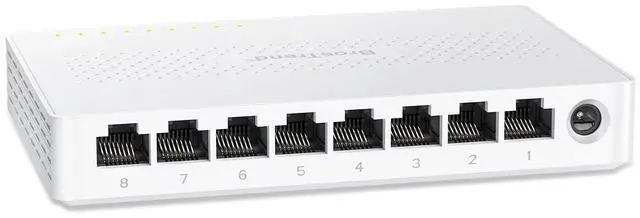
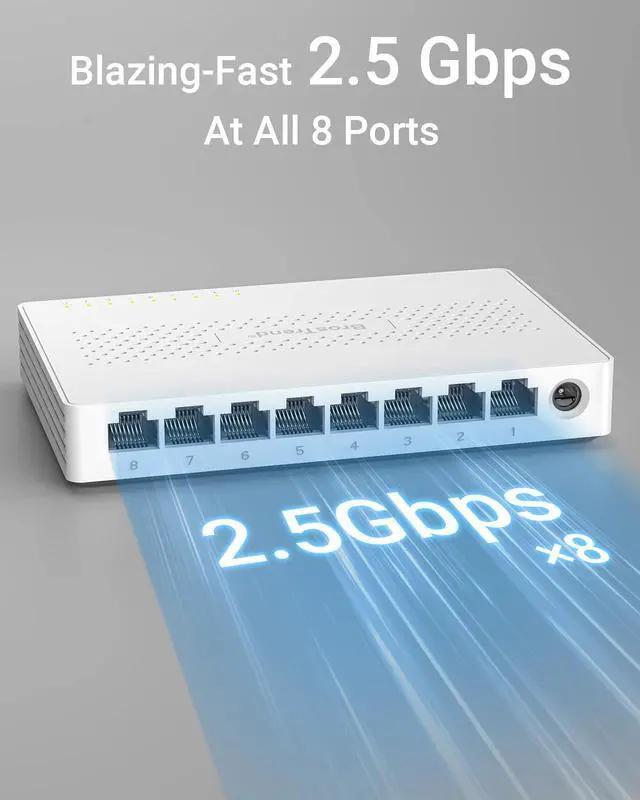



BrosTrend 8-Port 2.5G Network Switch
Merchant Video


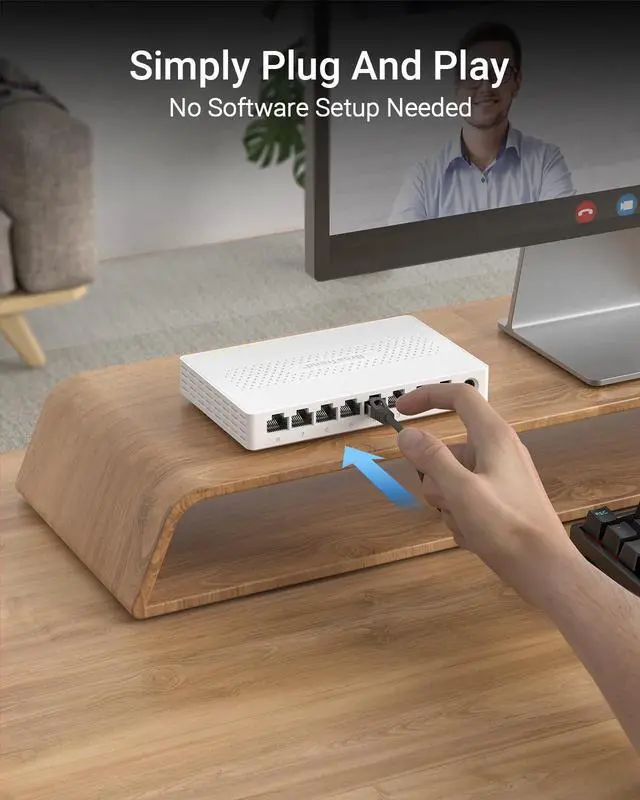
Plug-and-Play Setup
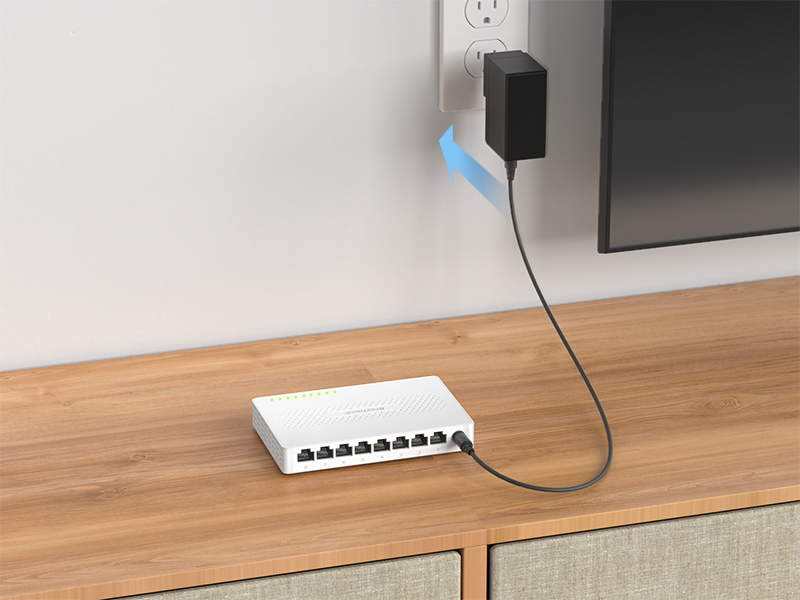
Step 1
Connect the power adapter to the network switch to power it up.
Step 2
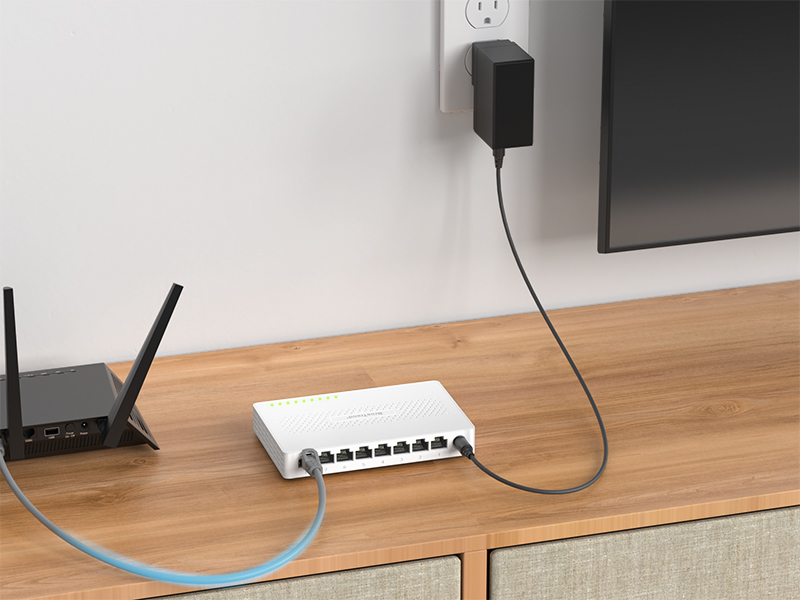
Any of the Ethernet ports of the switch can function as an uplink. Connect any port to the Ethernet (LAN) port of your router using an Ethernet cable.
Step 3
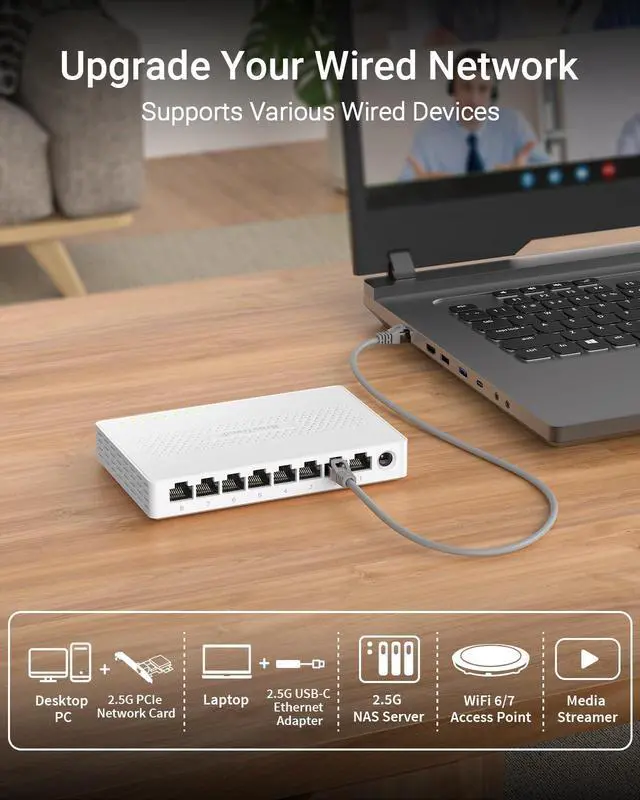
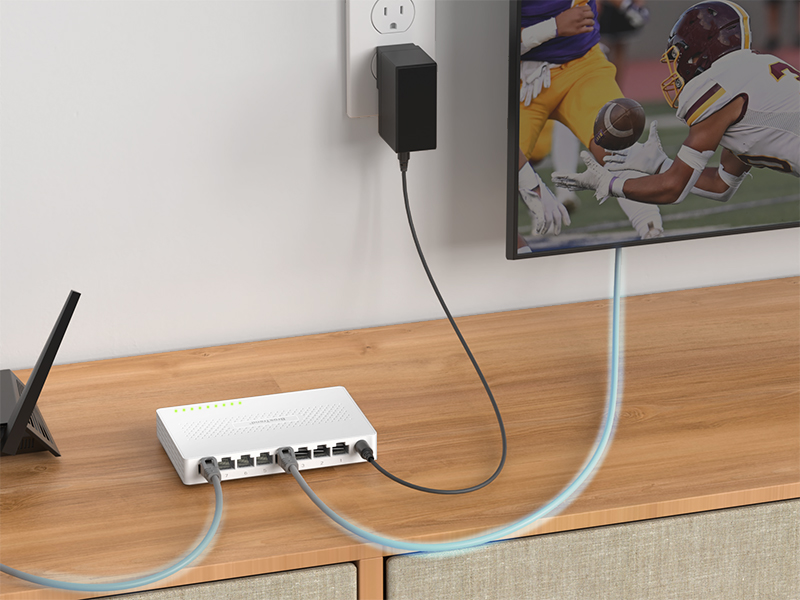
Connect the Ethernet port of your other devices to the network switch. To keep it running at its best, place the switch in a well-ventilated space for stable 2.5G performance.
Switches Comparison
8 × 2.5G RJ45 Ports | Interface | 5 × 2.5G RJ45 Ports |
40 Gbps | Switching Capacity | 25 Gbps |
MaxLinear | Chip Brand | MaxLinear |
Plastic Casing | Case Material | Plastic Casing |
Yes | Standard Mode | Yes |
- | SLA Mode | - |
- | VLAN Mode | - |
8 × 2.5G RJ45 Ports | Interface | 8 × 2.5G RJ45 Ports |
40 Gbps | Switching Capacity | 40 Gbps |
MaxLinear | Chip Brand | MaxLinear |
Plastic Casing | Case Material | Metal Casing |
Yes | Standard Mode | Yes |
- | SLA Mode | Yes |
- | VLAN Mode | Yes |



Founded in 2011, BrosTrend dedicates itself to premium network products which deliver fast and reliable connections.
With more than 10 years of experience in the networking industry, BrosTrend never stops innovating and is ready to bring a smoother online experience for everyone.


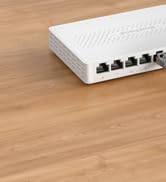
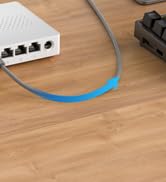
8-Port 2.5G Ethernet Switch


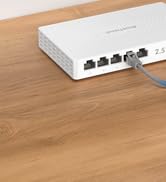

5-Port 2.5G Ethernet Switch


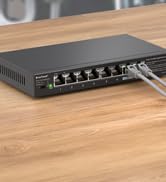
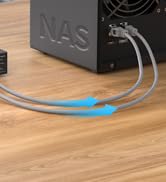
8-Port 2.5G Ethernet Switch
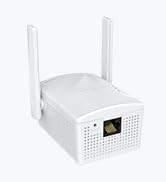
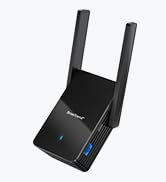
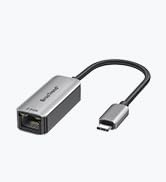
Popular WiFi Devices

BrosTrend 8-Port 2.5G Network Switch
Merchant Video


Plug-and-Play Setup


Step 1
Connect the power adapter to the network switch to power it up.
Step 2
Any of the Ethernet ports of the switch can function as an uplink. Connect any port to the Ethernet (LAN) port of your router using an Ethernet cable.
Step 3
Connect the Ethernet port of your other devices to the network switch. To keep it running at its best, place the switch in a well-ventilated space for stable 2.5G performance.
Switches Comparison
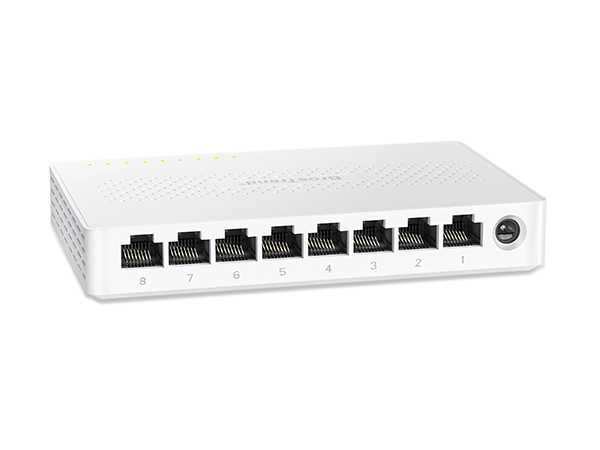
2.5G Ethernet Switch
Interface
8 × 2.5G RJ45 Ports
Switching Capacity
40 Gbps
Chip Brand
MaxLinear
Case Material
Plastic Casing
Standard Mode
Yes
SLA Mode
-
VLAN Mode
-
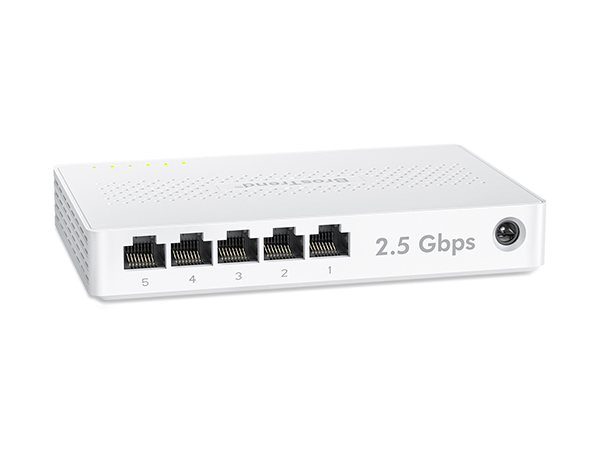
2.5G Ethernet Switch
Interface
5 × 2.5G RJ45 Ports
Switching Capacity
25 Gbps
Chip Brand
MaxLinear
Case Material
Plastic Casing
Standard Mode
Yes
SLA Mode
-
VLAN Mode
-
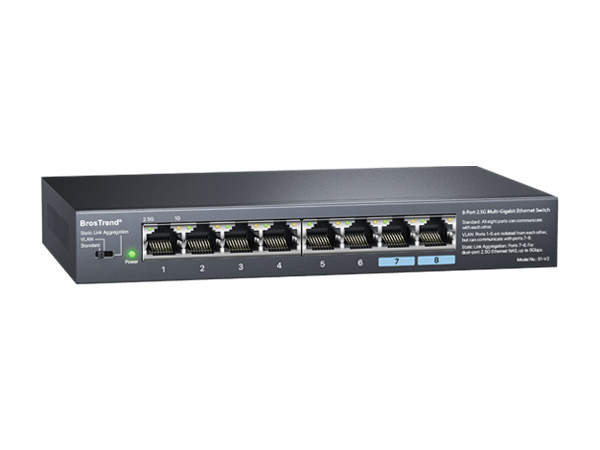
2.5G Network Switch
Interface
8 × 2.5G RJ45 Ports
Switching Capacity
40 Gbps
Chip Brand
MaxLinear
Case Material
Metal Casing
Standard Mode
Yes
SLA Mode
Yes
VLAN Mode
Yes
Founded in 2011, BrosTrend dedicates itself to premium network products which deliver fast and reliable connections.
With more than 10 years of experience in the networking industry, BrosTrend never stops innovating and is ready to bring a smoother online experience for everyone.
8-Port 2.5G Ethernet Switch
5-Port 2.5G Ethernet Switch
8-Port 2.5G Ethernet Switch
Popular WiFi Devices