




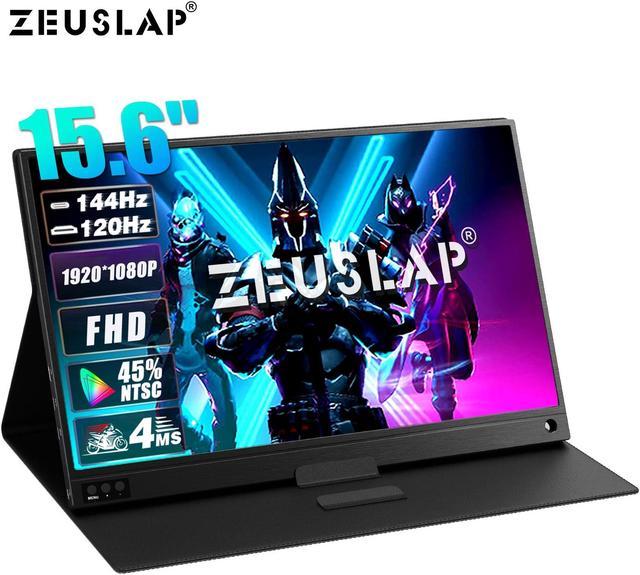


120Hz / 144Hz Remark
The 120Hz/144Hz is depending on your laptop/PC graphic card. If your graphic card does not support, then you will only see the 60hz in the monitor.
- Laptop/PC Windows System Checking:
- Right button to click PC-Manage-Device Management Display (Check on your graphic card model)
- Right button to click Desktop Display Setting-Advance Display Setting-Monitor-Monitor Display Property (Check on the supported resolution and refresh rate)
- Warm Tips:
Normally GTX 1070, GTX 1080, GTX 1080Ti or above level graphic card support 120Hz/144hz display graphic card. Please refer to your graphic card for the details.


(For a better experience, please power by the monitor via "USB to Type-C Cable with Charger".)
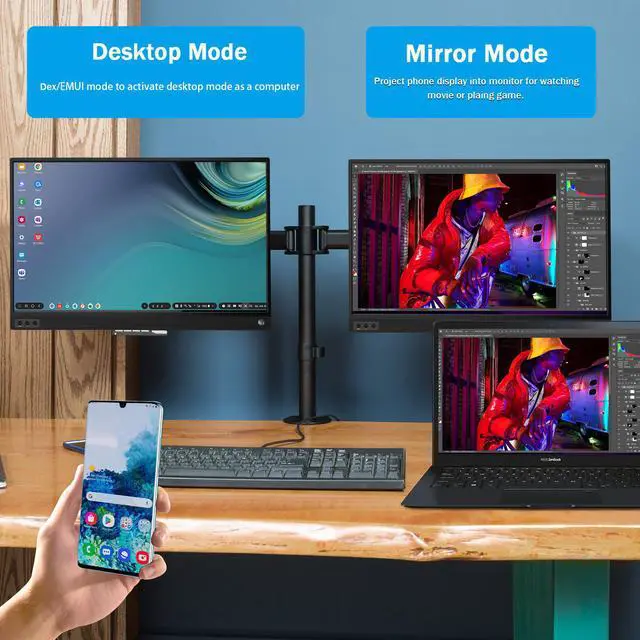
- Thunderbolts Type-C Phone Connection
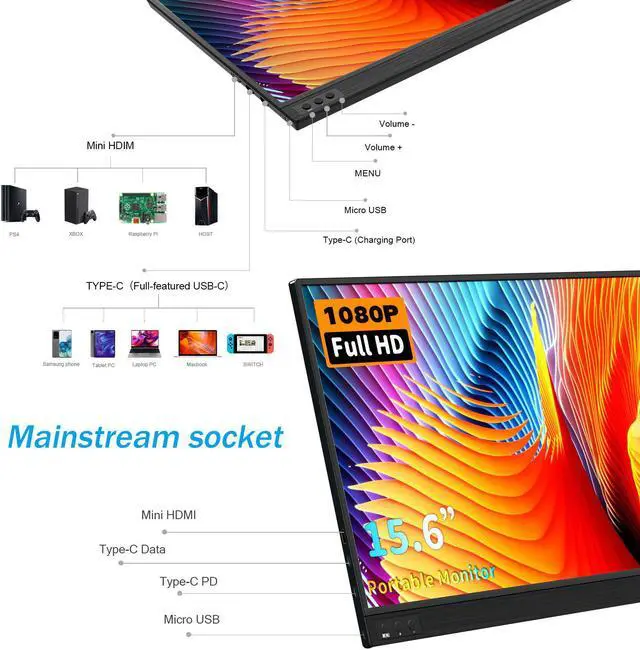
- Type-C to Type-C Cable to connect the Type-C port of the Phone to the middle Type-C port (Type-C Data) of the monitor
- Please power by the monitor via USB to Type-C Cable with Charger if the monitor cannot light up for the low power by of the phone.
- Non-Thunderbolts Type-C Phone Connection (Requires power to the monitor)
- Please additionally purchase a Type-C to Mini HDMI HDTV Cable to connect your mobile phone to the portable monitor (usually a Type-C to HDMI cable + Mini HDMI adapter is required)
- iPhone Connection (Requires power to the monitor)
- Please additionally purchase a Lightning to Mini HDMI HDTV Cable to connect your mobile phone to the portable monitor (usually a Lightning to HDMI cable + Mini HDMI adapter is required)

(For a better experience, please power by the monitor via USB to Type-C Cable with Charger.)
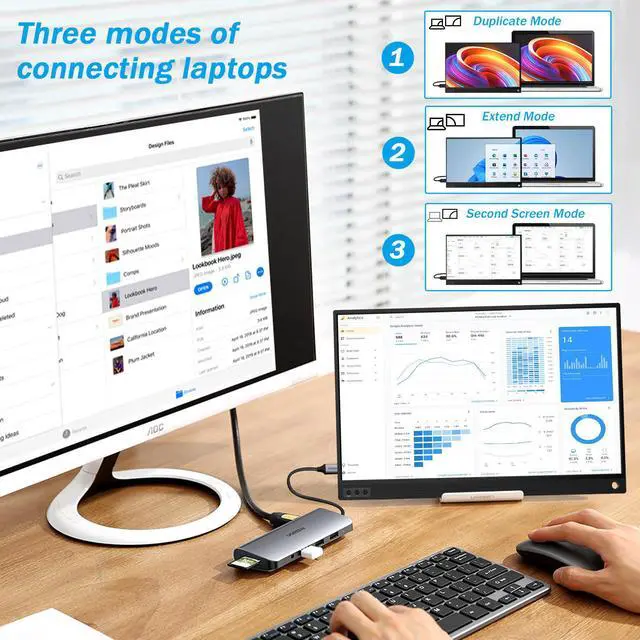
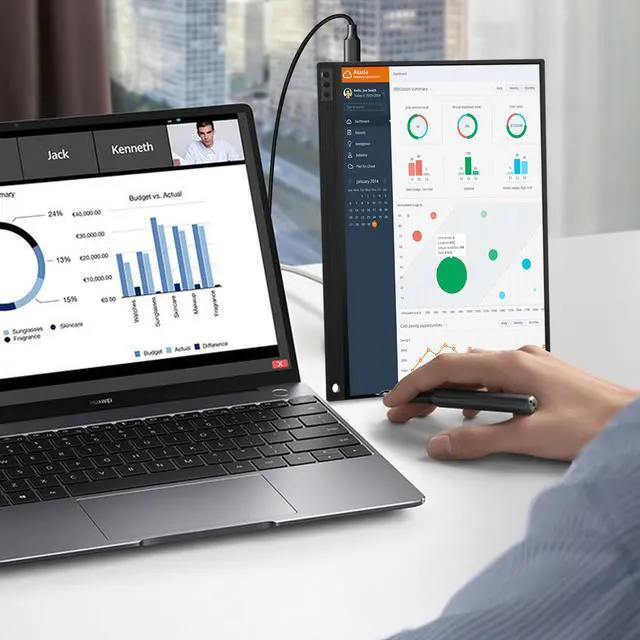
- Laptop / MacBook with Thunderbolts Type-C Port Connection
- Type-C to Type-C Cable to connect the Type-C port of the Laptop / MacBook to the middle Type-C port (Type-C Data) of the monitor
- Please power by the monitor via USB to Type-C Cable with Charger for a better experience at different OSD setting (Such as Brightness/Volume Adjustment).
- Laptop with HDMI-compatible Port Connection
- Mini HDMI to HDMI Cable to connect the monitor and the laptop for data transfer.
- Please power by the monitor via USB to Type-C Cable with Charger for a better experience at different OSD setting (Such as Brightness/Volume Adjustment).

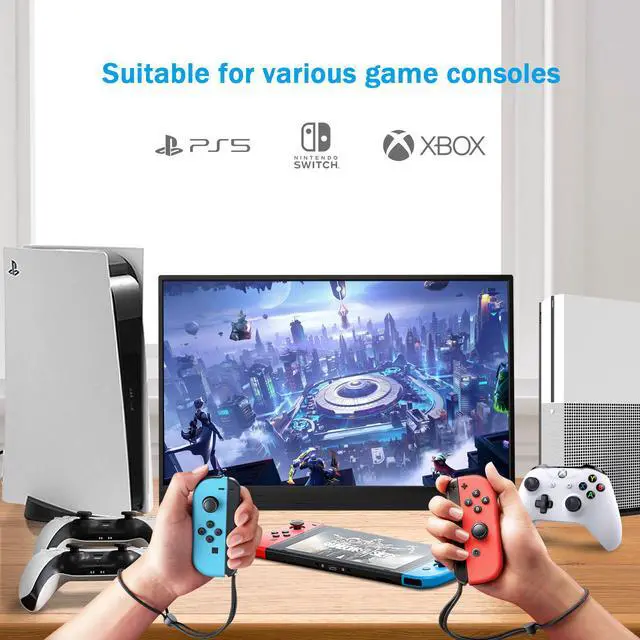
- Nintendo Switch Connection
- Please power by the monitor via the original Nintendo Switch Charger at the Type-C PD port.
- Type-C to Type-C Cable to connect the middle Type-C port(Type-C Data) of the monitor and the Nintendo Switch Type-C port.
Remark: The Nintendo Switch LITE Version does not support for the monitor.
- PS4 / PS5 / Xbox Connection
- Please power by the monitor via USB to Type-C Cable with Charger (included in the parcel.)
- Mini HDMI to HDMI Cable to connect the monitor and the PS4/PS5/Xbox.
