
Your Browsing History
- In Stock
- Sold by Newegg
- New
Quick View
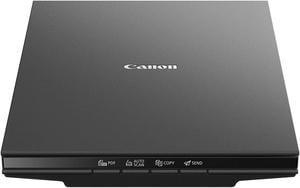
Canon CanoScan LiDE 300 (2995C002) Hi-Speed USB 2.0 (One Cable For Data & Power) Interface Flatbed Scanner
- Image Sensor: CIS
- Light Source: Three-color RGB LEDs
- Scanning Speed: Document: Approx. 10 Seconds (300 dpi / Letter Size / Color) 4.00" x 6.00" Photo: Approx. 5 Seconds (300 dpi / Color)
- Resolutions, Optical: 2400 x 2400dpi
- Model #: 2995C002
- $119.24 –
- More options from $119.24 - $181.62
- Free Shipping
Quick View
- $1,027.22 –
- More options from $1,027.22 - $1,765.73
- $126.02 Shipping
Quick View
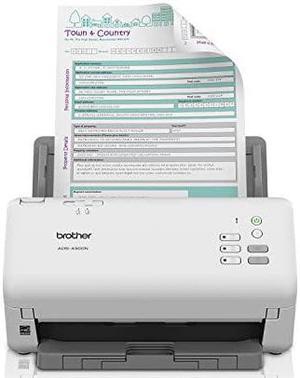
Brother ADS4300N Dual CIS 600 x 600 dpi Sheet Fed Professional Desktop Scanner
- Brand: Brother
- Type: Sheet Fed
- Element Type: Dual CIS
- Scanning Speed: Max 80 ipm
- Model #: ADS4300N
- $551.50 –
- More options from $430.99 - $863.18
- Free Shipping
Quick View
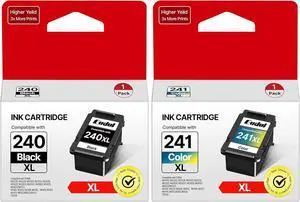
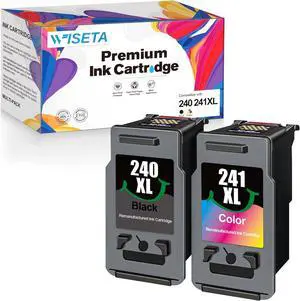
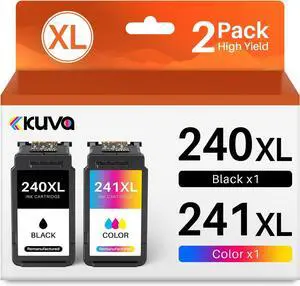
PG-240 XL/CL-241 XL Combo Pack Ink Cartridges Replacement for 240XL 241XL Combo Pack Canon Ink 240 241 to Use with Canon PIXMA MG3620 MG3522 MG3122 MG3220 TS5120 MX472 Printer2 Pack
- Model #: BAOCAHB0FM2DHGV5
- $230.99 –
- Free Shipping
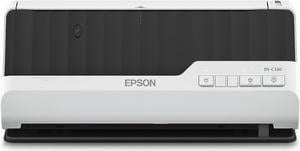
Quick View
#1 Best Seller
- Model #: B11B272201
- $549.13 –
- More options from $293.24 - $618.84
- Free Shipping
Quick View
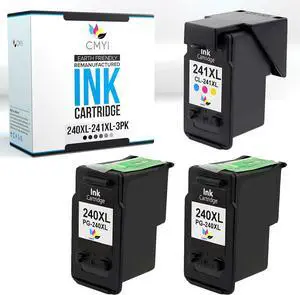
PG-240 XL/CL-241 XL Ink Cartridges Replacement for Canon 240XL 241XL Combo Pack for Canon PIXMA TS5120, MG3620, MG2120, MG3120, MG4120, MG2220 2
- Model #: BAOCAHB09QPFT7RG
- $214.99 –
- Free Shipping
Quick View
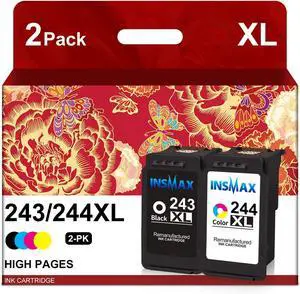
PG-243 CL-244 XL Ink Cartridge Replacement for Canon 243XL 244XL Combo Pack for PIXMA MX490 MG2500 MG2522 MG2922 TS3122 TS3322 TS202 TR4520 TR4522 Printers (1 Black 1 Color)
- Model #: BAOCAHB0CKMGHDZF
- $144.99 –
- Free Shipping
Quick View
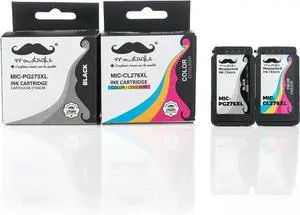
Moustache 275 XL 276 XL PG-275XL CL-276XL Remanufactured Ink Cartridges Black and Color Combo Compatible for Canon PIXMA TS3500 TS3520 TS3522 TS3720 TR4700 TR4720 TR4722 Printer
- Model #: BAOCAHB0DKT72NXX
- $118.99 –
- Free Shipping
Quick View
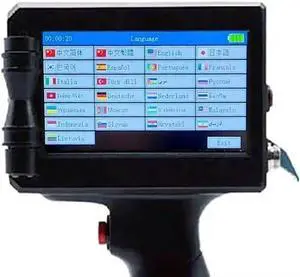
High-Resolution, Fast-Drying Color Handheld Inkjet Printer for trademarks/lot Numbers/Serial Numbers/Labels/barcodes
- Model #: BAOCAHB0FJCZ1R3K
- $1,048.99 –
- Free Shipping

Quick View
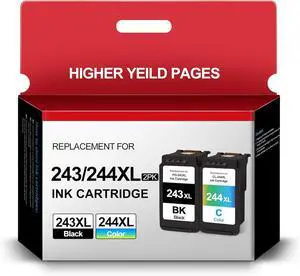
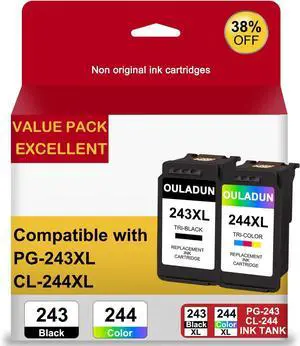
PG-243XL/CL-244XL Ink Cartridges Replacement for Canon 243XL 244XL Combo Pack for Pixma TR4520 TS3322 TR4522 TS3122 MG2520 MG2522 MG2922 MX490 MX492 Printers (1 Black+1 Color)
- Model #: BAOCAHB0CZCYXSSZ
- $127.99 –
- Free Shipping
Quick View
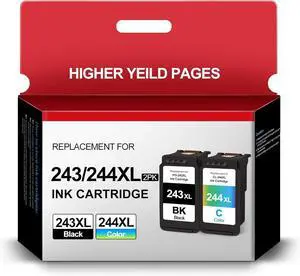
243XL 244XL Ink Cartridge Combo Pack Remanufactured for Canon Ink PG-243 CL-244 PG243XL CL244XL Compatible for TS3122 MX492 MG2522 MG2922 MG2420 TR4520 Printer (1 Black, 1 Color)
- Model #: BAOCAHB0DSKXPXX9
- $92.99 –
- Free Shipping
Quick View
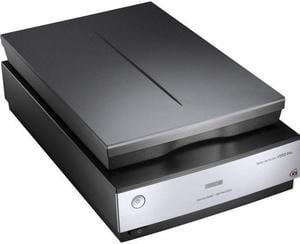
Epson Perfection V850 Pro Flatbed Image Scanner - 6400 dpi Optical - USB
- Brand: EPSON
- Series: Perfection Series
- Part Number: B11B224201
- Scanner Type: Photo
- Model #: B11B224201
- $2,399.00 –
- More options from $1,799.00 - $3,363.38
- Free Shipping
Quick View
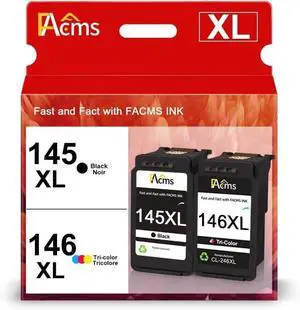
PG-145XL CL-146XL Ink Cartridges Combo Pack Replacement for Canon 145XL/146XL 145 146 High Yield for PIXMA TS3110 iP2810 MG2410 MG2510 MG2910 MG3010 (1 Black, 1 Color)
- Model #: BAOCAHB0D9NWCV6L
- $143.99 –
- Free Shipping
Quick View
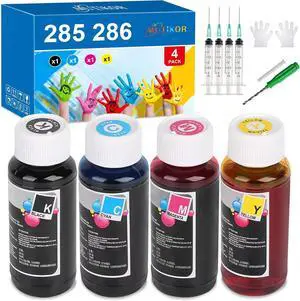
PG-285 CL-286 Ink Refill Bottle 100ml Black and Color for PG 285 CL 286 Combo Pack Compatible for Canon 285 286 Ink Cartridge Black and Color for TR7820 TS7720 TS7722 Printers
- Model #: BAOCAHB0F3XC7KVG
- $133.99 –
- Free Shipping
Quick View
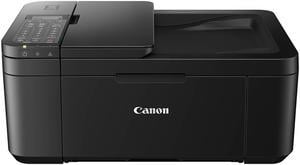
Canon PIXMA TR4720 Black Wireless All-In-One Printer - Black (5074C003)
- Functions: 4-in-1: Print, Copy, Scan & Fax
- Max. Print Speed: 4" x 6" Borderless Photo (PP-201): Approx. 65.0 Seconds Black Document (Letter/Simplex): Approx. 8.8 ipm Colour Document (Letter/Simplex): Approx. 4.4 ipm
- Copier Features: Copy Size: 4" x 6", 5" x 7", Letter (8.5" x 11"), Legal (8.5" x 14") Copy Features: 4-on-1/2-on-1 Copy, Auto Document Feeder (ADF), Auto Exposure (AE) Copy, Borderless Copy, Collated Copy (ADF Only), Document Removal Reminder, Fit-to-Page, Frame Erase Copy (Flatbed Only), ID Card Copy, Multiple Copy (Up to 99 Pages), Preset Copy Ratio, Reduction/Enlargement (25% - 400%), Standard Copy, Two-Sided Copy
- Scan Resolution, Optical: 600 x 1200 dpi
- Model #: 5074C003
- $244.28 –
- More options from $99.99 - $244.28
- Free Shipping
Quick View
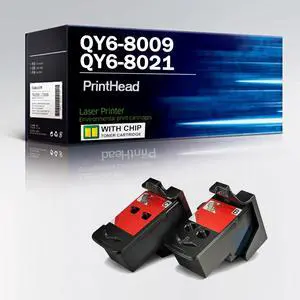
QY6-8009 QY6-8021 QY68009 QY68021 Printhead Replacement for Canon PIXMA G1200 G2200 G3200 G4200 G4210 Printer Head Ink cartridges,Set Combo-1 Pack
- Model #: BAOCAHB0DNJSGZVZ
- $222.99 –
- Free Shipping
Quick View
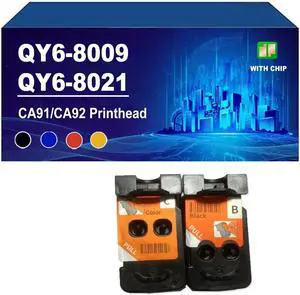
QY6-8009 QY6-8021 CA91 CA92 Remanufactured Printhead Compatible for Canon PIXMA G4210 G4200 G3210 G3202 G3200 G2200 G2210 G1200 G1210 Printers,Set Combo-1 Pack
- Model #: BAOCAHB0FFBCKTZN
- $198.99 –
- Free Shipping
Quick View
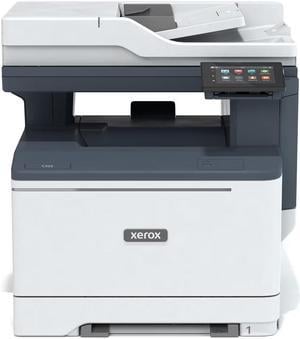
Xerox C325/DNI MFC / All-In-One Up to 35 pages/minute Color Hi-Speed USB 2.0, Gigabit Ethernet, Hi-Speed USB (Type B), Wireless 802.11 b/g/n Printer
- Recommended Use: MFC / All-In-One
- Black Print Speed: Up to 35 pages/minute
- Brand: Xerox
- Functions: 4-in-1: Print, Copy, Scan & Fax
- Model #: C325/DNI
- $733.12 –
- More options from $659.99 - $1,002.96
- Free Shipping
Quick View
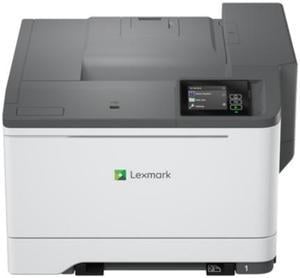
Lexmark CS531dw Color Laser Printer (35 ppm) (1200 x 1200) (1 GB) (1 GHz)
- Part Number: 50M0020
- Duplex printing: Integrated Duplex
- Max. Duty Cycle: Up to 10,000 pages monthly
- Model #: 50M0020
- $913.45 –
- More options from $863.22 - $974.99
- Free Shipping
Quick View
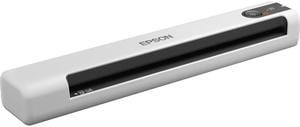
Epson DS-70 Portable Document Scanner
- Brand: EPSON
- Type: Mobile, Sheet-fed 1-pass color scanner
- Element Type: CIS
- Light Source: 3-color RGB LED
- Model #: B11B252202
- $197.07 –
- More options from $193.00 - $319.61
- Free Shipping
Quick View
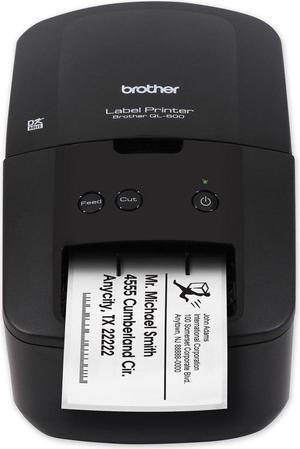
Brother QL-600 Direct Thermal Printer Monochrome Desktop Label Print QL600
- Printer Type: Desktop
- Cutter: Auto-Cutter
- Interface: USB
- Windows Compatible: Windows 10 / 8.1 / 8 / 7
- Model #: QL600
- $144.10 –
- More options from $105.99 - $256.24
- Free Shipping
Quick View
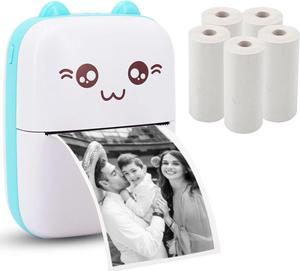
Mini Pocket Printer, Portable Thermal Printer with 5 Rolls Printing Paper, Bluetooth Wireless Tiny Printer for Photos/Stickers/Labels/Notes/Receipts, Compatible with iOS and Android
- Model #: DZ-Mini Printer-001-Blue
- $41.99 –
- Free Shipping
Quick View
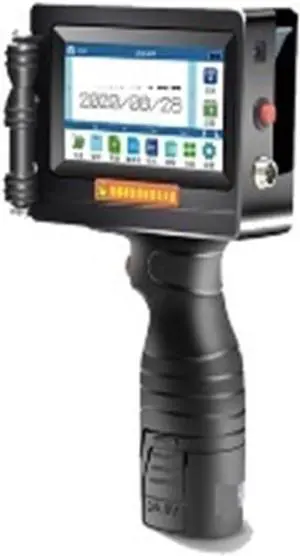
Smart Handheld Portable Printer, Inkjet 12.7mm for Plastic Metal Picture Variable Batch Number QR Code Printer Bag Carton(1 Printer 3 Inks)
- Model #: BAOCAHB0FTNTCKFS
- $1,063.99 –
- Free Shipping
Quick View
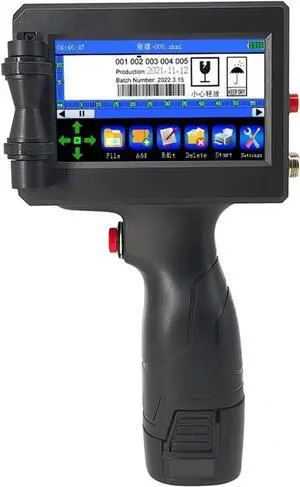
12.7mm Intelligent Handheld Printer, Code Qr Code Logo Touch Screen, Free Encryption Fast Drying Inkjet Printer(Machine with 1ink)
- Model #: BAOCAHB0FJCWKPMB
- $862.99 –
- Free Shipping
Quick View
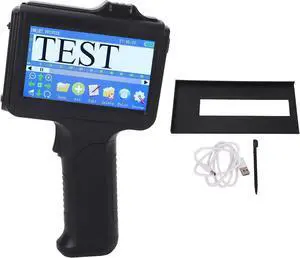
Handheld Inkjet Printer Black Bluetooth Portable Coder for Wood Plastic Fabric Applicable for Industrial Packaging
- Model #: BAOCAHB0FJ338P3T
- $298.99 –
- Free Shipping
Quick View
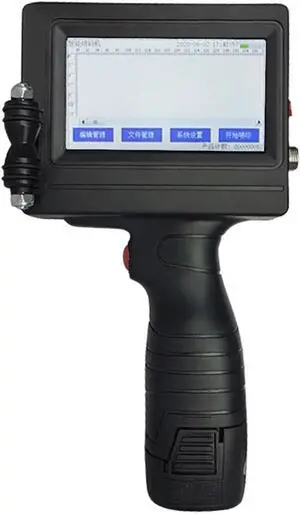
Portable Printer Mini Thermal Printer QR Code Printer Expiry Date Time Batch Number Logo Bar Code Handheld Inkjet Printer Gun
- Model #: BAOCAHB0FLJCKZHF
- $738.99 –
- Free Shipping
Quick View
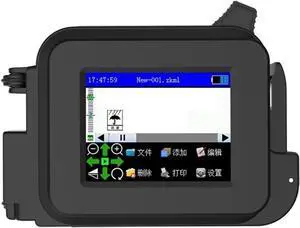
Portable Handheld Inkjet Printer, Smart Touch Screen Waterproof Quick Dry Printer, Encoding QR Code Logo Mini(Black)
- Model #: BAOCAHB0FJCHG2B1
- $385.99 –
- Free Shipping
Choosing the Right Printer for Your Office Needs
When it comes to office solutions, printers and scanners are essential tools for any business. Whether you need to print important documents, scan invoices, or create professional-quality marketing materials, having the right equipment is crucial. In this article, we will explore the different types of printers and scanners available in the market and provide tips on how to choose the best one for your office.
All-in-One Printers: Versatility and Convenience
all-in-one printers, also known as multifunction printers, are a popular choice for offices. These devices combine the functionality of a printer, scanner, copier, and sometimes even a fax machine into a single unit. They offer versatility and convenience, allowing you to perform multiple tasks without the need for separate devices. All-in-one printers are available in both inkjet and laser options, catering to different printing needs and budgets.
Specialized Printers for Specific Tasks
In addition to all-in-one printers, there are specialized printers designed for specific tasks. For example, 3D printers are ideal for creating prototypes or intricate models, while barcode and label printers are perfect for businesses that require efficient inventory management. laser printers are known for their fast printing speeds and high-quality output, making them suitable for offices with high-volume printing needs. inkjet printers, on the other hand, are more cost-effective and can produce vibrant color prints.
Choosing the Right Supplies
Once you have selected the right printer for your office, it is important to choose the right supplies to ensure optimal performance and longevity. When it comes to inkjet printers, using high-quality ink cartridges is essential to achieve the best print quality and prevent clogging. For laser printers, it is important to choose the right type of toner cartridges that are compatible with your printer model. Additionally, investing in high-quality paper can make a significant difference in the final print results.
FAQs: Common Questions about Printers and Scanners
| Q: How often should I replace the ink cartridges? | A: The frequency of replacing ink cartridges depends on your printing volume. However, it is recommended to replace them when the print quality starts to degrade. |
|---|---|
| Q: Can I use third-party ink cartridges with my printer? | A: While it is possible to use third-party ink cartridges, it is important to ensure compatibility with your printer model. Using incompatible cartridges may result in poor print quality or damage to the printer. |
| Q: How do I clean the scanner glass? | A: To clean the scanner glass, use a soft, lint-free cloth slightly dampened with glass cleaner. Gently wipe the glass surface to remove any smudges or debris. |
| Q: What is the difference between optical and interpolated resolution in scanners? | A: Optical resolution refers to the actual hardware resolution of the scanner, while interpolated resolution is achieved through software enhancements. Optical resolution provides more accurate and detailed scans. |
| Q: How can I improve the scanning speed? | A: To improve scanning speed, reduce the scanning resolution, use black and white mode instead of color, and ensure that the scanner is connected to a high-speed USB port. |