


- Free 30-day Returns
$106.99
Ships from Hong Kong.
Sold by E-Transit Limited
Shipped by E-Transit Limited

Meet Your Seller

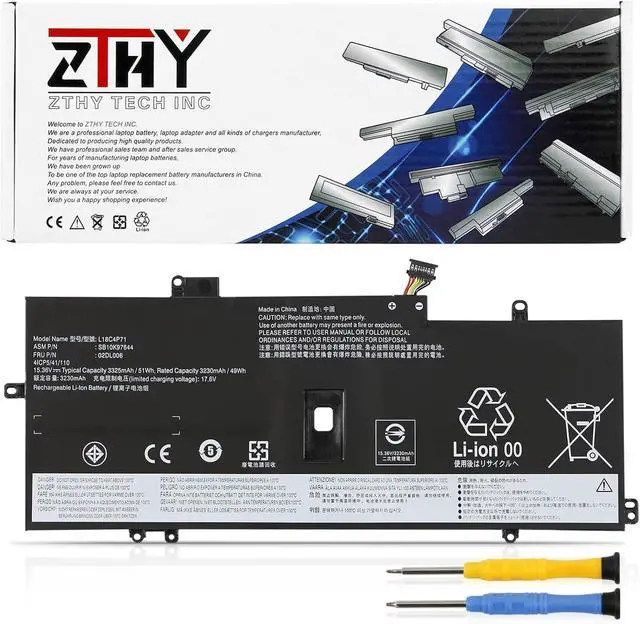
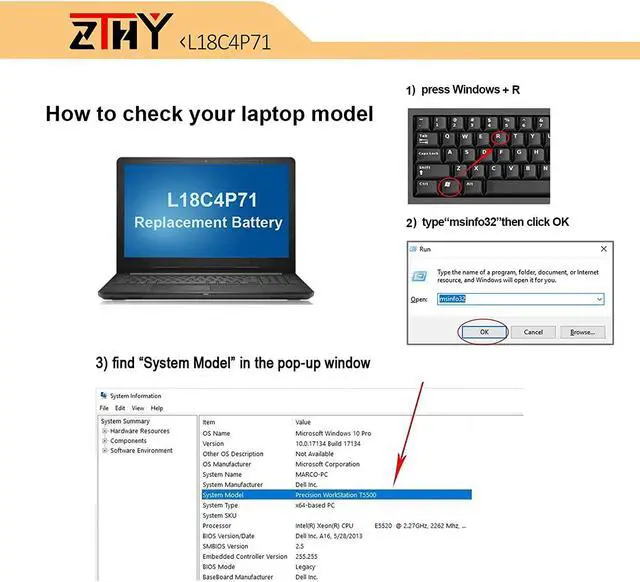
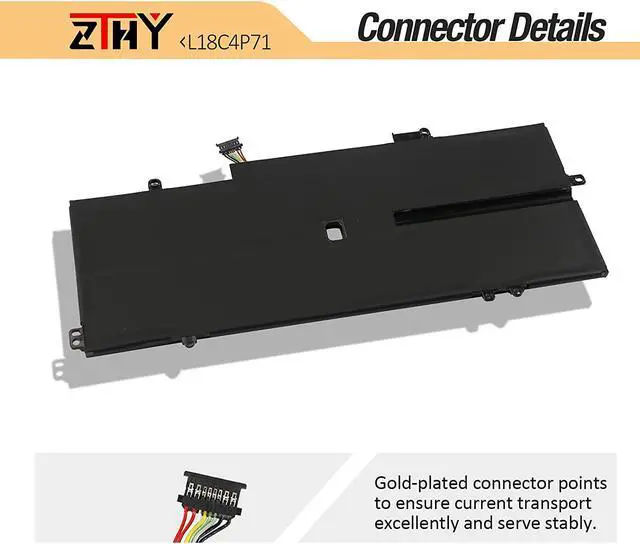
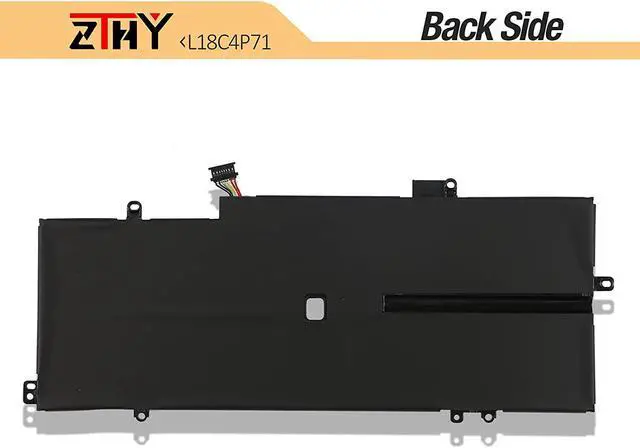
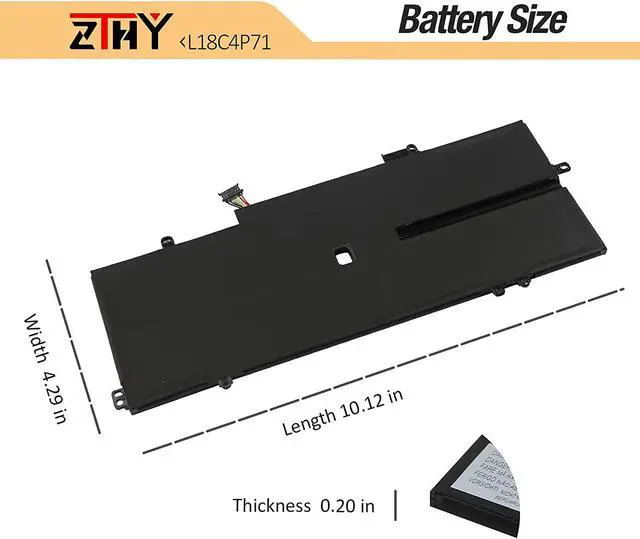


ZTHY 51Wh L18M4P72 L18L4P71 Laptop Battery Replacement for ThinkPad X1 Yoga g1 4th 5th Gen/X1 Carbon 7th 8th Gen/X1 20QD Serie 02DL004 02DL005 02DL006 L18C4P71 SB10K97642 SB10K97643 SB10K97644
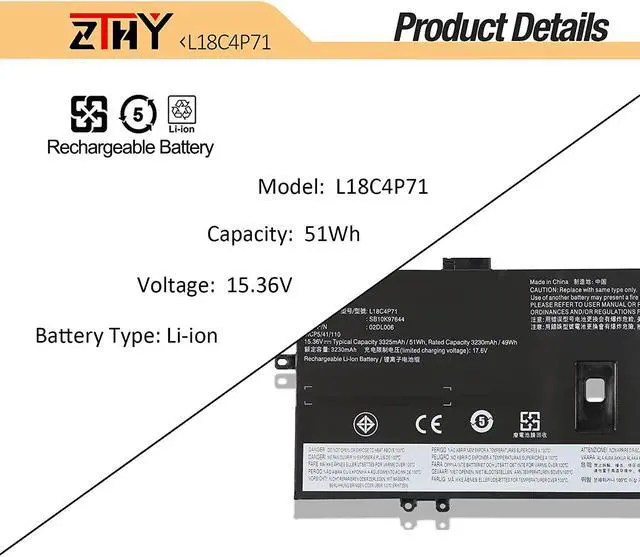
- Specification: Battery type: Li-ion. Color: Black. Voltage: 15.36V. Capacity: 51Wh/3325mAh. 100% New from Manufacturer. Up to 500 recharge cycles over the life of the battery
- Replace Part Number: 02DL004 L18L4P71 SB10K97642 02DL005 L18M4P72 SB10K97643 02DL006 L18C4P71 SB10K97644
- Compatible Models: ThinkPad X1 Yoga 4th Gen / X1 Yoga 2019 Gen, ThinkPad X1 Yoga 5th Gen / X1 Yoga 2020 Gen, ThinkPad X1 Carbon 7th Gen / X1 Carbon 2019 Gen, ThinkPad X1 Carbon 8th Gen / X1 Carbon 2020 Gen Series Notebook
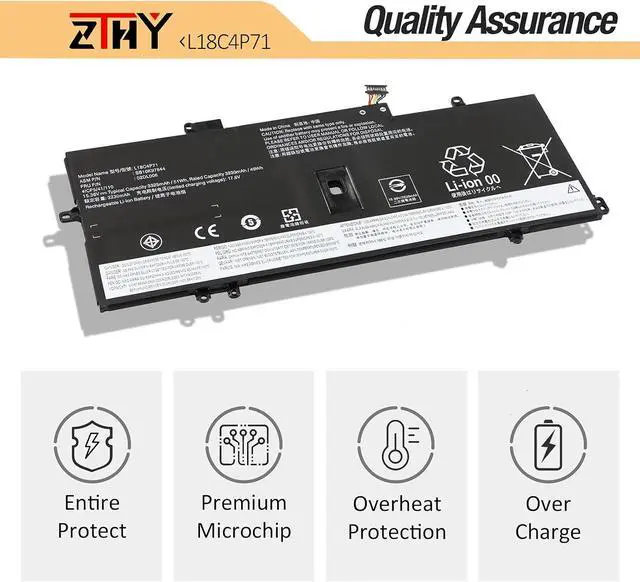
- Security: All ZTHY products are Certified by CE, FCC for safety. Strict guidelines for compatibility, and standards compliance for environment safety
- Note: If the new battery is not recognized during the initial installation, please reinstall and check if the interface is fully connected. Discharge the new battery to 10-20% (not 0%), then charge and cycle 3-4 times to wake up the new battery
+
+
Overview
Specs
Reviews
Welcome to ZTHY TECH INC
We are a professional laptop battery, laptop adapter and all kinds of chargers manufacture. Dedicated to producing high quality products. We have professional sales team. To each of our customers with high quality products. Wish you have a happy shopping experience and thank you for your trust!
1, You need to turn off your laptop and disconnect the power.
2, Disconnect the connection between the old battery and the motherboard to avoid unnecessary damage caused by disassembling the battery. Then unscrew the old battery screws one by one and carefully save each screw.
3, Remove the old battery, carefully install the new battery on the battery case, screw in the screw, and connect the wiring of the new battery.
4, If you don't understand the above steps, you can search for the video about laptop battery installation on You Tube. Maybe it will help you.
1) Please click ZTHY TECH, we will help you solve it.
2) Please be assured that we will take the responsibility for each product we sold.
3) 30-days after purchase, we offer a no-questions-asked return policy.
4)12 months from the date of purchase, If the product fails, we will replace it with a new one.
1) You need to turn off your laptop and disconnect the power.
2) Disconnect the connection between the old battery and the motherboard to avoid unnecessary damage caused by disassembling the battery. Then unscrew the old battery screws one by one and carefully save each screw.
3) Remove the old battery, carefully install the new battery on the battery case, screw in the screw, and connect the wiring of the new battery.
4) If you don't understand the above steps, you can search for the video about laptop battery installation on YouTube. Maybe it will help you.
1)Discharge the new battery use to 10%(not to 0%) and then charge to 95%, and cycle 3-4 times.
2) Do not disassemble, crush or puncture. Do not dispose of in fire or water.
3) If you remove the battery for a long time, charge more than 80% at least one time within one month.
4) Don't connect the adapter for a long time while using the battery. It may damage the battery.
5)When using the battery, care should be taken to prevent exposure and moisture.
1) Could be caused by battery loss. Please re-install the battery and make sure that the battery cable and the motherboard interface are tightly inserted.
2) Maybe due to conductive material damage which the laptop motherboard and battery anode and cathode contact position, you can try to confirm it with your original battery.
3) Check whether the battery drive is in normal condition, if not, download the corresponding driver software to update.
1.Turn off the laptop.
2.Unplug AC power.
3.Remove the battery.
4.Replace AC power.
5.Turn on laptop,allow OS to boot.
6.Once logged in to the machine,perform a normal shut donw.
7.Unplug AC power.
8.Replace battery.
1, Change your laptop power plan settings, and choose the power saver plan. Then Change advanced power settings, and scroll down to find Processor power management. Click the On-battery option and reduce the processor state to 20%.
2, Always keep your laptop neat and clean. The dust easily enters the hardware through the vents which are meant to release the heat generated from various computer components.
3, Close Wi-Fi, Bluetooth, and other settings. This can help your computer save precious battery life.
Easy to deal a variety of use environment Install A New Battery: What should we do if we receive defective products? Install A New Battery: What do we need to pay attention to using batteries for the first time? Why the laptop does not recognize the new battery The following are troubleshooting methods: How to maximize battery life?
We are a professional laptop battery, laptop adapter and all kinds of chargers manufacture. Dedicated to producing high quality products. We have professional sales team. To each of our customers with high quality products. Wish you have a happy shopping experience and thank you for your trust!
1, You need to turn off your laptop and disconnect the power.
2, Disconnect the connection between the old battery and the motherboard to avoid unnecessary damage caused by disassembling the battery. Then unscrew the old battery screws one by one and carefully save each screw.
3, Remove the old battery, carefully install the new battery on the battery case, screw in the screw, and connect the wiring of the new battery.
4, If you don't understand the above steps, you can search for the video about laptop battery installation on You Tube. Maybe it will help you.
1) Please click ZTHY TECH, we will help you solve it.
2) Please be assured that we will take the responsibility for each product we sold.
3) 30-days after purchase, we offer a no-questions-asked return policy.
4)12 months from the date of purchase, If the product fails, we will replace it with a new one.
1) You need to turn off your laptop and disconnect the power.
2) Disconnect the connection between the old battery and the motherboard to avoid unnecessary damage caused by disassembling the battery. Then unscrew the old battery screws one by one and carefully save each screw.
3) Remove the old battery, carefully install the new battery on the battery case, screw in the screw, and connect the wiring of the new battery.
4) If you don't understand the above steps, you can search for the video about laptop battery installation on YouTube. Maybe it will help you.
1)Discharge the new battery use to 10%(not to 0%) and then charge to 95%, and cycle 3-4 times.
2) Do not disassemble, crush or puncture. Do not dispose of in fire or water.
3) If you remove the battery for a long time, charge more than 80% at least one time within one month.
4) Don't connect the adapter for a long time while using the battery. It may damage the battery.
5)When using the battery, care should be taken to prevent exposure and moisture.
1) Could be caused by battery loss. Please re-install the battery and make sure that the battery cable and the motherboard interface are tightly inserted.
2) Maybe due to conductive material damage which the laptop motherboard and battery anode and cathode contact position, you can try to confirm it with your original battery.
3) Check whether the battery drive is in normal condition, if not, download the corresponding driver software to update.
1.Turn off the laptop.
2.Unplug AC power.
3.Remove the battery.
4.Replace AC power.
5.Turn on laptop,allow OS to boot.
6.Once logged in to the machine,perform a normal shut donw.
7.Unplug AC power.
8.Replace battery.
1, Change your laptop power plan settings, and choose the power saver plan. Then Change advanced power settings, and scroll down to find Processor power management. Click the On-battery option and reduce the processor state to 20%.
2, Always keep your laptop neat and clean. The dust easily enters the hardware through the vents which are meant to release the heat generated from various computer components.
3, Close Wi-Fi, Bluetooth, and other settings. This can help your computer save precious battery life.
Easy to deal a variety of use environment Install A New Battery: What should we do if we receive defective products? Install A New Battery: What do we need to pay attention to using batteries for the first time? Why the laptop does not recognize the new battery The following are troubleshooting methods: How to maximize battery life?
Warranty & Returns
Warranty, Returns, And Additional Information
Warranty
- Please contact the Seller directly for warranty information. Warranty information may also be found on the Manufacturer's website.
- CONTACT
Return Policies
- Return for refund within: 30 days
- Return for replacement within: 90 days
- This item is covered by E-Transit Limited Return Policy
Manufacturer Contact Info
- For a directory of all our manufacturers, please click below.
- Manufacturers Directory
LOADING...