
Your Browsing History
- Free 30-day Returns
$128.99
Ships from Hong Kong.
Sold by E-Transit Limited
Shipped by E-Transit Limited

Meet Your Seller

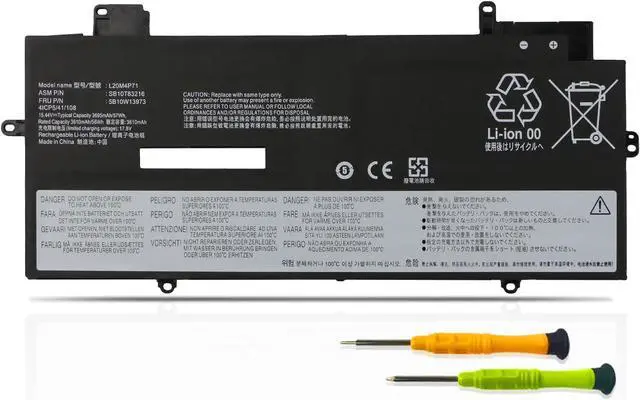
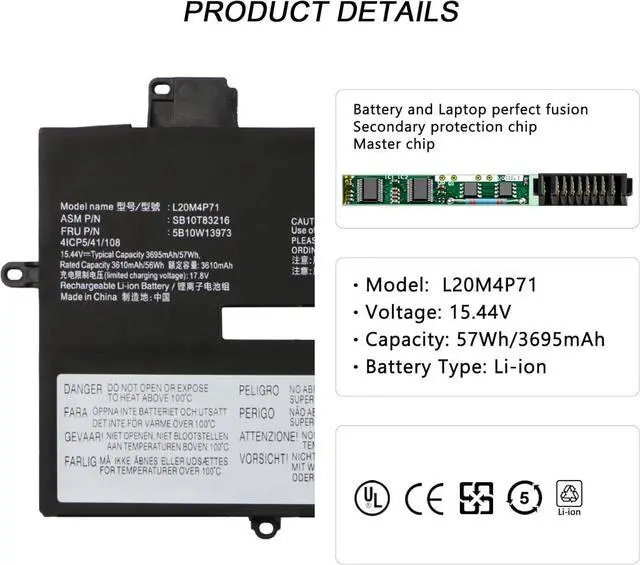
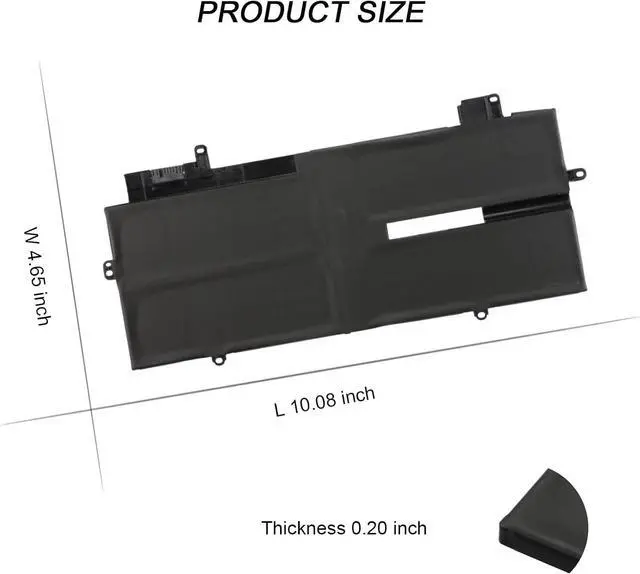


57Wh L20C4P71 L20M4P71 SB10T83217 5B10W13974 Battery for Lenovo ThinkPad X1 Carbon 9th 10th Gen,X1 Yoga 6th 7th Gen 2021 Series L20D4P71 L20L4P71 SB10T83216 5B10W13973 SB10T83218 5B10W13975
- SpecificationsBattery Type: Li-ion; Voltage: 15.44V; Capacity: 57Wh/3695mAh; Battery life: Up to 500 recharge cycles over the life of the battery.
- Compatible Part Number L20C4P71 L20D4P71 L20M4P71 L20L4P71 SB10T83215 SB10T83216 SB10T83217 SB10T83218 5B10W13972 5B10W13973 5B10W13974 5B10W13975 4ICP5/41/108.
- Compatible Laptop ModelsFit for Lenovo ThinkPad X1 Carbon 9th Gen (X1 Carbon 2021): Type- 20XW 20XX, Lenovo ThinkPad X1 Carbon 10th Gen (X1 Carbon 2022): Type- 21CC 21CB, Lenovo ThinkPad X1 Yoga 6th Gen (X1 Yoga 2021): Type- 20XY 20Y0, Lenovo ThinkPad X1 Yoga 7th Gen (X1 Yoga 2022):Type - 21CD 21CE
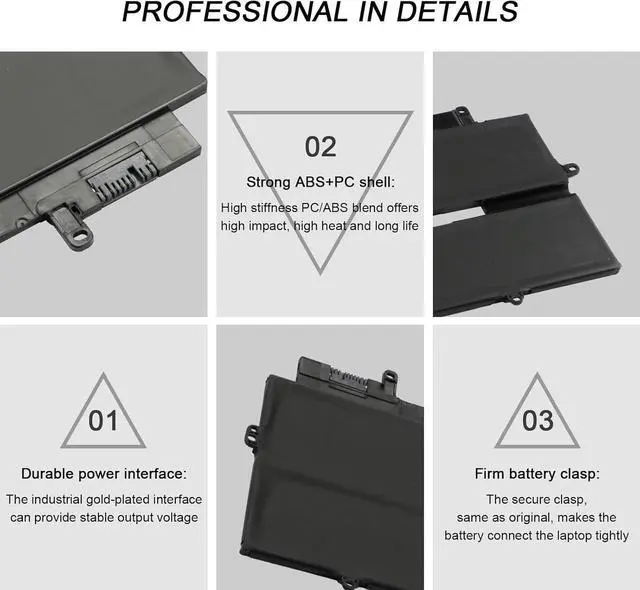
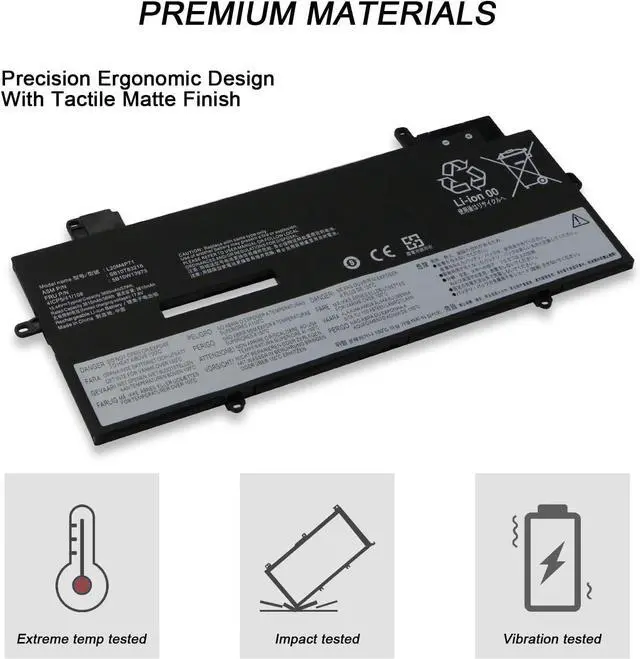
- Quality Assurance100% new from manufacturer, every battery has passed factory testing, grade A cells ensure fast charges and low power consumption, built-in circuit protection ensures both safety and stability. CE / FCC / RoHS Certified for safety.
- Perfect After-saleWelcome to email us if you have any issues, questions or concerns, we promise to resolve the problem within 24
+
+
Overview
Specs
Reviews
Compatible Part Number:L20C4P71 SB10T83217 5B10W13974Compatible Part Number:L20D4P71 SB10T83218 5B10W13975Compatible Part Number:L20L4P71 SB10T83215 5B10W13972Compatible Part Number:L20M4P71 SB10T83216 5B10W13973Compatible Models:Lenovo ThinkPad X1 Carbon 9th Gen type 20XW 20XXSeries: 20XW005JGE 20XW0069HH 20XW004SCA 20XWS00600 20XW005PMX 20XWS00700 20XWS03E00 20XW0050GE 20XWCTO1WW 20XXS00100 20XW004SUS 20XW0075HH 20XW0026GE 20XW004AUS 20XY003GGE 20XW004AUS 20XW0027IV 20XWS01200 20XX001RAU 20XW0009AD 20XX001RAU 20XW002EMZ 20XW005JPG 20XW008MMH 20XW00A2CX 20XW005VPG 20XX0022MB and more.Compatible Models:Lenovo ThinkPad X1 Yoga 6th Gen type 20XY 20Y0 Series: 20XY002TUS 20XY002XUS 20XY002RUS 20XY006HGE 20KG0027GE 20XY003AIV 20XYCTO1WWDEDE1 20XY001PAU 20XYS00200 20XY004BCK 20KHS00Y00 20XY002KUS 20XY006LGE 20KHS01400 20XY0059HH 20XY002PCA and moreCompatible Models:Lenovo ThinkPad X1 Carbon 10th Gen Type 21CB 21CC SeriesCompatible Models:Lenovo ThinkPad X1 Yoga 7th Gen Type 21CD 21CE Series 1. You need to turn off your laptop and disconnect the power.
2. Disconnect the connection between the old battery and the motherboard to avoid unnecessary damage caused by disassembling the battery. Then unscrew the old battery screws one by one and carefully save each screw.
3. Remove the old battery, carefully install the new battery on the battery case, screw in the screw, and connect the wiring of the new battery.
4. If you don't understand the above steps, you can search for the video about laptop battery installation on YouTube. Maybe it will help you.
Install A New Battery:
2. Disconnect the connection between the old battery and the motherboard to avoid unnecessary damage caused by disassembling the battery. Then unscrew the old battery screws one by one and carefully save each screw.
3. Remove the old battery, carefully install the new battery on the battery case, screw in the screw, and connect the wiring of the new battery.
4. If you don't understand the above steps, you can search for the video about laptop battery installation on YouTube. Maybe it will help you.
Install A New Battery:
Warranty & Returns
Warranty, Returns, And Additional Information
Warranty
- Please contact the Seller directly for warranty information. Warranty information may also be found on the Manufacturer's website.
- CONTACT
Return Policies
- Return for refund within: 30 days
- Return for replacement within: 90 days
- This item is covered by E-Transit Limited Return Policy
Manufacturer Contact Info
- For a directory of all our manufacturers, please click below.
- Manufacturers Directory
LOADING...