
Your Browsing History
- Free 30-day Returns
$126.99
Ships from Hong Kong.
Sold by E-Transit Limited
Shipped by E-Transit Limited

Meet Your Seller

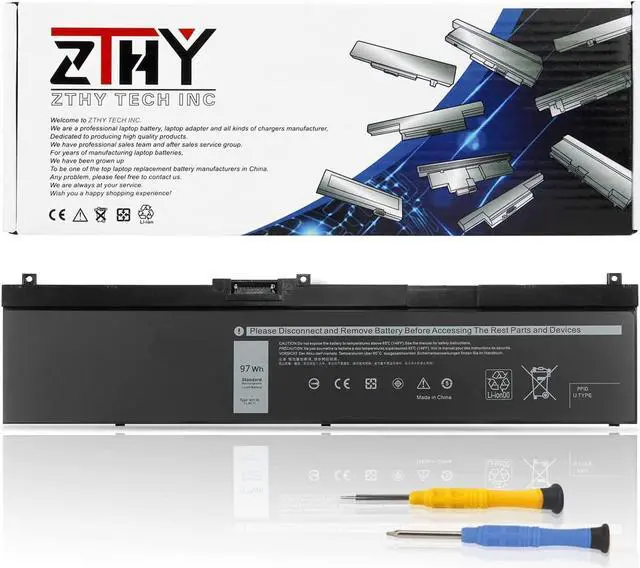
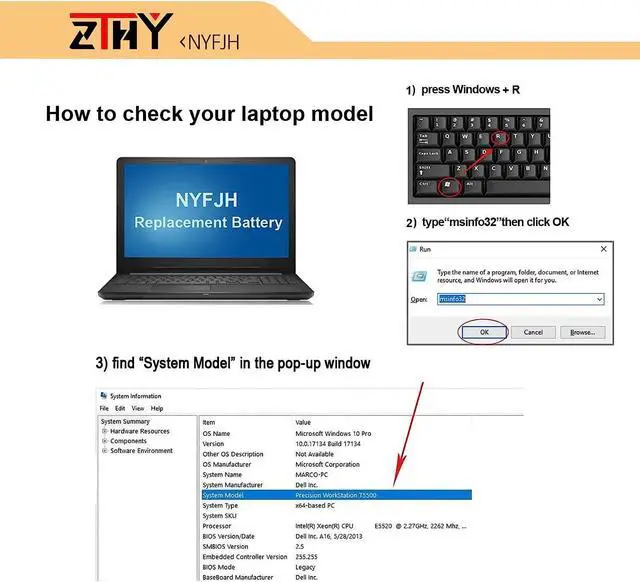
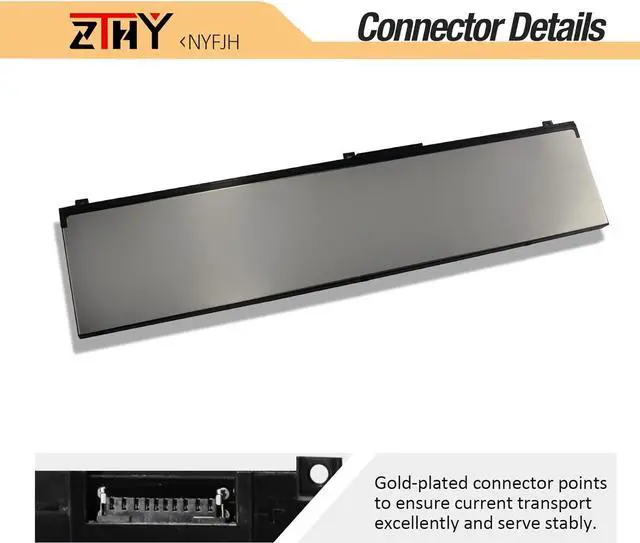
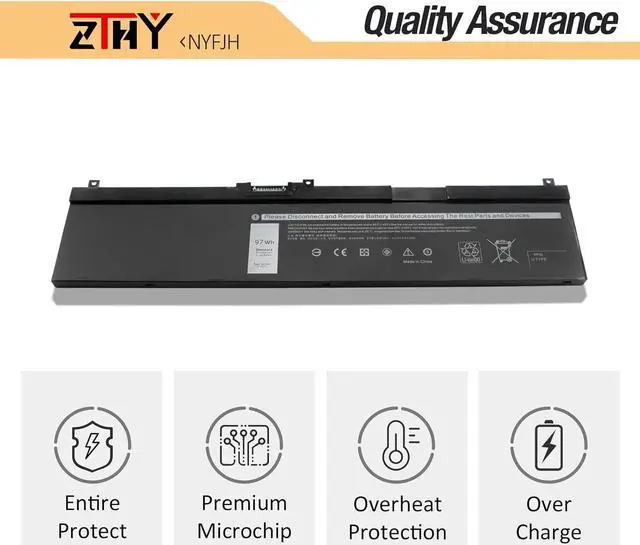
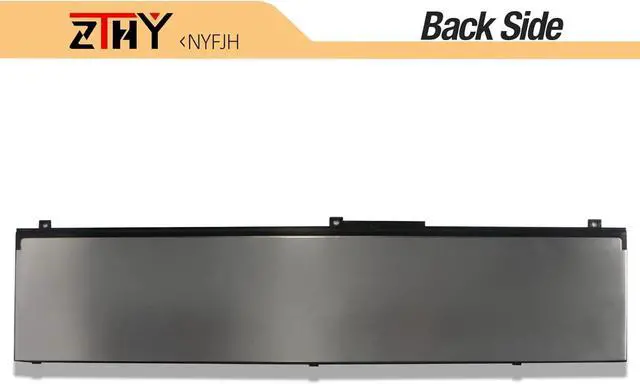


ZTHY 97Wh NYFJH Battery Replacement for Dell Precision 7530 7730 7540 7740 Series Laptop P34E P34E001 P34E002 P74F P74F001 P74F002 5TF10 0WMRC GW0K9 0NYFJH Battery Replacement 11.4V 6-Cell
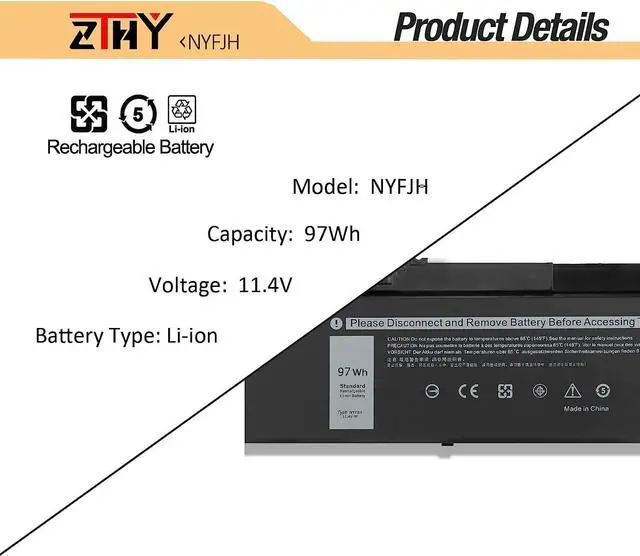
- Specifications: Battery type: Li-ion. Color: Black. Voltage: 11.4V. Capacity: 97Wh/6-Cell. New from Manufacturer. Up to 500 recharge cycles over the life of the battery
- Compatible Part Number: 0WMRC GW0K9 0NYFJH NYFJH
- Compatible Models: Replacement for Dell Precision 7530 P74F 7730 P34E 7540 7740 Series
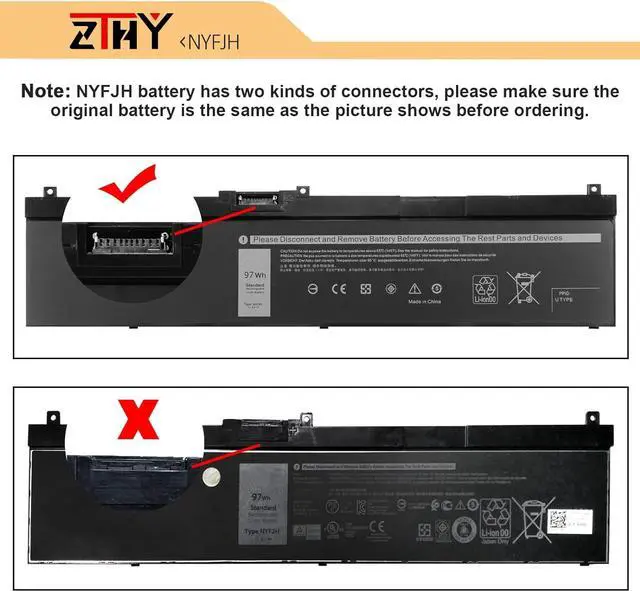
- Note: NYFJH battery has two kinds of connectors, please make sure the original battery is the same as the picture shows before ordering.Although the laptop models and the battery models are the same, the appearance and interface of the battery may be different. The batteries sizes may be different so the batteries may not be installed
- Note: If the new battery is not recognized during the initial installation, please reinstall and check if the interface is fully connected. Discharge the new battery to 10-20% (not 0%), then charge and cycle 3-4 times to wake up the new battery
+
+
Overview
Specs
Reviews
1) Please click ZTHY TECH, we will help you solve it.
2) Please be assured that we will take the responsibility for each product we sold.
3) 30-days after purchase, we offer a no-questions-asked return policy.
4)12 months from the date of purchase, If the product fails, we will replace it with a new one.
1) You need to turn off your laptop and disconnect the power.
2) Disconnect the connection between the old battery and the motherboard to avoid unnecessary damage caused by disassembling the battery. Then unscrew the old battery screws one by one and carefully save each screw.
3) Remove the old battery, carefully install the new battery on the battery case, screw in the screw, and connect the wiring of the new battery.
4) If you don't understand the above steps, you can search for the video about laptop battery installation on YouTube. Maybe it will help you.
1)Discharge the new battery use to 10%(not to 0%) and then charge to 95%, and cycle 3-4 times.
2) Do not disassemble, crush or puncture. Do not dispose of in fire or water.
3) If you remove the battery for a long time, charge more than 80% at least one time within one month.
4) Don't connect the adapter for a long time while using the battery. It may damage the battery.
5)When using the battery, care should be taken to prevent exposure and moisture.
1) Could be caused by battery loss. Please re-install the battery and make sure that the battery cable and the motherboard interface are tightly inserted.
2) Maybe due to conductive material damage which the laptop motherboard and battery anode and cathode contact position, you can try to confirm it with your original battery.
3) Check whether the battery drive is in normal condition, if not, download the corresponding driver software to update.
1.Turn off the laptop.
2.Unplug AC power.
3.Remove the battery.
4.Replace AC power.
5.Turn on laptop,allow OS to boot.
6.Once logged in to the machine,perform a normal shut donw.
7.Unplug AC power.
8.Replace battery.
1, Change your laptop power plan settings, and choose the power saver plan. Then Change advanced power settings, and scroll down to find Processor power management. Click the On-battery option and reduce the processor state to 20%.
2, Always keep your laptop neat and clean. The dust easily enters the hardware through the vents which are meant to release the heat generated from various computer components.
3, Close Wi-Fi, Bluetooth, and other settings. This can help your computer save precious battery life.
1, You need to turn off your laptop and disconnect the power.
2, Disconnect the connection between the old battery and the motherboard to avoid unnecessary damage caused by disassembling the battery. Then unscrew the old battery screws one by one and carefully save each screw.
3, Remove the old battery, carefully install the new battery on the battery case, screw in the screw, and connect the wiring of the new battery.
4, If you don't understand the above steps, you can search for the video about laptop battery installation on You Tube. Maybe it will help you.
What should we do if we receive defective products? Install A New Battery: What do we need to pay attention to using batteries for the first time? Why the laptop does not recognize the new battery The following are troubleshooting methods: How to maximize battery life? Easy to deal a variety of use environment Install A New Battery:
2) Please be assured that we will take the responsibility for each product we sold.
3) 30-days after purchase, we offer a no-questions-asked return policy.
4)12 months from the date of purchase, If the product fails, we will replace it with a new one.
1) You need to turn off your laptop and disconnect the power.
2) Disconnect the connection between the old battery and the motherboard to avoid unnecessary damage caused by disassembling the battery. Then unscrew the old battery screws one by one and carefully save each screw.
3) Remove the old battery, carefully install the new battery on the battery case, screw in the screw, and connect the wiring of the new battery.
4) If you don't understand the above steps, you can search for the video about laptop battery installation on YouTube. Maybe it will help you.
1)Discharge the new battery use to 10%(not to 0%) and then charge to 95%, and cycle 3-4 times.
2) Do not disassemble, crush or puncture. Do not dispose of in fire or water.
3) If you remove the battery for a long time, charge more than 80% at least one time within one month.
4) Don't connect the adapter for a long time while using the battery. It may damage the battery.
5)When using the battery, care should be taken to prevent exposure and moisture.
1) Could be caused by battery loss. Please re-install the battery and make sure that the battery cable and the motherboard interface are tightly inserted.
2) Maybe due to conductive material damage which the laptop motherboard and battery anode and cathode contact position, you can try to confirm it with your original battery.
3) Check whether the battery drive is in normal condition, if not, download the corresponding driver software to update.
1.Turn off the laptop.
2.Unplug AC power.
3.Remove the battery.
4.Replace AC power.
5.Turn on laptop,allow OS to boot.
6.Once logged in to the machine,perform a normal shut donw.
7.Unplug AC power.
8.Replace battery.
1, Change your laptop power plan settings, and choose the power saver plan. Then Change advanced power settings, and scroll down to find Processor power management. Click the On-battery option and reduce the processor state to 20%.
2, Always keep your laptop neat and clean. The dust easily enters the hardware through the vents which are meant to release the heat generated from various computer components.
3, Close Wi-Fi, Bluetooth, and other settings. This can help your computer save precious battery life.
1, You need to turn off your laptop and disconnect the power.
2, Disconnect the connection between the old battery and the motherboard to avoid unnecessary damage caused by disassembling the battery. Then unscrew the old battery screws one by one and carefully save each screw.
3, Remove the old battery, carefully install the new battery on the battery case, screw in the screw, and connect the wiring of the new battery.
4, If you don't understand the above steps, you can search for the video about laptop battery installation on You Tube. Maybe it will help you.
What should we do if we receive defective products? Install A New Battery: What do we need to pay attention to using batteries for the first time? Why the laptop does not recognize the new battery The following are troubleshooting methods: How to maximize battery life? Easy to deal a variety of use environment Install A New Battery:
Warranty & Returns
Warranty, Returns, And Additional Information
Warranty
- Please contact the Seller directly for warranty information. Warranty information may also be found on the Manufacturer's website.
- CONTACT
Return Policies
- Return for refund within: 30 days
- Return for replacement within: 90 days
- This item is covered by E-Transit Limited Return Policy
Manufacturer Contact Info
- For a directory of all our manufacturers, please click below.
- Manufacturers Directory
LOADING...