
Your Browsing History
Ships from China.

Meet Your Seller

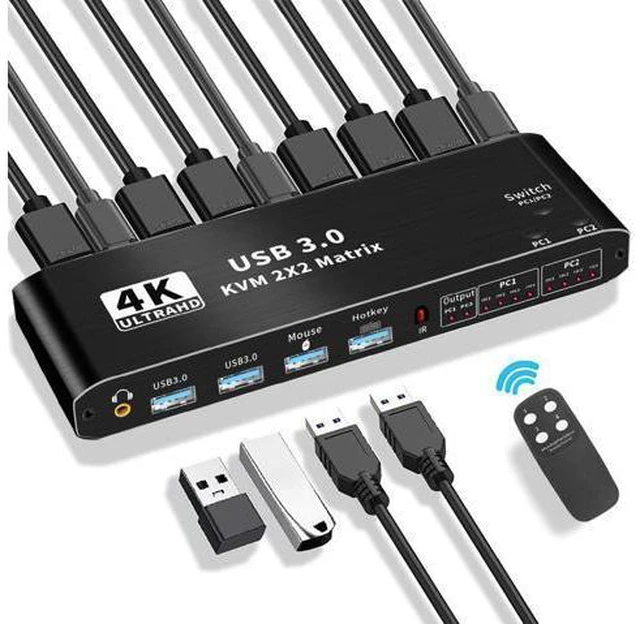


2x2 HDMI KVM Matrix Switch 4K @60Hz, Dual Monitor KVM HDMI Extended Display USB 3.0 HDMI KVM Switcher 2 in 2 out for 2 PC 2 Monitors, Support USB Hub, Audio, Hotkey, Button Switching, with IR Remote
Limited time offer, ends 09/28 By Truespan Living
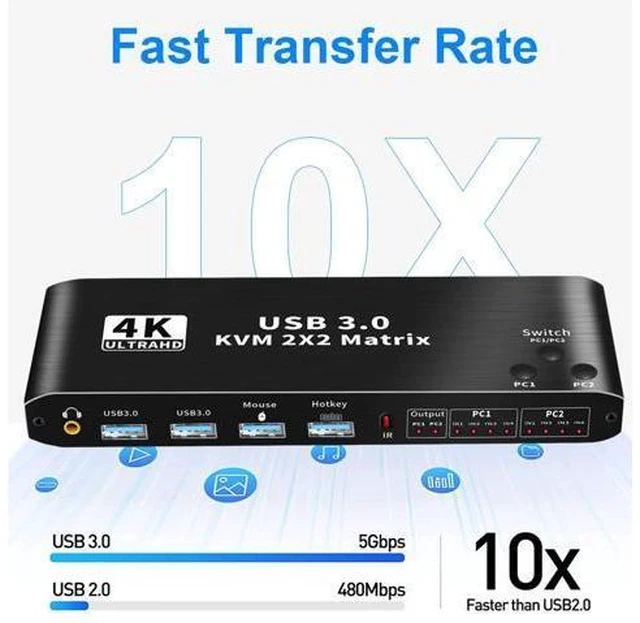
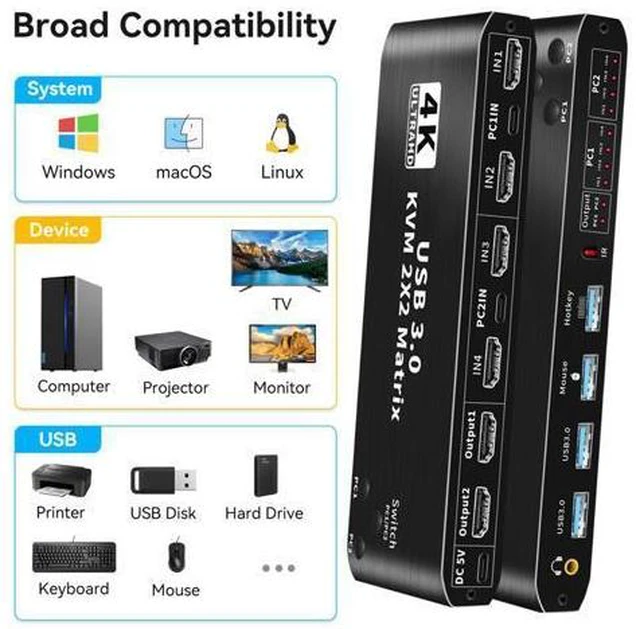
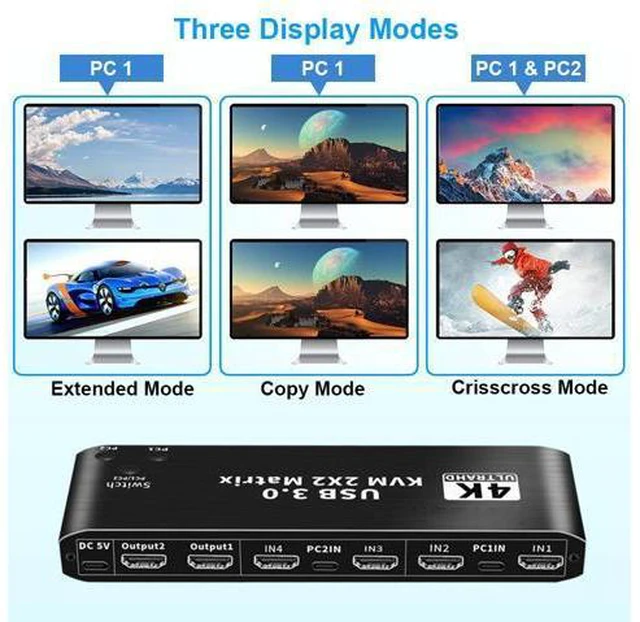
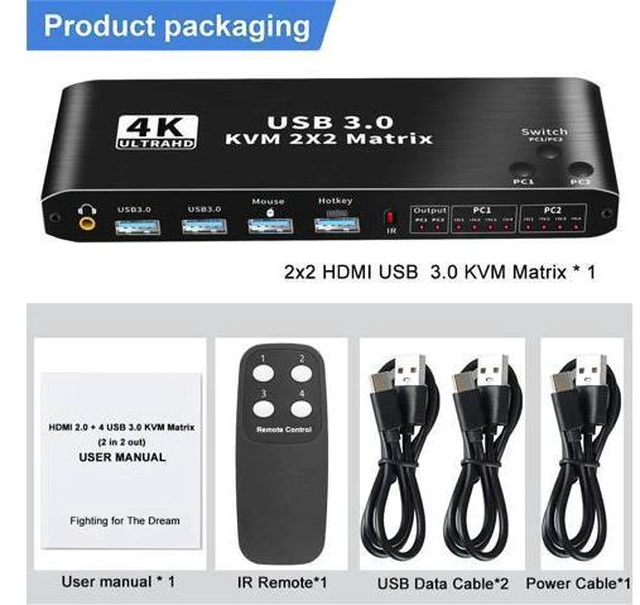
- 2 Port KVM Matrix HDMI-Consoles control up to 2 computers or laptops with 1 set of USB keyboard, mouse, and share dual monitors for extended or copy display. It requires every computer support 2 screen or above display functions.; UHD 4k@60Hz HDMI KVM Dual Monitor-Support 3840*2160@60Hz/3D/1080P resolution, compliance with HDM12.0 standard, built-in Auto EDID make the image display more exquisite and realistic.; with 2 Switch Modes -- NO 1. You can choose hotkey switch; NO 2. You also can switch the 2 signal sources by the panel buttons, the status light tells you which port is active.; The KVM provides 2 USB2.0 ports and 2 USB3.0 ports, Supporting various USB devices. Tip: Please connect the mouse and keyboard to the K/M interface, otherwise the hotkey switch cannot be used.; Wide Compatibility: Compatible with all laptops with HDM1 port and other devices. It has adaptive EDID, adapt to Windows, macOS, Linux, UNIX and other operating systems.
+
+
Overview
Specs
Reviews
HDMI + USB 3.0 *2 + Mouse + keyboard KVM Matrix (2 in 2 out) Features Support 4K60Hz HDCP 2.3 HD picture quality, adaptive screen resolution Support keyboard hot key switching, more convenient to use Highly integrated digital chip combination, plug and play.
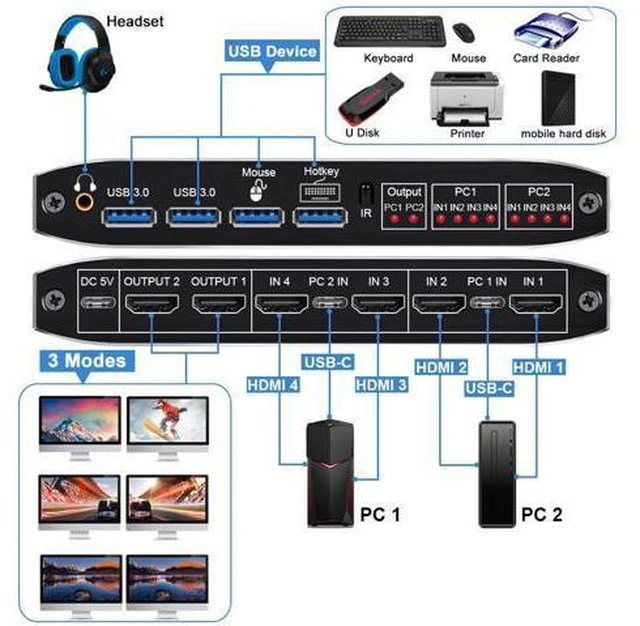
Product input: HDMI*2+USB 3.0 *2+Keyboard+Mouse 5,
Product output: 2 HDMI 6, Support 3.5 mm JACK (PCM/LPCM) audio output.
Connection description: Step
1: Connect the USB TO TYPE-C Cable to power it.
Step 2: Connect PC1 and KVM with 1 USB TO TYPE-C cable and 2HDMI cables.
Step 3: Connect PC2 and KVM with 1 USB TO TYPE-C cable and 2HDMI cables.
Step 4: Connect the keyboard and mouse to KVM Matrix.
Step 5: Connect two monitors and KVM SWITCH with two HDMI cables.
Switch Mode: Key
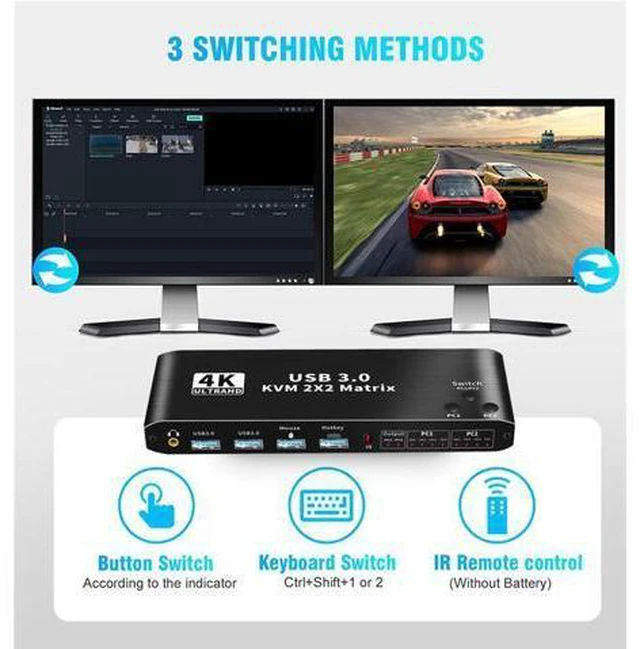
Switch: press the key on the KVM switch panel to switch the PC1 PC2. When the PC1 IN1 or IN2 light is on, it indicates that the PC1 is currently in use, and if the PC@ IN1 or IN2 light is on, it indicates that PC2 is currently in use. The key PC1/PC2 is a single Switch signal source output in matrix mode (the 3 and 4 keys of the remote correspond to PC1/PC2), and the 1/2 keys of the remote control correspond to the Switch (Switch PC1/PC2) keys in KVM mode.
Remote control switch: The infrared remote control in the accessories can be used to realize long-distance switch (unblocked, about 15 meters). The indicator light mode is the same as that of the button switch.
Keyboard hotkey switch: Press Ctrl + Shift + 1 to switch to PC1, press CTRL + Shift + 2 to switch
Product input: HDMI*2+USB 3.0 *2+Keyboard+Mouse 5,
Product output: 2 HDMI 6, Support 3.5 mm JACK (PCM/LPCM) audio output.
Connection description: Step
1: Connect the USB TO TYPE-C Cable to power it.
Step 2: Connect PC1 and KVM with 1 USB TO TYPE-C cable and 2HDMI cables.
Step 3: Connect PC2 and KVM with 1 USB TO TYPE-C cable and 2HDMI cables.
Step 4: Connect the keyboard and mouse to KVM Matrix.
Step 5: Connect two monitors and KVM SWITCH with two HDMI cables.
Switch Mode: Key
Switch: press the key on the KVM switch panel to switch the PC1 PC2. When the PC1 IN1 or IN2 light is on, it indicates that the PC1 is currently in use, and if the PC@ IN1 or IN2 light is on, it indicates that PC2 is currently in use. The key PC1/PC2 is a single Switch signal source output in matrix mode (the 3 and 4 keys of the remote correspond to PC1/PC2), and the 1/2 keys of the remote control correspond to the Switch (Switch PC1/PC2) keys in KVM mode.
Remote control switch: The infrared remote control in the accessories can be used to realize long-distance switch (unblocked, about 15 meters). The indicator light mode is the same as that of the button switch.
Keyboard hotkey switch: Press Ctrl + Shift + 1 to switch to PC1, press CTRL + Shift + 2 to switch
Warranty & Returns
Warranty, Returns, And Additional Information
Warranty
- Please contact the Seller directly for warranty information. Warranty information may also be found on the Manufacturer's website.
- CONTACT
Return Policies
- Return for refund within: 30 days
- Return for replacement within: 90 days
- This item is covered by Truespan Living Return Policy
Manufacturer Contact Info
- For a directory of all our manufacturers, please click below.
- Manufacturers Directory
LOADING...