


Ships from China.

Meet Your Seller

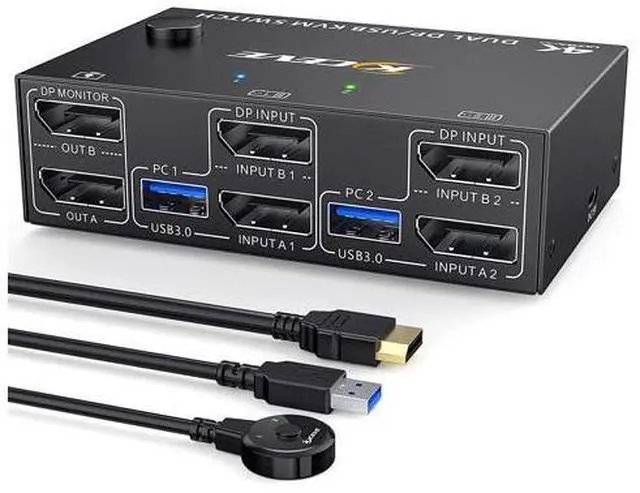


2 Ports Dual Monitor DisplayPort KVM Switch 8K @30Hz 4K @60Hz 2 in 2 Out, DP 1.4 KVM Switch and 4 USB 3.0 for 2 Computers, Backward Compatible DP1.2 with DP+USB Cables and Wired Controller included
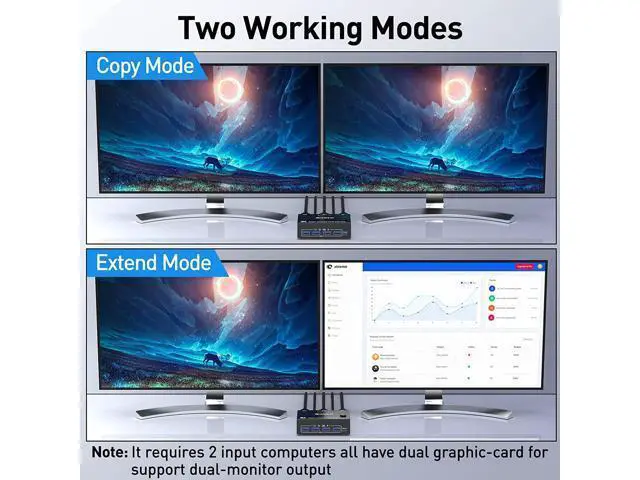
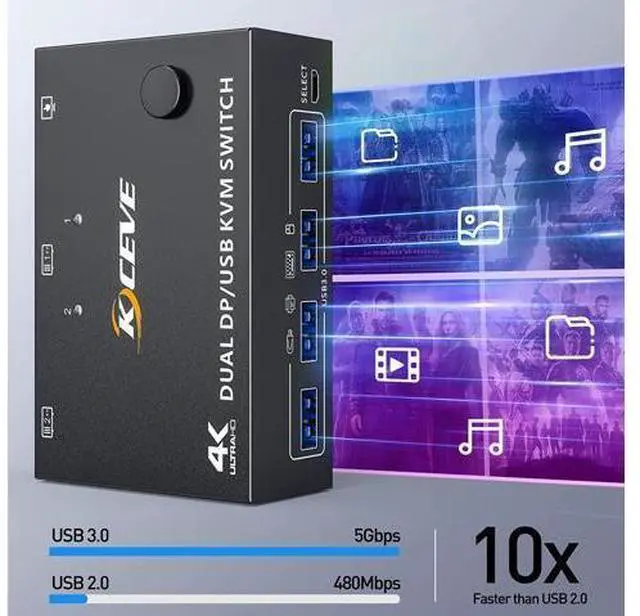
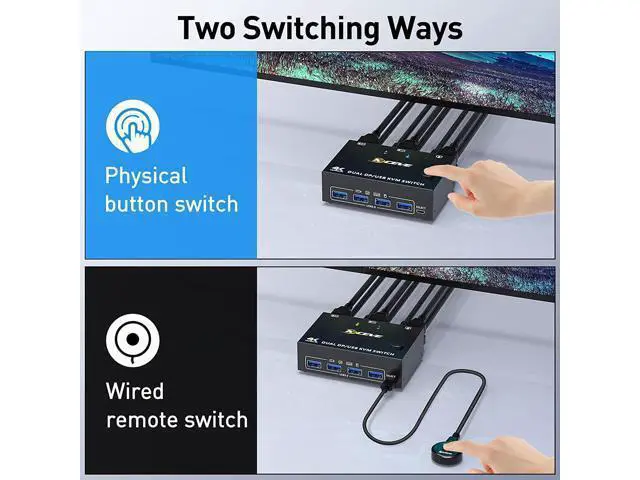
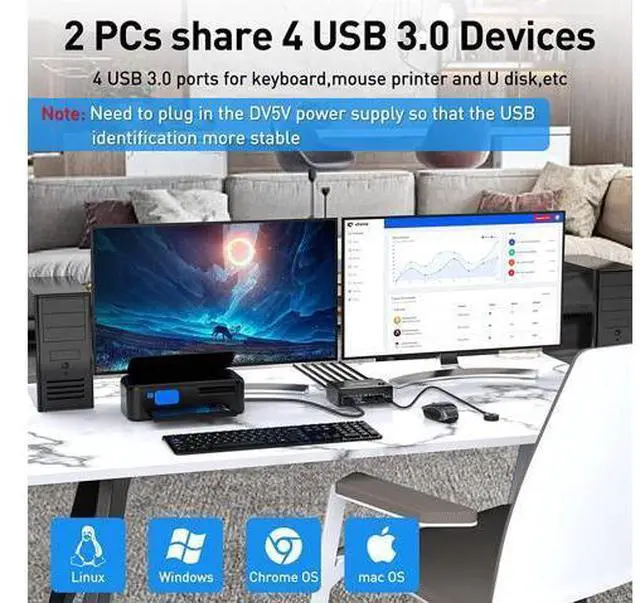
- [Dual Monitor Displayport 1.4 KVM Switch] Dual Monitor KVM Switch helps 2 computers or laptops to share 2 monitors,1 set of keyboard, mouse and 4 USB 3.0 devices,support extend mode and copy mode.; [Ultra HD 8K@30Hz] Supports max. resolution of 8K @30Hz, 4K @60Hz and downward compatible DP 1.2.; [with 4 USB 3.0 Ports] with 4 USB 3.0 ports which can recognize keyboard,mouse,printer and other USB devices. USB 3.0 offers data transfer speeds of up to 5Gbps, while USB 2.0 offers data transfer speeds of only 480Mbps.; [Compatibility & 2 Switching Methdos] Driver-free and plug and play. you can press the button on the panel or use the wired remote controller to switch the computers.Two color lights indicate the active computer.; [Extended Mode&Copy Mode]Dual display KVM switches require 2*DP connections per computer, and for computers with discrete and integrated graphics cards require both DP ports to be belong of the discrete graphics card.
+
+
Overview
Specs
Reviews
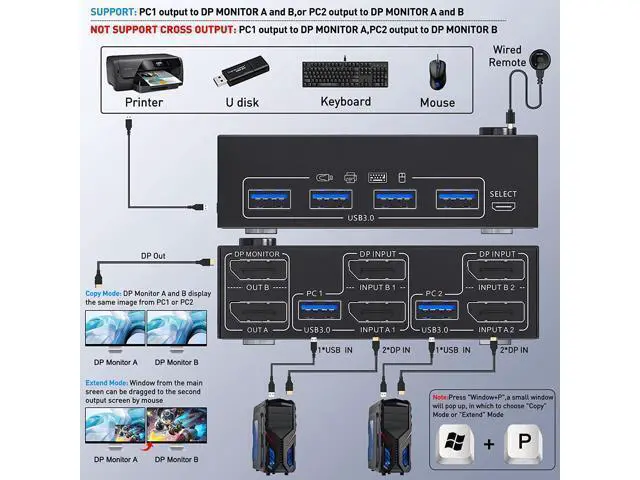
2 ports dual-monitor DP KVM Switch (DP + DP). Each input source device must be connected to two dual-monitor
Features: 2 computers share a wired/wireless keyboard, mouse and 2 monitors. Dual monitor output supports extended and copy display.
Switching mode: push-button switch and wired remote control. Supports wired or wireless keyboard and mouse. Cross support for most major operating systems, including Windows, Linux, and Mac Support the highest resolution 8K@30Hz, 4K@60Hz, downward compatible. Supoort DP 1.2 and downward compatible
Note: Dual display KVM switches require two DP connections per computer, and for computers with discrete and integrated graphics cards require both DP ports to be part of the discrete graphics card. However, most computers, especially laptops, do not have dual DP ports and therefore require a reliable adapter or docking station. So please know the configuration of the computer before ordering.
Input: Support MINI DP to DP Cable, USB-C to DP Adapter, USB-C to Dual DP Dock. Don't support HD-MI to DP, DVA/VGA to DP.
Output: Support DP to HD-MI Cable. Don't support DP to USB-C/DVI/VGA.
Connection steps: Step
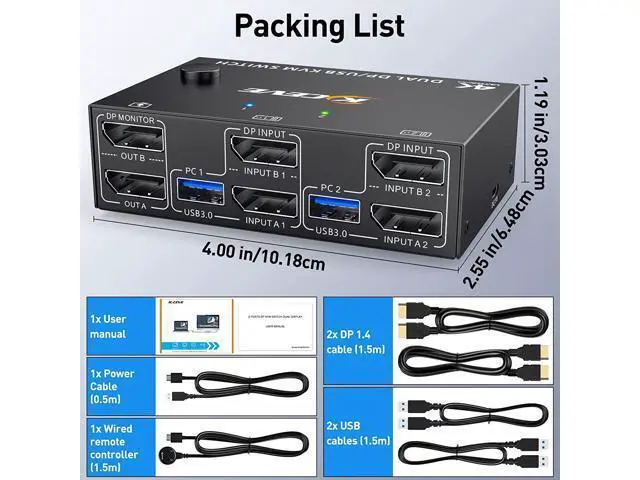
1. Connect 2 x DP cable +1 x USB cable to PC 1 and KVM (USB 1, INPUT A1, INPUT B1). Step
2. Connect 2 x DP cable +1 x USB cable to PC 2 and KVM (USB 2, INPUT A2, INPUT B2). Step
3. Connect A 2 x DP cable between the KVM (OUT A, OUT B) and the monitors. Step
4. Connect the keyboard and mouse to the USB ports on the KVM. Step
5. Insert the USB devices
Features: 2 computers share a wired/wireless keyboard, mouse and 2 monitors. Dual monitor output supports extended and copy display.
Switching mode: push-button switch and wired remote control. Supports wired or wireless keyboard and mouse. Cross support for most major operating systems, including Windows, Linux, and Mac Support the highest resolution 8K@30Hz, 4K@60Hz, downward compatible. Supoort DP 1.2 and downward compatible
Note: Dual display KVM switches require two DP connections per computer, and for computers with discrete and integrated graphics cards require both DP ports to be part of the discrete graphics card. However, most computers, especially laptops, do not have dual DP ports and therefore require a reliable adapter or docking station. So please know the configuration of the computer before ordering.
Input: Support MINI DP to DP Cable, USB-C to DP Adapter, USB-C to Dual DP Dock. Don't support HD-MI to DP, DVA/VGA to DP.
Output: Support DP to HD-MI Cable. Don't support DP to USB-C/DVI/VGA.
Connection steps: Step
1. Connect 2 x DP cable +1 x USB cable to PC 1 and KVM (USB 1, INPUT A1, INPUT B1). Step
2. Connect 2 x DP cable +1 x USB cable to PC 2 and KVM (USB 2, INPUT A2, INPUT B2). Step
3. Connect A 2 x DP cable between the KVM (OUT A, OUT B) and the monitors. Step
4. Connect the keyboard and mouse to the USB ports on the KVM. Step
5. Insert the USB devices
Warranty & Returns
Warranty, Returns, And Additional Information
Warranty
- Please contact the Seller directly for warranty information. Warranty information may also be found on the Manufacturer's website.
- CONTACT
Return Policies
- Return for refund within: 30 days
- Return for replacement within: 90 days
- This item is covered by Truespan Living Return Policy
Manufacturer Contact Info
- For a directory of all our manufacturers, please click below.
- Manufacturers Directory
LOADING...