
Your Browsing History
Ships from United States.
Most customers receive within 7-9 days.
Sold by Zhanfu Technology Co., Limited
Shipped by Zhanfu Technology Co., Limited

Meet Your Seller

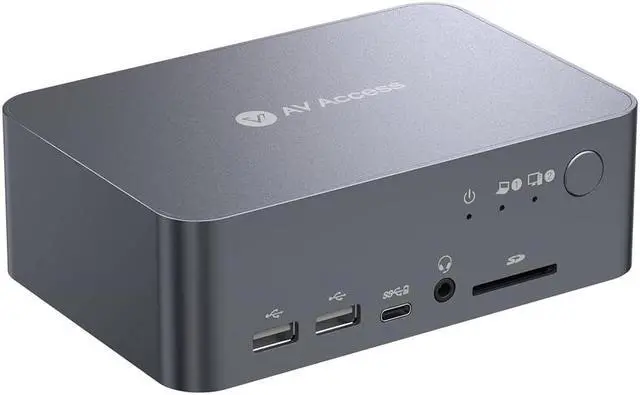


AV Access KVM Switch 2 Computers 2 Monitors, USB C Docking Station for Laptop and Desktop Dual Monitor, USB 3.0 4K KVM Switch with HDMI and DisplayPort Type-C 60W Charging for Laptop, Ethernet, EDID
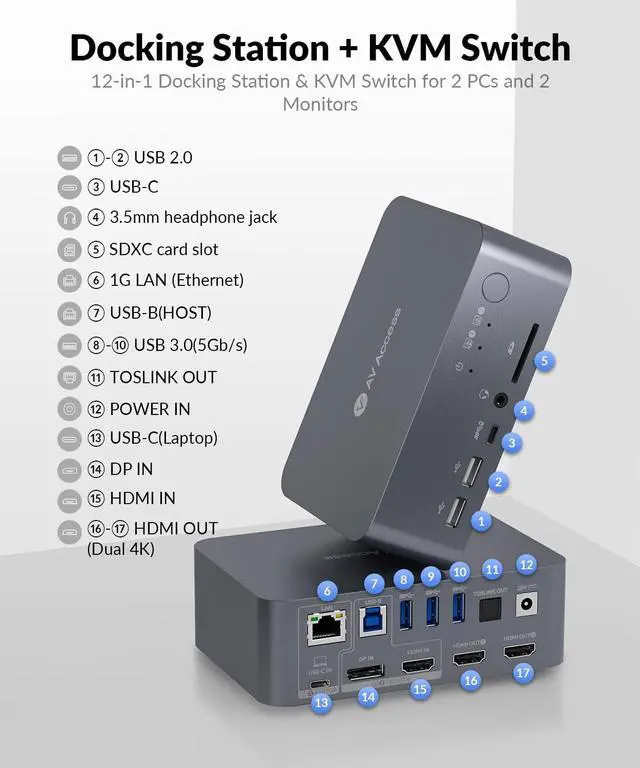
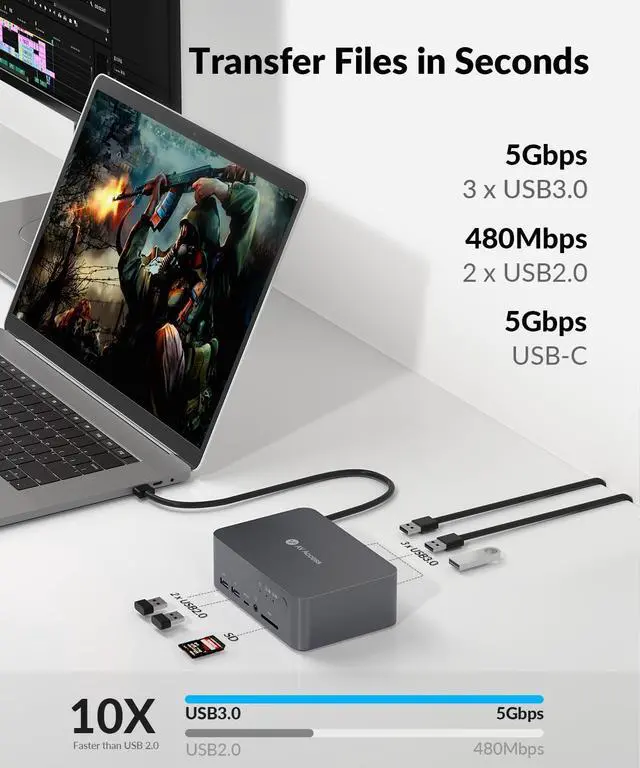
- KVM Switch with Docking StationYour two computers can share this 12-in-1 docking station with abundant peripheral ports like 3x USB 3.0, 2x USB 2.0, 1x USB-C, 1x SD card, 1x LAN, 1x Toslink out, 1x 3.5mm headset, and two HDMI outputs. Build a powerful workstation at home with ease
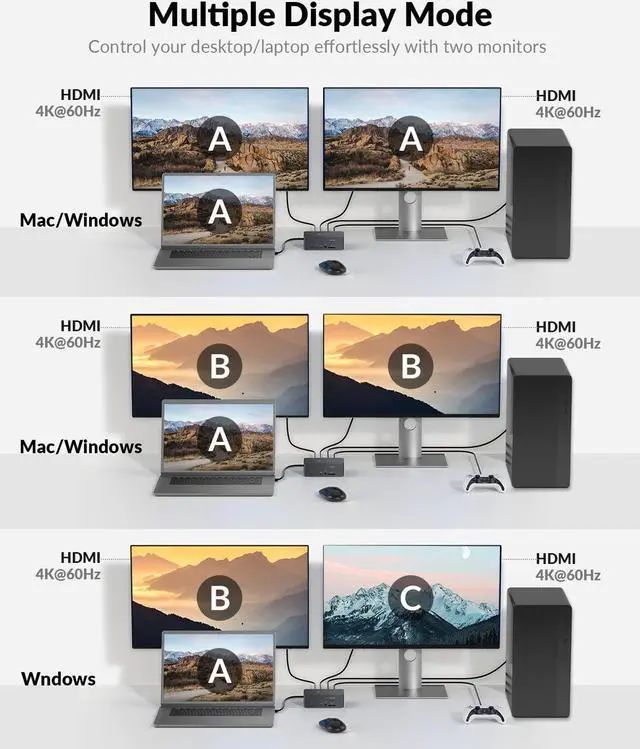
- KVM Switch Dual Monitorthis new KVM switch 2 computers 2 monitors built with 1x USB-C (MST) input port for laptop, and 1x integrated HDMI + DisplayPort + USB-B input port for desktop computer. Switch easily between your workstation and gaming PC, and view two monitors at the same time
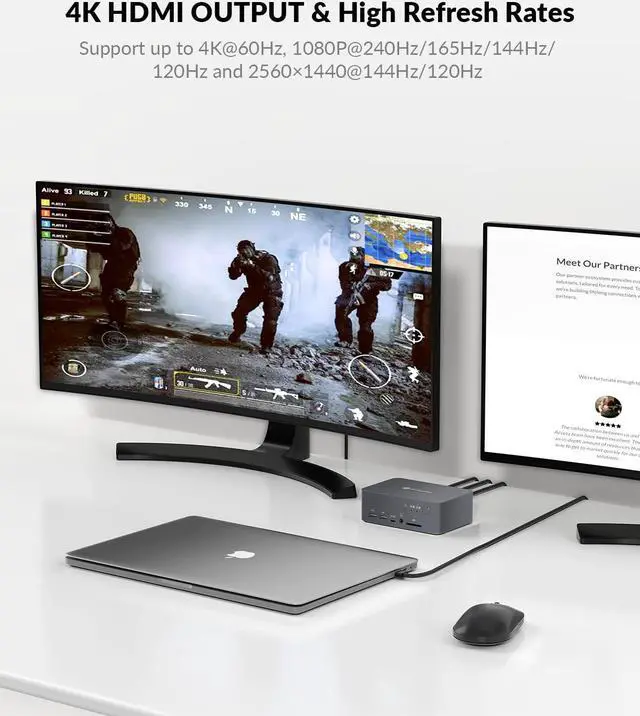
- Ultra-High Refresh RateHDMI 2.0, DisplayPort 1.2 & DisplayPort 1.4a (USB-C) compliant. Supports up to 4K@60Hz 4:4:4. Also supports high refresh rates like 1080P@240Hz/165Hz/144Hz/120Hz, and 2560×1440@144Hz/120Hz, ensuring wonderful gaming experiences
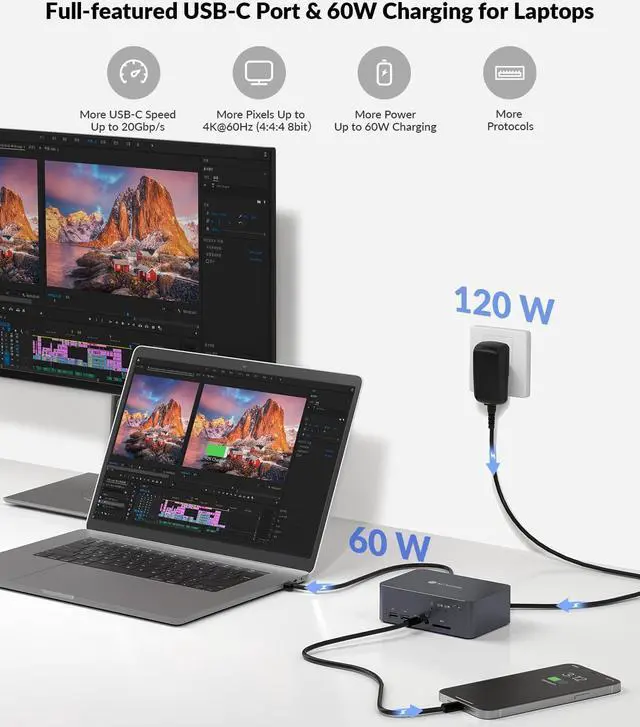
- Full-Featured USB-Cthe KVM Switch with the 20Gbp/s USB-C port, you can input dual 4K UHD videos and transmit a large amount of data with up to 5Gbp/s. Also, you can
Overview
Specs
Reviews
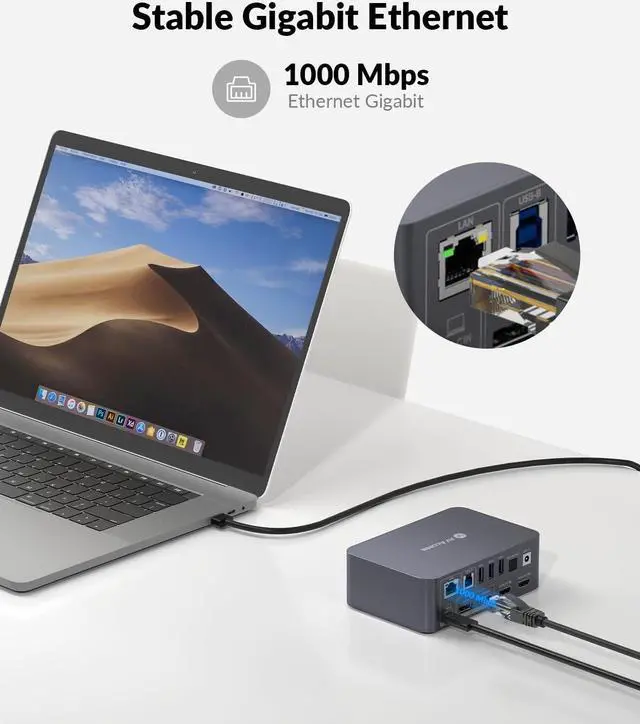
Next page1Full-Featured USB-C2Connection Diagram3Ethernet port4USB 3.0 Ports Designed with a full-featured USB-C port, this powerful KVM switch allows you to transfer data, audio, video and power, with just a single USB-C cable! You can input dual 4K UHD videos and transmit a large amount of data (up to 5Gbp/s), while charging your laptop with up to 60W. Compatible with Thunderbolt laptops.
This gadget is a perfect combination of a KVM switch and a docking station, allowing you to build a powerful workstation at home. In addition to two monitors, your two PCs can share abundant peripherals like a mouse, keyboard, 4K webcam, speakerphone, printer, scanner, SD card, headset, AV receiver, etc. Stay confident that all USB peripherals connect to this KVM switch flawlessly, as it supports up to 20V/6A power consumption.
This dual monitor KVM switch is HDMI 2.0, HDCP 2.2 compliant, DisplayPort 1.2, DisplayPort 1.4a (USB-C), with up to 4K@60Hz 4:4:4 video resolution.
This 4K KVM switch is designed with a new-generation wake-up engine, so it can automatically wake up your PC with no manual operation required.
the KVM switch is built with an EDID emulator in each input port. it ensures stable communications between the video sources and the display device.
Experience the convenience of this ultra-compact 4K KVM switch, which is one-third the size of an iPad. Sleek and exquisite all-aluminum construction.
1. What to do if the dual monitor KVM switch doesnt work?
Please check if the POWER LED is light on the front panel. Please make sure to use the 20V/6A power supply provided in the package. An unsuitable or insufficient power supply may damage the product.
2. What to do if the KVM switch doesnt show/output dual 4K videos simultaneously?
If you use USB-C as input:
Please make sure to use the USB-C to USB-C cable provided in the package.
If you use DP or HDMI as input:
Please connect both DP and HDMI input ports at the same time.
3. What to do if wireless mouse and keyboard are not responsive?
You can check whether a USB 3.0 device is connected next to the wireless dongle accessory. Please connect the USB 3.0 to an interface far away from the wireless dongle, such as the USB 3.0 interface on the rear panel.
4. What to do if the video on screen is flickering or unstable?
Please make sure to use the correct cable. Please use DP1.4 above cables for DP, and HDMI 2.0 and above cables for HDMI.For USB-C, please use the built-in cable or a USB-IF-certified cable that supports a USB 3.2 Gen 2 cable with the 10Gb/s data rate
Next page of related Sponsored ProductsSponsoredHdmi kvm usb extenderShop Basicolor
This gadget is a perfect combination of a KVM switch and a docking station, allowing you to build a powerful workstation at home. In addition to two monitors, your two PCs can share abundant peripherals like a mouse, keyboard, 4K webcam, speakerphone, printer, scanner, SD card, headset, AV receiver, etc. Stay confident that all USB peripherals connect to this KVM switch flawlessly, as it supports up to 20V/6A power consumption.
This dual monitor KVM switch is HDMI 2.0, HDCP 2.2 compliant, DisplayPort 1.2, DisplayPort 1.4a (USB-C), with up to 4K@60Hz 4:4:4 video resolution.
This 4K KVM switch is designed with a new-generation wake-up engine, so it can automatically wake up your PC with no manual operation required.
the KVM switch is built with an EDID emulator in each input port. it ensures stable communications between the video sources and the display device.
Experience the convenience of this ultra-compact 4K KVM switch, which is one-third the size of an iPad. Sleek and exquisite all-aluminum construction.
1. What to do if the dual monitor KVM switch doesnt work?
Please check if the POWER LED is light on the front panel. Please make sure to use the 20V/6A power supply provided in the package. An unsuitable or insufficient power supply may damage the product.
2. What to do if the KVM switch doesnt show/output dual 4K videos simultaneously?
If you use USB-C as input:
Please make sure to use the USB-C to USB-C cable provided in the package.
If you use DP or HDMI as input:
Please connect both DP and HDMI input ports at the same time.
3. What to do if wireless mouse and keyboard are not responsive?
You can check whether a USB 3.0 device is connected next to the wireless dongle accessory. Please connect the USB 3.0 to an interface far away from the wireless dongle, such as the USB 3.0 interface on the rear panel.
4. What to do if the video on screen is flickering or unstable?
Please make sure to use the correct cable. Please use DP1.4 above cables for DP, and HDMI 2.0 and above cables for HDMI.For USB-C, please use the built-in cable or a USB-IF-certified cable that supports a USB 3.2 Gen 2 cable with the 10Gb/s data rate
Next page of related Sponsored ProductsSponsoredHdmi kvm usb extenderShop Basicolor
Warranty & Returns
Warranty, Returns, And Additional Information
Warranty
- Please contact the Seller directly for warranty information. Warranty information may also be found on the Manufacturer's website.
- CONTACT
Return Policies
- Return for refund within: 30 days
- Return for replacement within: 90 days
- This item is covered by Zhanfu Technology Co., Limited Return Policy
Manufacturer Contact Info
- For a directory of all our manufacturers, please click below.
- Manufacturers Directory
LOADING...