


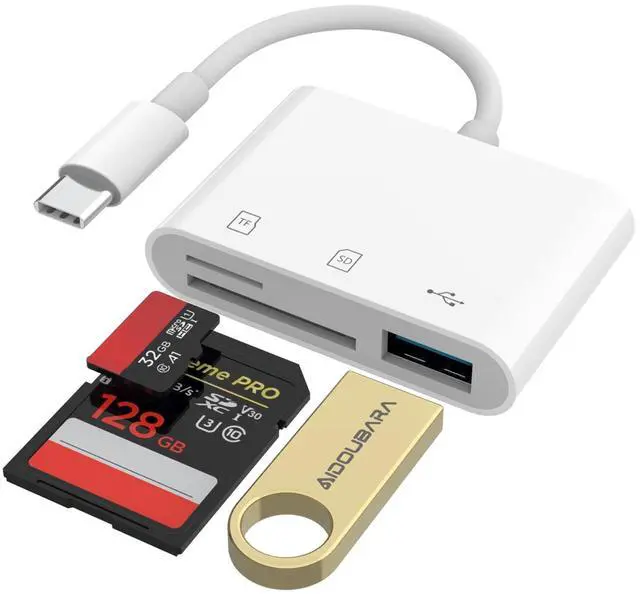
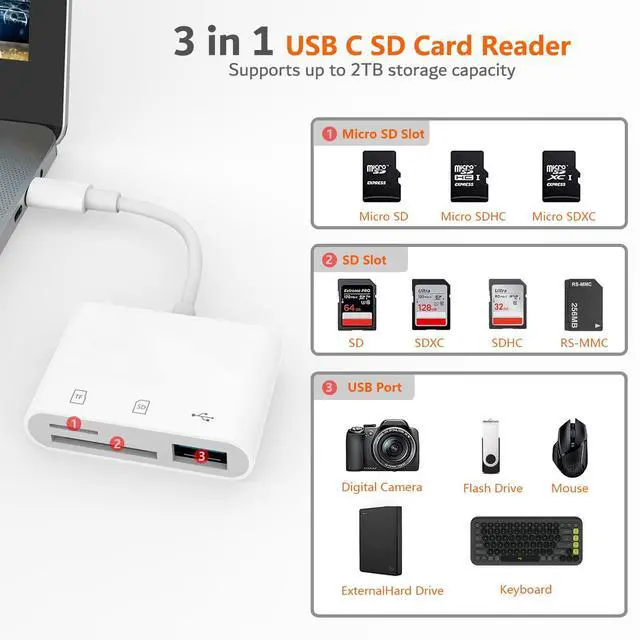
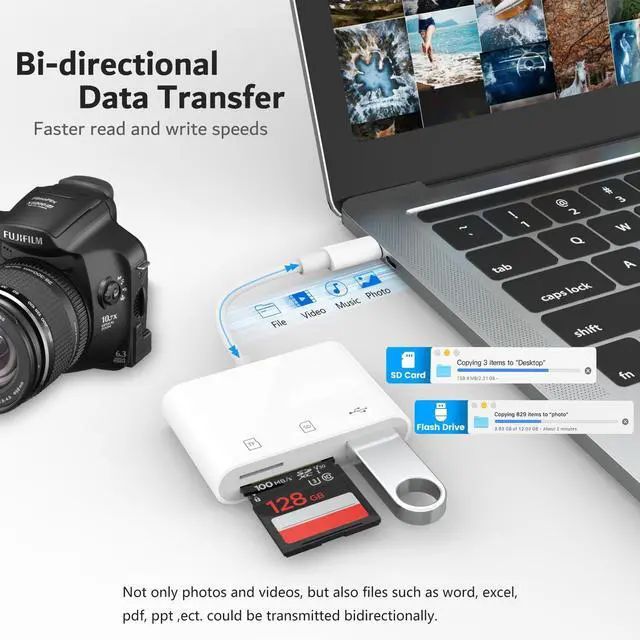



AIDOUBARA was born from the digital era's need for seamless connection. We redefine tech interactions through innovative accessories like our USB-C SD Card Reader, which combines minimalist design with high-speed data transfer. True to "Seamless Links, Real Experiences," we merge precision engineering with intuitive usability—making every exchange swift, reliable, and effortlessly elegant. Technology that understands both data and people.
sd card reader usb c
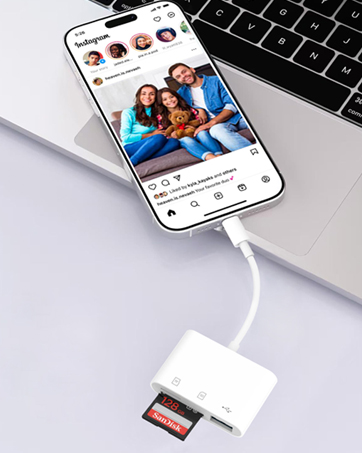
memory card reader
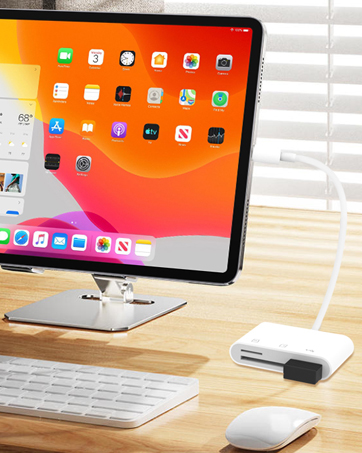
digital camera adapter iphone


Q&A
| Q1 | Plug and play, but no response on iPhone or iPad? |
|---|---|
| - | IOS13 and later versions, after inserting the memory card reader on iPhone, the window will not pop up automatically, you need to open the Files APP manually to read the memory card. |
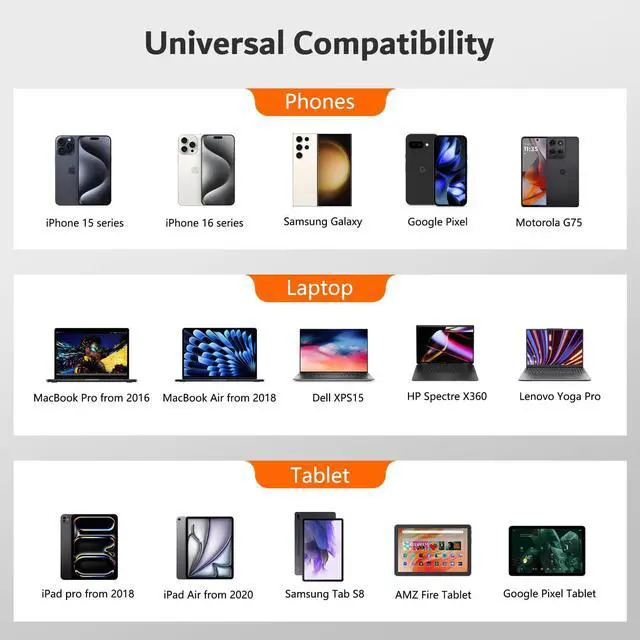
| Q2 | Why is my device not compatible? |
| - | 1. The USB C Card Reader that do not support the "Lightning" and "USB-A"interface. |
| - | 2. Some SD/TF cards with encryption or special formats (such as camera-specific formats) |
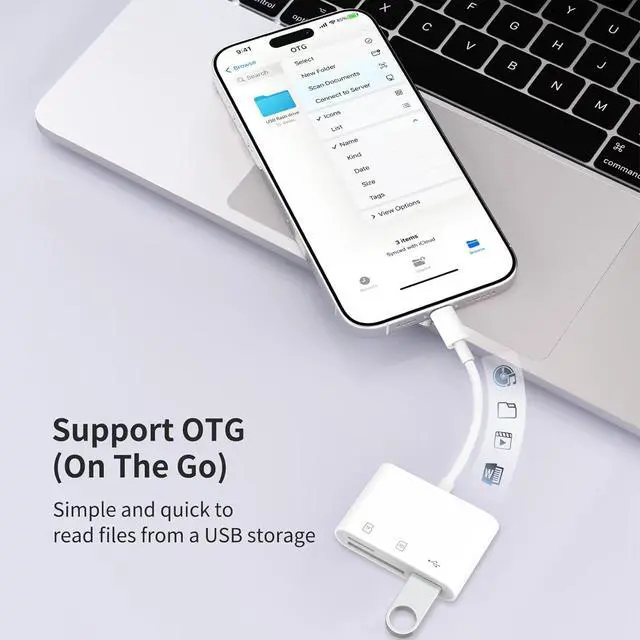
| - | 3. Android phones and tablets that do not support OTG function (OTG support can be checked in settings or official specifications) |
| Q3 | What to do if the card reader does not work? |
| - | 1. Make sure the card is inserted in the correct orientation. |
| - | 2. Devices that support the OTG function, enable OTG on your device and find the SD card in the settings. |
| - | 3. If it still does not work, you can always ask us and we will help you solve it as soon as possible. |
| Q4 | How to find files on SD Card on iPhone? |
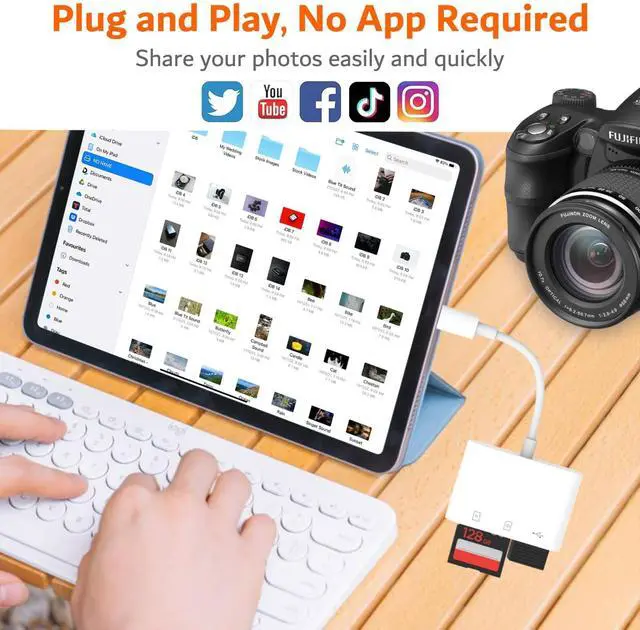
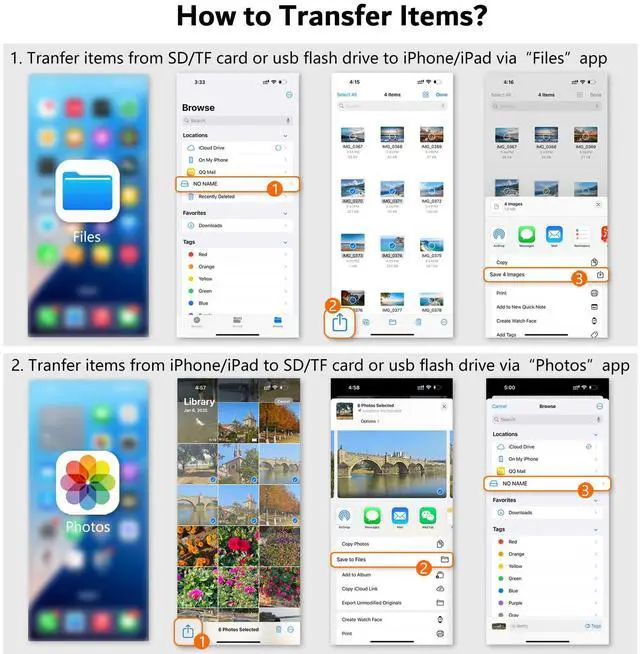
| - | Insert the SD card into the card reader > plug the card reader into thhe iPhone(TYPE-C) > click on the "FILES" app > click on the "Browse" > click on Browse's SD card name> Now you can view your files from your SD card on "SD card name" |
| Q5 | Error message when transferring files? |
| - | (1)If you fail to transfer large files, please try to format the SD/MicroSD cards to the right format for your devices. Recommend using MS-DOS (FAT) for 32GB or smaller cards, and exFAT for 64GB cards; (2)macOS system devices can only read NTFS by default, but not write. |
AIDOUBARA was born from the digital era's need for seamless connection. We redefine tech interactions through innovative accessories like our USB-C SD Card Reader, which combines minimalist design with high-speed data transfer. True to "Seamless Links, Real Experiences," we merge precision engineering with intuitive usability—making every exchange swift, reliable, and effortlessly elegant. Technology that understands both data and people.
sd card reader usb c
memory card reader
digital camera adapter iphone