


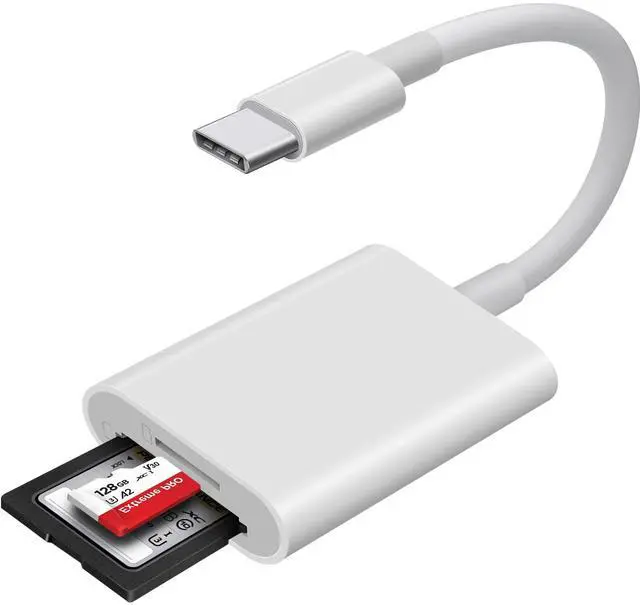


WNXSLOAD 2 in 1 SD Card Reader with SD, MicroSD Dual Slots
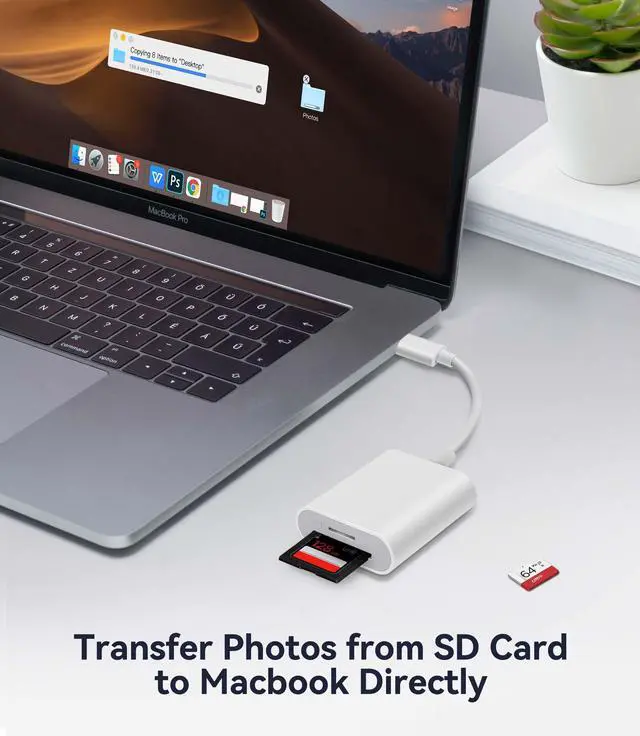
Compatible with USB-C iPhone 15 16, Macbook pro, Macbook Air, iPad Pro, Transfer photos/videos from SD Card to USB C Devices Instantly

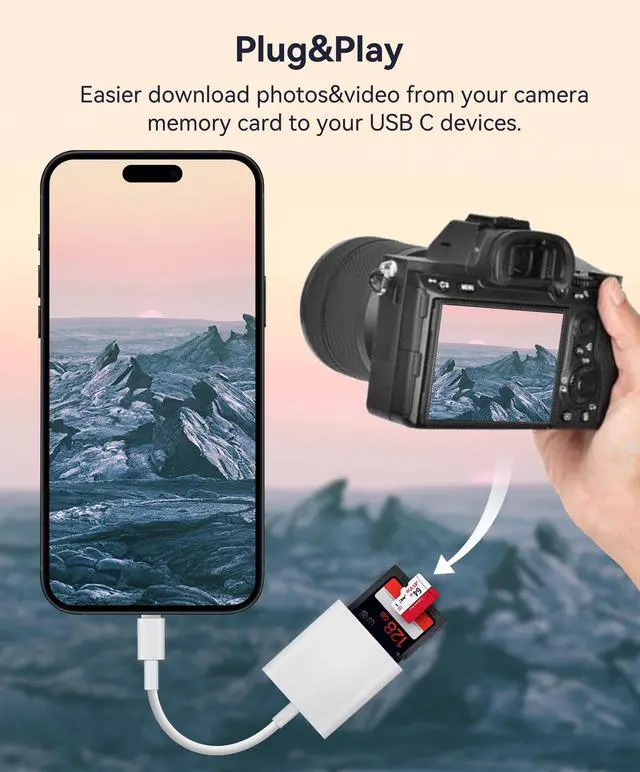
Download photos and videos from camera to your Type C Phones anytime and anywhere
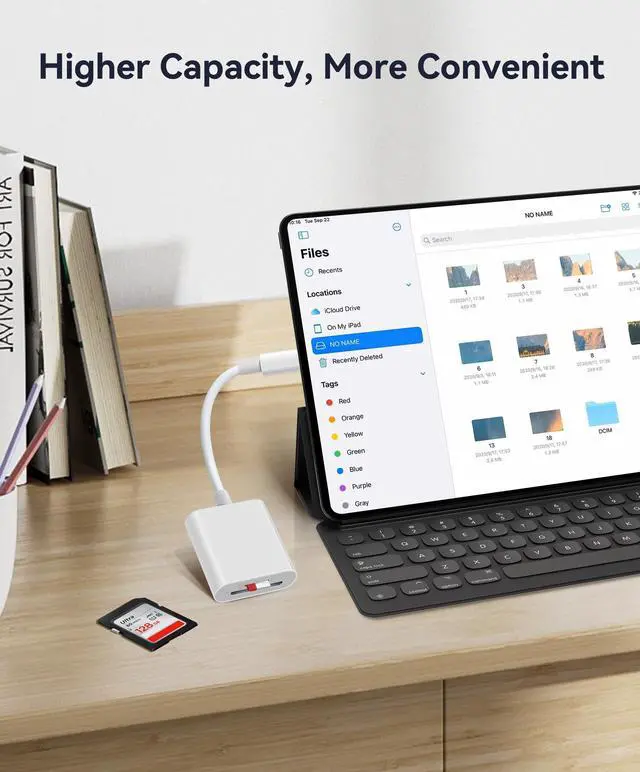
Using this USB-C SD Card Reader, you can read SD Card or MicroSD Card taken by digital camera, Dash Cam or Trail Camera and read the photos or videos soon.
You can download and share it with your friends or family quickly and easily.

Enjoy fast photo downloads, smooth video editing and fast file transmission
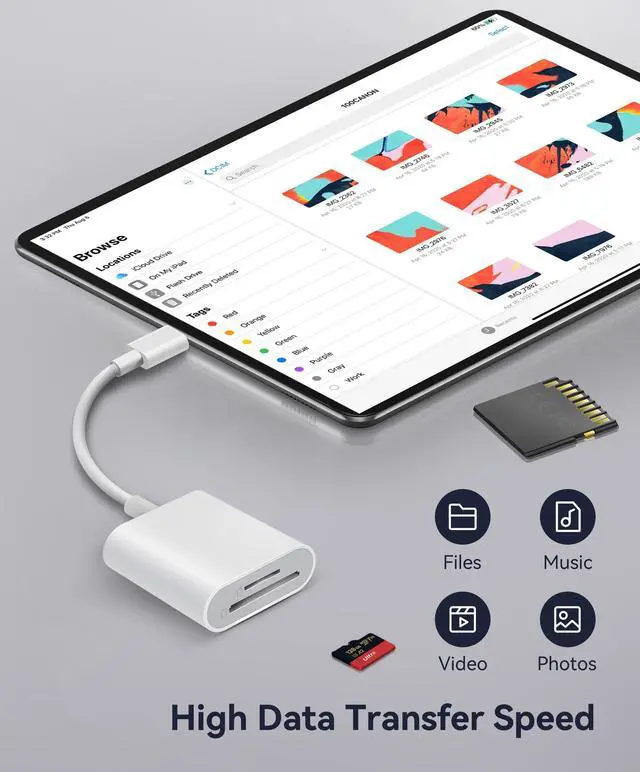
The USB C SD card reader, fast reading and writing the files you need. High transfer speed for easier, smarter life. Just in seconds to quickly transfer the data include pictures, videos, audios and files.

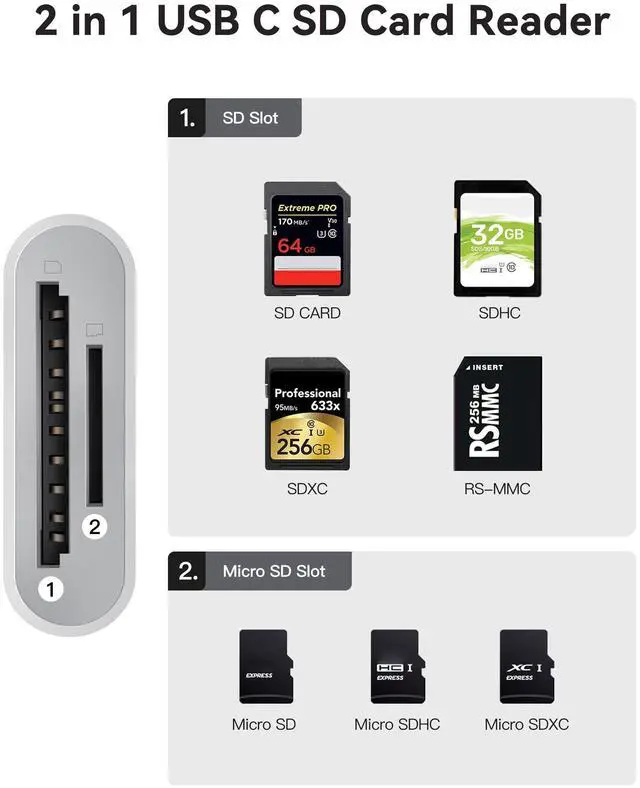
Dual slots for both SD and micro SD cards
The dual slots for both SD and micro SD cards make it easy to transfer files between different devices without having to switch out different adapters. This has been a huge time-saver and has greatly improved workflow.

USB C SD card reader is ideal for iPhone 15 16 series
WNXSLOAD USB-C to SD Card Reader transfers high-resolution photos and videos at high speeds to your USB-C enabled iPhone 15, iPhone 16, Mac, iPad Pro, and Macbook. The photos and videos you take can be quickly shared with family and friends.
SD Card Reader for USB C Phone, USB C iPad, iMac, Macbook Air/Pro

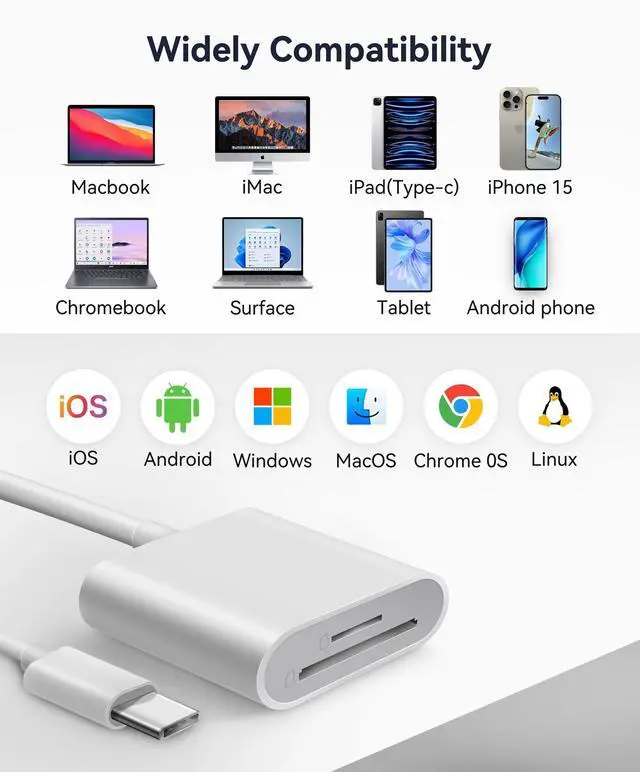
WNXSLOAD Memory Card Reader is perfectly compatible with Mac OS, iPad OS, Windows, Linux, Chrome OS. Convenient to use with a laptop or home computer.
Wide Compatibility
How to Access Memory Cards on USB-C iPhone/iPad Using the Files App?
Files App is the key tool for iOS to read the external memory card. It's from iOS built-in app.
Step 1: Prepare the Card Reader:
Insert your memory card (SD/microSD) into the card reader. Plug the Type-C end of the card reader directly into your iPhone 15’s USB-C port.
Step 2: Open the Files App:
Unlike Android, iOS won't show automatic prompts.
Open the built-in Files app (pre-installed on iOS) directly.
Step 3: Access photos or videos:
Under Locations, you’ll see the memory card listed (e.g., "NONAME," "Untitled," or the card’s name).
Tap it to view all photo, videos or files on the memory card.
You can view, copy, move, and delete photos on the memory card just as you would on a computer.
FAQ:
Incompatible devices?
- This SD card reader is designed with a USB-C interface and is not compatible with iPhones equipped with a Lightening interface.
Incompatible camera cards?
- This SD card reader is designed with dual card slots and supports common SD and microSD cards. It does not support older XD, MS, and CF cards.
No response on iPhone 16?
- Since iOS 13, you need to manually open the Files app to access the contents of the memory card.
WNXSLOAD 2 in 1 SD Card Reader with SD, MicroSD Dual Slots
Compatible with USB-C iPhone 15 16, Macbook pro, Macbook Air, iPad Pro, Transfer photos/videos from SD Card to USB C Devices Instantly
Download photos and videos from camera to your Type C Phones anytime and anywhere
Using this USB-C SD Card Reader, you can read SD Card or MicroSD Card taken by digital camera, Dash Cam or Trail Camera and read the photos or videos soon.
You can download and share it with your friends or family quickly and easily.
Enjoy fast photo downloads, smooth video editing and fast file transmission
The USB C SD card reader, fast reading and writing the files you need. High transfer speed for easier, smarter life. Just in seconds to quickly transfer the data include pictures, videos, audios and files.
Dual slots for both SD and micro SD cards
The dual slots for both SD and micro SD cards make it easy to transfer files between different devices without having to switch out different adapters. This has been a huge time-saver and has greatly improved workflow.
USB C SD card reader is ideal for iPhone 15 16 series
WNXSLOAD USB-C to SD Card Reader transfers high-resolution photos and videos at high speeds to your USB-C enabled iPhone 15, iPhone 16, Mac, iPad Pro, and Macbook. The photos and videos you take can be quickly shared with family and friends.
SD Card Reader for USB C Phone, USB C iPad, iMac, Macbook Air/Pro
WNXSLOAD Memory Card Reader is perfectly compatible with Mac OS, iPad OS, Windows, Linux, Chrome OS. Convenient to use with a laptop or home computer.
Wide Compatibility
| Compatible with USB C iPhone | Compatible with iPhone 15, iPhone 15 Plus, iPhone 15 Pro, iPhone 15 Pro Max, iPhone 16, iPhone 16 Plus, iPhone 16 Pro, iPhone 16 Pro Max |
| Compatible with iPad Pro | Compatible with iPad Pro 13-inch 1th Gen, 12.9-inch 6th Gen / 5th Gen / 4th Gen / 3th Gen, iPad Pro 11-inch 5th Gen / 4th Gen / 3th Gen / 2th Gen / 1th Gen |
| Compatible with iPad Air | Compatible with iPad Air 11-inch 6thGen / 5th Gen / 4th Gen |
| Compatible with iPad mini | Compatible with iPad mini 6th Gen |
| Compatible with iPad | Compatible with iPad 10.9-inch 10th Gen |
| Compatible with iMac | Compatible with iMac(M3,4 Ports/2 Ports), iMac 24-inch(M1,4 Ports/2 Ports,2021), iMac 27-inch(Intel,2020), iMac 27-inch (Intel,2019), iMac 21.5-inch(Intel,2019), iMac 27-inch 2017, iMac 21.5-inch(Intel,2017), iMac Pro(Intel,2017) |
| Compatible with Mac | Compatible with Mac mini(M2/M2 Pro), Mac Studio(M2 Max/M2 Ultra), Mac Pro(M2 Ultra), Mac mini(M1,2020), Mac mini(Intel,2018), Mac Studio(M1 Max/M1 Ultra,2022), Mac Pro(Intel,2019) |
| Compatible with MacBook Air | Compatible with MacBook Air(M3), MacBook Air 13-inch(M2), MacBook Air 13-inch(M1), MacBook Air 15-inch(M2), MacBook Air(Retina,2018/2019/2020) |
| Compatible with MacBook Pro | Compatible with MacBook Pro 16-inch, MacBook Pro 14-inch, MacBook Pro 13-inch |
| Compatible with Samsung | Compatible with Galaxy TabPro S 12", Galaxy S8/S8+/S9/S9+/S10/S10+/S10e/S20/S20 Ultra/S21/S21+/S21 Ultra/S22/S22+/S22 Ultra/S23/S23+/S23 Ultra/Note 8/Note 9/Note 10/Note 10+/Note 20/Note 20 Ultra/Tab S3/Tab S4/Tab S5e/Tab S6/Tab S7, Galaxy Book, Galaxy A5(2017), A8, A9, A20e, A40, A50, A51, A70, A71, A80, A90 |
| Dual Slots Compatibility | Compatible with Micro SD, Micro SDXC, Micro SDHC, SD, SDXC, SDHC cards. Note: MS, XD, and CF cards are not supported. |
| System Compatibility | Compatible with Mac OS, iPadOS, Windows, Chrome OS, Linux, iOS with USB-C Connector, Android |
How to Access Memory Cards on USB-C iPhone/iPad Using the Files App?
Files App is the key tool for iOS to read the external memory card. It's from iOS built-in app.
Step 1: Prepare the Card Reader:
Insert your memory card (SD/microSD) into the card reader. Plug the Type-C end of the card reader directly into your iPhone 15’s USB-C port.
Step 2: Open the Files App:
Unlike Android, iOS won't show automatic prompts.
Open the built-in Files app (pre-installed on iOS) directly.
Step 3: Access photos or videos:
Under Locations, you’ll see the memory card listed (e.g., "NONAME," "Untitled," or the card’s name).
Tap it to view all photo, videos or files on the memory card.
You can view, copy, move, and delete photos on the memory card just as you would on a computer.
FAQ:
Incompatible devices?
- This SD card reader is designed with a USB-C interface and is not compatible with iPhones equipped with a Lightening interface.
Incompatible camera cards?
- This SD card reader is designed with dual card slots and supports common SD and microSD cards. It does not support older XD, MS, and CF cards.
No response on iPhone 16?
- Since iOS 13, you need to manually open the Files app to access the contents of the memory card.