
Your Browsing History
- Free 15-day Returns
$77.40
Ships from Hong Kong.
Sold by Tech Frontier Electronics
 Top Rated
Shipped by Tech Frontier Electronics

Meet Your Seller

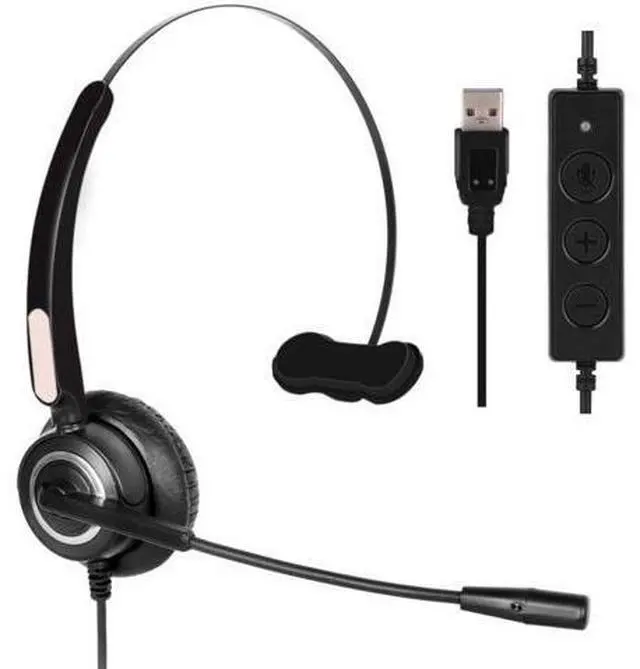
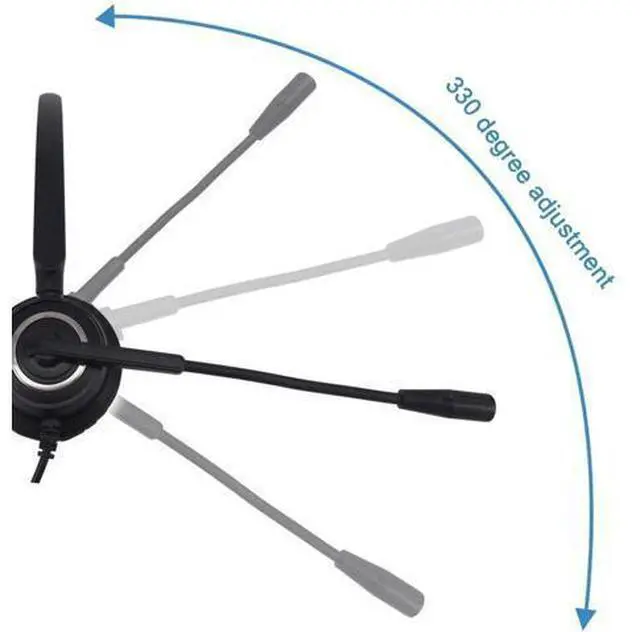
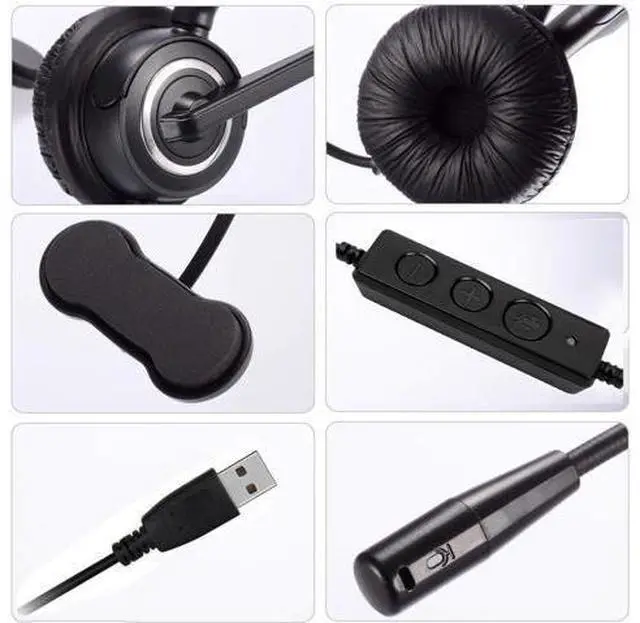



Computer USB Headset Call Center Headset with Microphone Noise Cancelling Wired Business Headset for Skype/PC/Laptop/Mac Business Black
Limited time offer, ends 09/14 By Tech Frontier Electronics
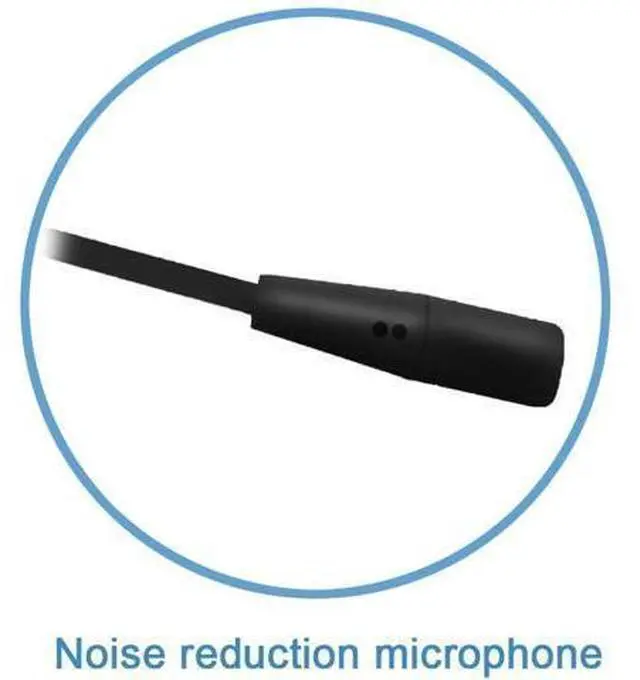
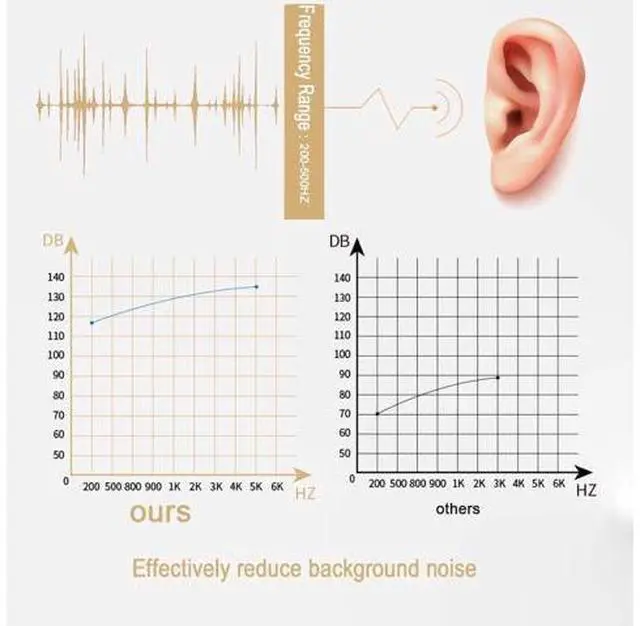
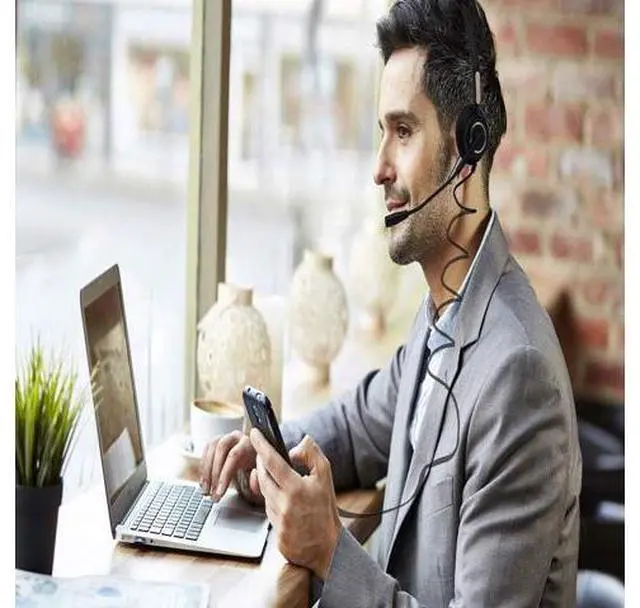
- Optimized for unified communications systems, the CALLANY 510 is lightweight and built with high-quality components. and it uses a noise-cancelling microphone to help ensure you're heard clearly. A mid-range headphones designed for cool and comfortable use all day at the office, the CALLANY USB headset uses a traditional usb plug and comes with an controller that can be used to adjust the volume and mute The 7.9 -foot ( 2.4 -meter) cord gives you the flexibility to move around while you are talking, so you won't be limited by length. How can I hear myself through the mic? In the first step, click on the ??windows?? icon on the desktop of the computer, then click on ??Control Panel??, select ??Hardware and Sound??, click on the ??Sound?? option, select to adjust the system volume and check if the sound is on.; When the microphone of the headset cannot be used. In the first step, right click on the "Volume" icon in the lower right corner of the desktop-----Click on the "Sound" option-----Click on "Record"----Check if the microphone is turned on, if not, left-click on the microphone and select "Use this device" in the device usage; : Headset x 1 Instruction manual x 1
+
+
Overview
Specs
Reviews
Optimized for unified communications systems, the CALLANY 510 is lightweight and built with high-quality components. and it uses a noise-cancelling microphone to help ensure you're heard clearly. A mid-range headphones designed for cool and comfortable use all day at the office, the CALLANY USB headset uses a traditional usb plug and comes with an controller that can be used to adjust the volume and mute The 7.9 -foot ( 2.4 -meter) cord gives you the flexibility to move around while you are talking, so you won't be limited by length. How can I hear myself through the mic? In the first step, click on the?? windows?? icon on the desktop of the computer, then click on?? Control Panel??, select?? Hardware and Sound??, click on the?? Sound?? option, select to adjust the system volume and check if the sound is on.
; When the microphone of the headset cannot be used. In the first step, right click on the "Volume" icon in the lower right corner of the desktop-----Click on the "Sound" option-----Click on "Record"----Check if the microphone is turned on, if not, left-click on the microphone and select "Use this device" in the device usage;: Headset x 1 Instruction manual x 1
; When the microphone of the headset cannot be used. In the first step, right click on the "Volume" icon in the lower right corner of the desktop-----Click on the "Sound" option-----Click on "Record"----Check if the microphone is turned on, if not, left-click on the microphone and select "Use this device" in the device usage;: Headset x 1 Instruction manual x 1
Warranty & Returns
Warranty, Returns, And Additional Information
Warranty
- Please contact the Seller directly for warranty information. Warranty information may also be found on the Manufacturer's website.
- CONTACT
Return Policies
- Return for refund within: 15 days
- Return for replacement within: 30 days
- This item is covered by Tech Frontier Electronics Return Policy
Manufacturer Contact Info
- For a directory of all our manufacturers, please click below.
- Manufacturers Directory
LOADING...