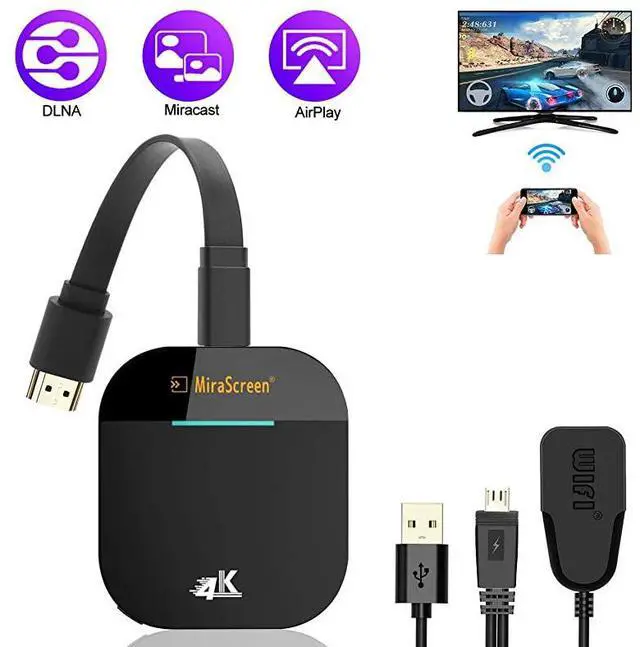
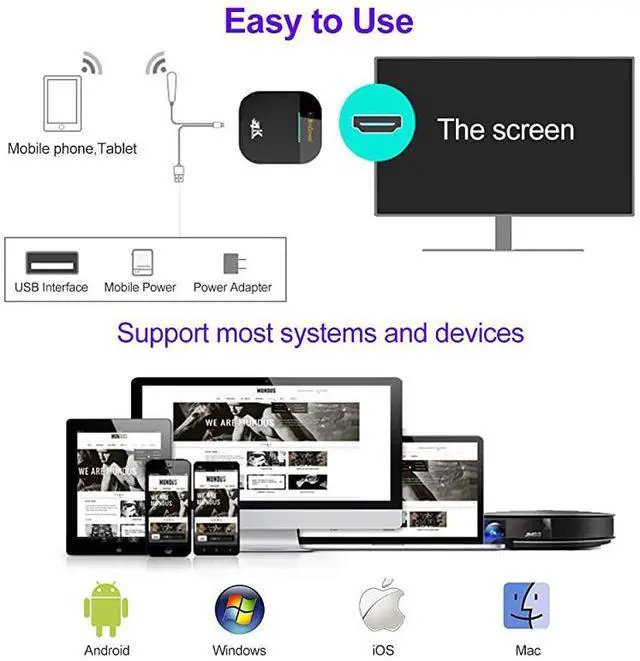
Hardware Installation 1, Connect WiFi antenna with Receiver Dongle, and then connect another plug of WiFi antenna to a USB adater (5V 1A). Please place the Wi-Fi receiver at a location with good Wi-Fi reception. 2, Connect the Dongle directly into an HDTV input port on your TV. 3, Set your TV's Source/Input selection to HDTV input port connected to the Dongle. 4, Your Dongle now starts up and will display instructions on your TV screen. Follow the instructions to complete setup. MiraScreens WiFi SSID and Password are shown on the TV screen.
You may connect your mobile phone or laptop to the MiraScreens WiFi SSID, and then setup MiraScreen accordingly. How to setup for iOS(iPhone/iPad)? 1, Wait for MiraScreen main screen after power on. 2, Connect your iPhone with MiraScreen via WiFi. Launch browser on your iPhone access the
IP address(http: // 192.168. 203.1 ), setup internet for MiraScreen accordingly. 3, Connect your iPhone to home WiFi Router. Swipe up on your iPhone and tap on AirPlay Mirroring, then select MiraScreen as target. 4, You iPhone/iPad screen will be shown on your TV through MiraScreen. How to use Miracast for Android devices? 1, Wait for MiraScreen main screen after power on. 2, Connect your Android devices with MiraScreen via WiFi.
Launch browser to access(http: // 192.168. 203.1 ) on your Android to setup Internet for MiraScreen. 3, Connect your Android device to home WiFi Router. Select MiraScreen as target and wait for connection. 4, Your Android screen will be shown on your TV, reconnect if necessary. If you still need help with the operation of this dongle, please contact us via massages. We team will response within 12 hours.




 We‘re shipping as usual! The Canada Post strike only affects certain remote deliveries and PO Boxes. Details
 Holiday Shipping Details & Extended Holiday Returns


