



Meet Your Seller

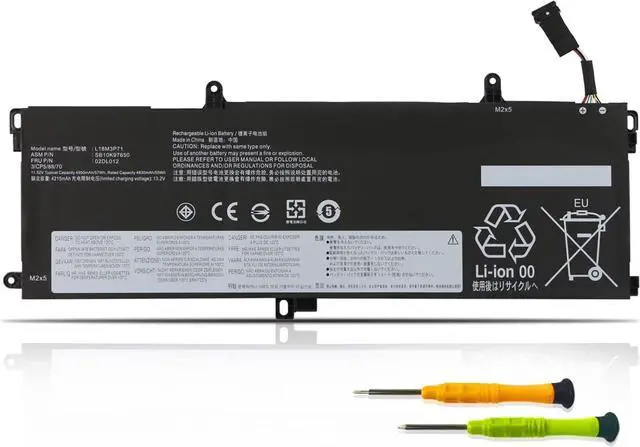


57Wh L18M3P71 Laptop Battery for Lenovo ThinkPad T590 P53S T15 P15S Gen 1 2 1st 2nd 20N4 20N5 20N6 20N7 20S6 20S7 20W4 20W5 20T4 20T5 20W6 20W7 02DL011 02DL012 SB10K97650 SB10K97649 L18L3P71 L18S3P71
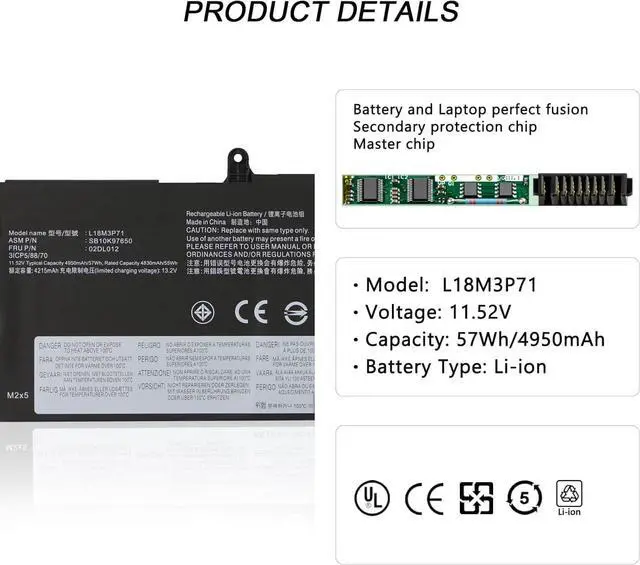
- SpecificationsBattery Type: Li-ion; Voltage: 11.52V; Capacity: 57Wh/4950mAh; Battery life: Up to 500 recharge cycles over the life of the battery.
- Compatible Part Number02DL012 L18M3P71 SB10K97650 02DL011 L18L3P71 SB10K97649 L20D3P71 5B10W13913 SB10T83156 5B10W13914 SB10T83157 5B10W51823 SB10W51924 5B10W51831 SB10W51930 5B10W51832 SB10W51931.
- Compatible Laptop ModelsReplacement for Le-novo ThinkPad T590 P53S T15 P15S Gen 1 2 1st 2nd 20N4 20N5 20N6 20N7 20S6 20S7 20W4 20W5 20T4 20T5 20W6 20W7 SERIES Notebook
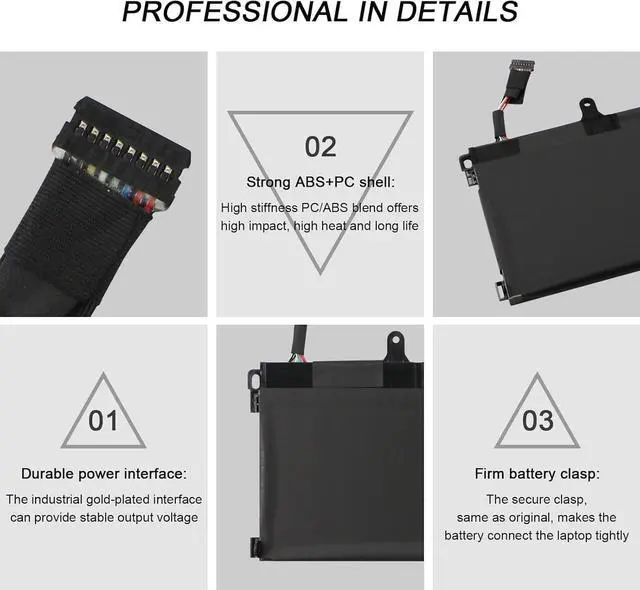
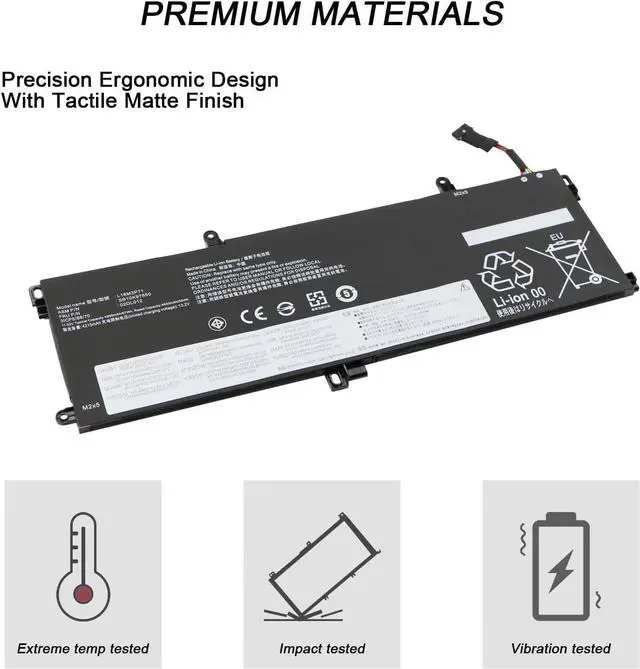
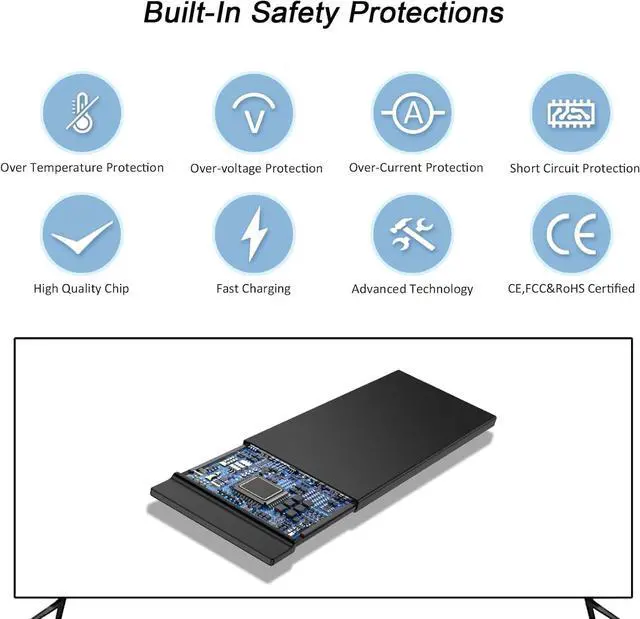
- Quality Assurancenew from manufacturer, every battery has passed factory testing, grade A cells ensure fast charges and low power consumption, built-in circuit protection ensures both safety and stability. CE / FCC / RoHS Certified for safety.
- Perfect After-saleWelcome to email us if you have any issues, questions or concerns, we will resolve the problem within 24 hours.
+
+
Overview
Specs
Reviews
Battery Type: Li-ion
Voltage: 11.52V
Capacity: 57Wh/4950mAh
Certificate: CE,RoHS,FCC Condition: 100% New from Manufacturer, Grade A Cell
02DL012 L18M3P71 SB10K97650 02DL011 L18L3P71 SB10K97649 L20D3P71 5B10W13913 SB10T83156 5B10W13914 SB10T83157 5B10W51823 SB10W51924 5B10W51831 SB10W51930 5B10W51832 SB10W51931.
Before battery disassembly/installation, shut down laptop & unplug power.
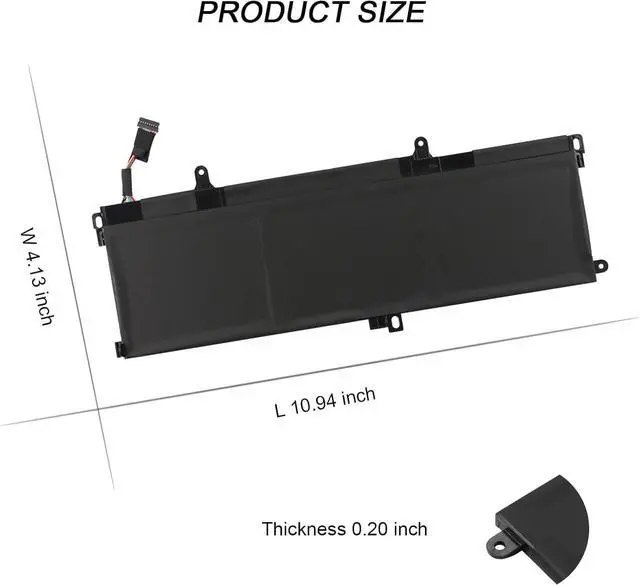
Check original battery dimensions for compatibility.
Avoid long - term cable bending or length changes during use.
Lenovo ThinkPad T590 Series: ThinkPad T590 (20N4002VGE), ThinkPad T590 (20N4002UGE), ThinkPad T590 (20N40032GE), ThinkPad T590 (20N4002WGE), ThinkPad T590 (20N4000AUK), ThinkPad T590 (20N40031GE), ThinkPad T590 (20N40033GE), ThinkPad T590 (20N40009GE), ThinkPad T590 (20N40057GE), ThinkPad T590 (20N5000AMZ). ThinkPad T15 1st Gen Series: ThinkPad T15 Gen.1 (20S6003NGE), ThinkPad T15 Gen.1 (20S60021GE), ThinkPad T15 Gen.1 (20S7S8KQ01), ThinkPad T15 Gen.1 (20S7S8KU01), ThinkPad T15 Gen.1 (20S6000TGE), ThinkPad T15 Gen.1 (20S60023GE), ThinkPad T15 Gen.1 (20S6000SGE), ThinkPad T15 Gen.1 (20S60071GE), ThinkPad T15 Gen.1 (20S60047GE), ThinkPad T15 Gen.1 (20S6S19V00). ThinkPad T15 2nd Gen Series: ThinkPad T15 Gen 2 (20W4007RGE), ThinkPad T15 Gen 2 (20W4003WGE), ThinkPad T15 Gen 2 (20W4003QGE), ThinkPad T15 Gen 2 (20W4008VGE), ThinkPad T15 Gen 2 (20W4008PGE), ThinkPad T15 Gen 2 (20W400NNGE), ThinkPad T15 Gen 2 (20W400NMGE), ThinkPad T15 Gen 2 (20W400NRGE), ThinkPad T15 Gen 2 (20W400NQGE), ThinkPad T15 Gen 2 (20W400NPGE). Lenovo ThinkPad P53S Series: ThinkPad P53s (20N6001NGE), ThinkPad P53s (20N6001JGE), ThinkPad P53s (20N60018GE), ThinkPad P53s (20N6001JUK), ThinkPad P53s (20N7S0U80Q). ThinkPad P15S 1st Gen Series: ThinkPad P15s (20T40049GE), ThinkPad P15s (20T4000AGE), ThinkPad P15s (20T4003AGE), ThinkPad P15s (20T40008GE), ThinkPad P15s (20T40007GE), ThinkPad P15s (20T4000NGE), ThinkPad P15s (20T4000QGE), ThinkPad P15s (20T4000KGE), ThinkPad P15s (20T4000JGE), ThinkPad P15s (20T40006GE). ThinkPad P15S 2nd Gen Series: ThinkPad P15s Gen. 2 (20W6005EGE), ThinkPad P15s Gen. 2 (20W60055GE), ThinkPad P15s Gen. 2 (20W600J2GE), ThinkPad P15s Gen. 2 (20W6007JGE), ThinkPad P15s Gen. 2 (20W600GNGE), ThinkPad P15s Gen. 2 (20W600J9GE), ThinkPad P15s Gen 2 (20W600JBGE), ThinkPad P15s Gen. 2 (20W600J5GE), ThinkPad P15s Gen. 2 (20W600J6GE), ThinkPad P15s Gen. 2 (20W60060GE)
1. You need to turn off your laptop and disconnect the power.
2. Remove the old battery, carefully install the new battery on the battery case, and connect the wiring of the new battery.
3. If you don't understand the above steps, you can search for the video about laptop battery installation on YouTube. Maybe it will help you.
1.Maybe it is caused by a loose battery, please remove the battery and reinstall it again.
2.Maybe due to conductive material damaged which the laptop motherboard and battery anode and cathode contact position, you can try to confirm it with your original battery.
3.Check whether the battery drive is in normal condition, if not, download the corresponding driver software to update.
4.When the computer is turned on, if it is not recognised, it is recommended to update the BIOS settings or please disconnecting the old battery, and holding down the power button for 20 seconds, then connect the new battery.Try a few more times.
1. New battery: For use a new battery, youd better try a few cycles of discharging to 5%. then charging up to 95%. So that it can be activated completely
2. Overuse: Do not always run out of a battery to 0%, this would make it damaged or usage life shortened
3. Charging sequence: when charging, first install the battery, then turn on the power, when fully charged, first cut off the power, then pull the power plug.
4. Long-term storage:Please store the unused battery fully charged.(Charge it once a month) Do not store at low power to prevent
Warranty & Returns
Warranty, Returns, And Additional Information
Warranty
- Please contact the Seller directly for warranty information. Warranty information may also be found on the Manufacturer's website.
- CONTACT
Return Policies
- Return for refund within: 30 days
- Return for replacement within: 90 days
- This item is covered by LionTech Direct Return Policy
Manufacturer Contact Info
- For a directory of all our manufacturers, please click below.
- Manufacturers Directory
LOADING...