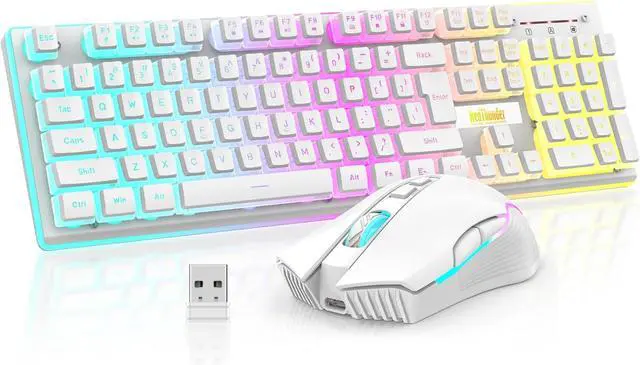
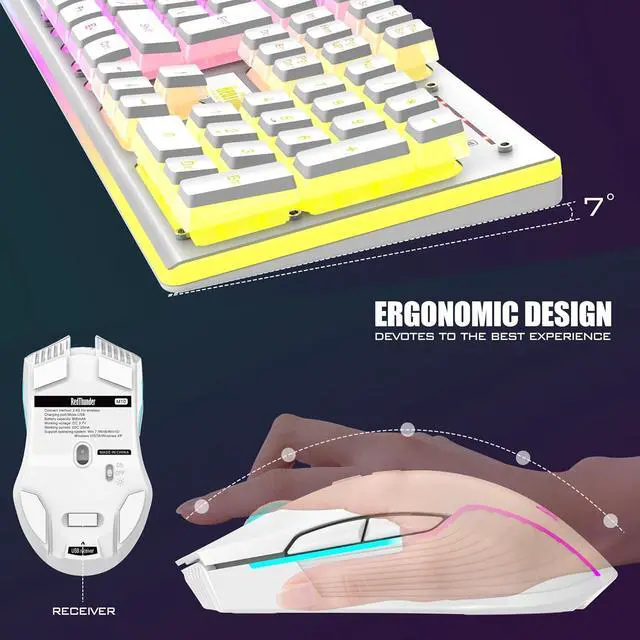
The unique ergonomic floating keycaps adopt a curved design and has a mechanical feel . The middle plate is made of high-quality ABS translucent material and ultra-high light conduction, making the keyboard light more uniform and soft.
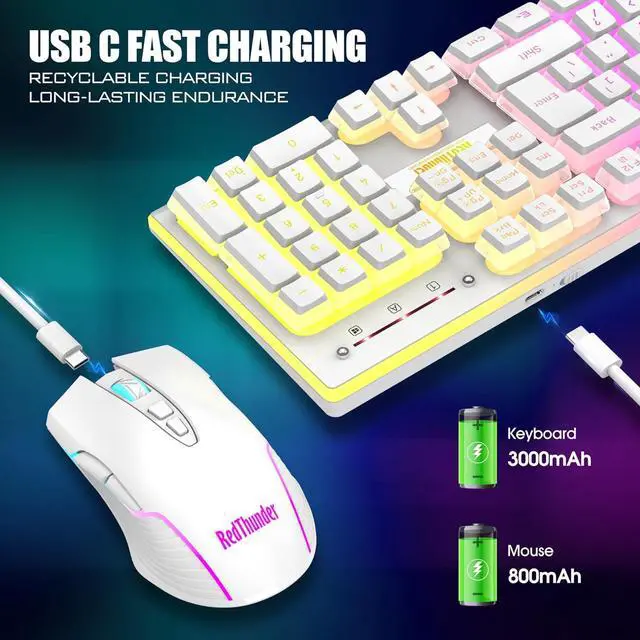
The wireless RGB mouse and the keypad are charged with the same Type-C data cable, and the mouse wheel will be illuminated by the indicator light when charging. The charging port is not easy to damage, more durable to use, simple to plug and unplug, and easy to carry.
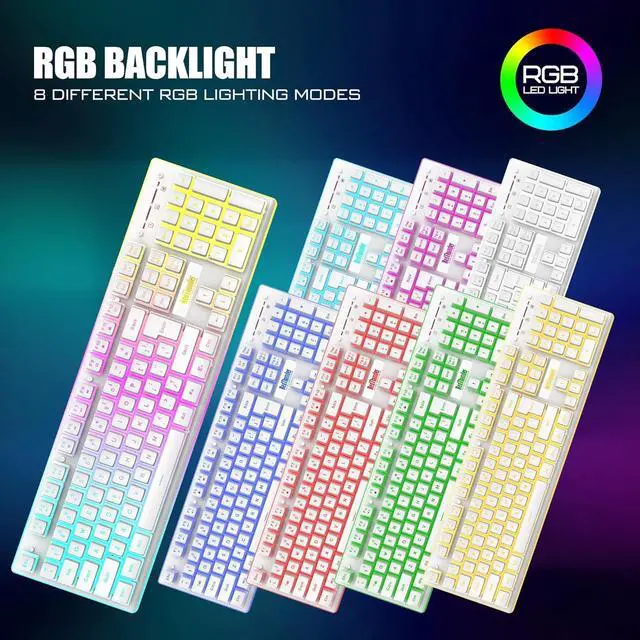
1. Fn+ScrLk: Turn on/off the backlight o switch the backlight color. 2. FN +1!, Fn+2@, Fn+3#,Fn+4$: Switch backlight mode;Fn+5 %: Switch 8 RGB colors;
3. FN + PU/PD: increase/decrease backlight brightness. 4. FN + +/-: Speed up/slow down breathing rate.
5. FN+W: Exchange WASD and arrow keys. 6. FN + WIN: WIN key lock. 7. FN + (F1-F12): 12 multimedia combination keys.
Note
1.The keyboard and mouse share only one USB receiver to reduce the number of USB ports, which is located in the bottom of the mouse. (Only when the receiver is plugged in, the lights of the keyboard and mouse will light up)
2. Please fully charge it before the first use, otherwise it will not last as long as expected when it is not fully charged. (Because we didn't fully charge the keyboard/mouse before shipment to ensure transportation safety)
3. No software installation is required before the first use, just plug the USB receiver into the USB port, turn the switch at the bottom of the keyboard to the ON position, and turn the switch on the bottom of the mouse to the ON (no light) or LED (with light) position.
4. There will be a little delay or the lights will not turn on when the keyboard/mouse battery is too low, please charge the keyboard/mouse in time, the charging indicator will go off after full charge.
5. To protect battery life, please use a lower than DC:5V adapter to charge, preferably using the computer's USB port to charge directly. Due to the different currents of different computer USB charging ports, some users may need longer charging time to fully charge.
6. Turning off the keyboard light can extend the battery life of the keyboard moderately.
7. If you can't press "WASD" or "", don't worry, please check if the FN function key is enabled. FN+ "W" key can be used to switch between letter "WASD" keys and arrow "" keys at will.
8.If the keyboard/mouse is not working, they may lose connection with the USB receiver. Please try pairing with the USB receiver again.
Pairing steps as following: Make sure the keyboard/mouse fully charged and re-pair with the USB receiver.
Mouse pairing steps: Step 1: Turn the switch at the bottom of the mouse to the switch position with the sun logo; Step 2: Press and hold the mouse wheel and right button, the mouse RGB lights start to flash; Step 3: Insert the USB receiver into the computer and the pairing is complete. Keyboard pairing steps: Step 1: Turn on the keyboard switch; Step 2: Press and hold the ESC key and the K key at the same time, the indicator light starts to flash; Step 3: Insert the USB receiver into the computer, and pairing is complete.
9. If you have any problem, please tell us at the first time, we will try our best to solve it.
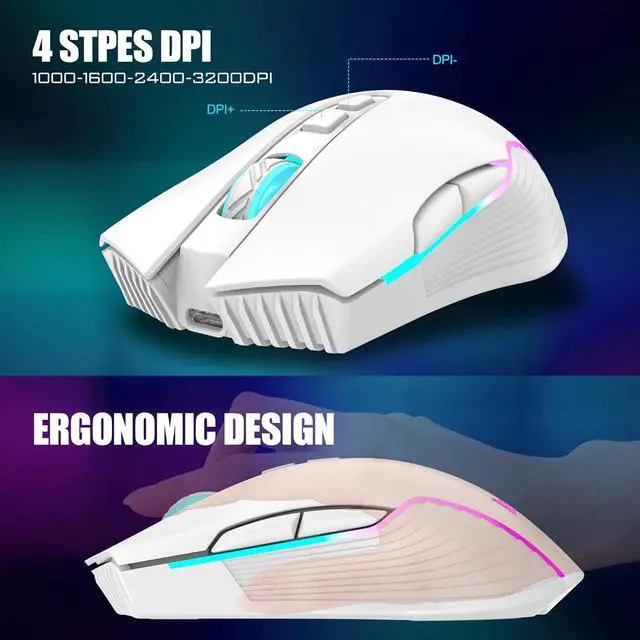
Elegant Ergonomic Design Type-C Rechargeable Wireless Mouse



 We‘re shipping as usual! The Canada Post strike only affects certain remote deliveries and PO Boxes. Details
 Holiday Shipping Details & Extended Holiday Returns


