


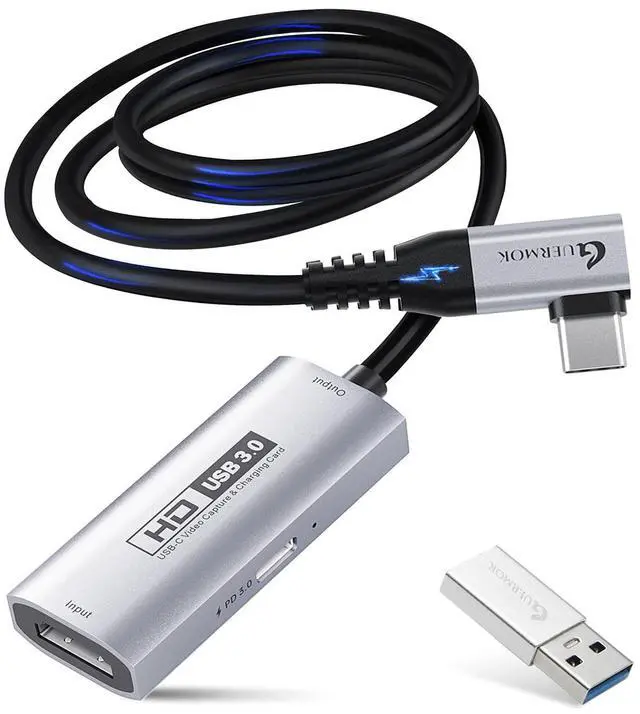


Not all USB ports support 3.0 transmission. To ensure proper functionality, connect the device to a USB 3.0 port (often marked in blue or labeled "SS") and confirm your computer has the required USB 3.0 drivers installed
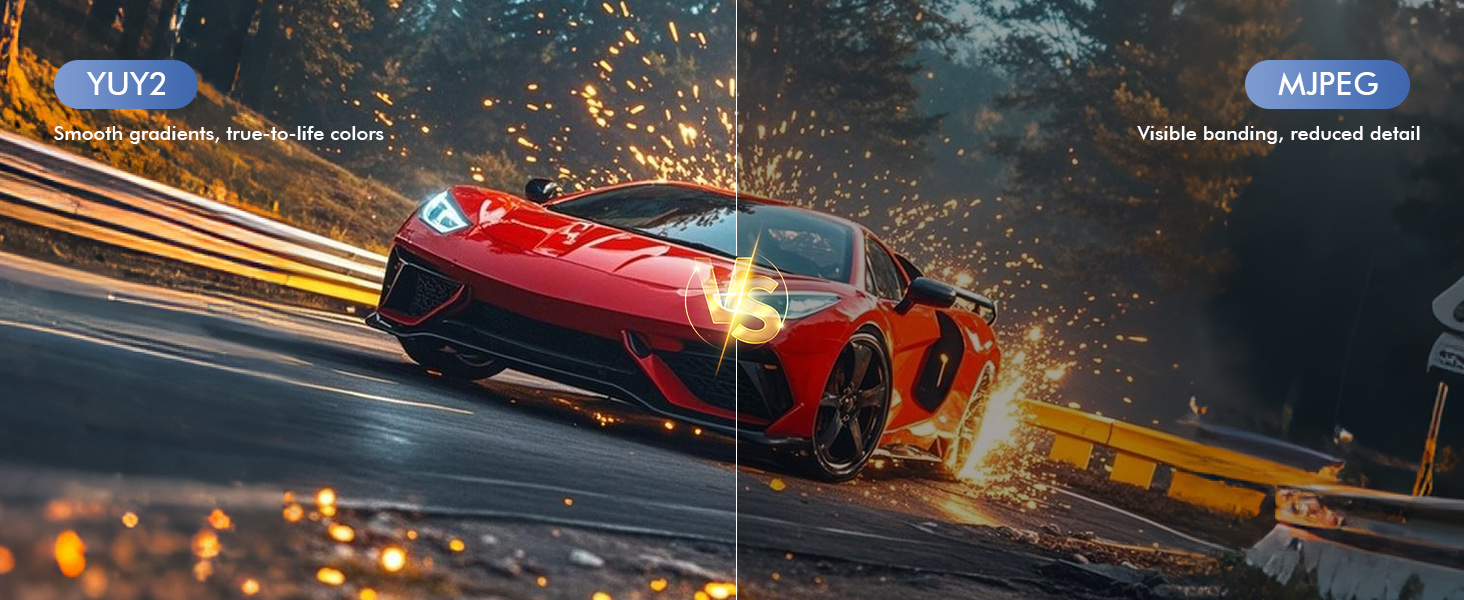
YUY2 vs MJPEG
YUY2 provides uncompressed video with low latency, making it suitable for detailed visuals and smooth gameplay
MJPEG uses compression to reduce file size and support faster, stable performance
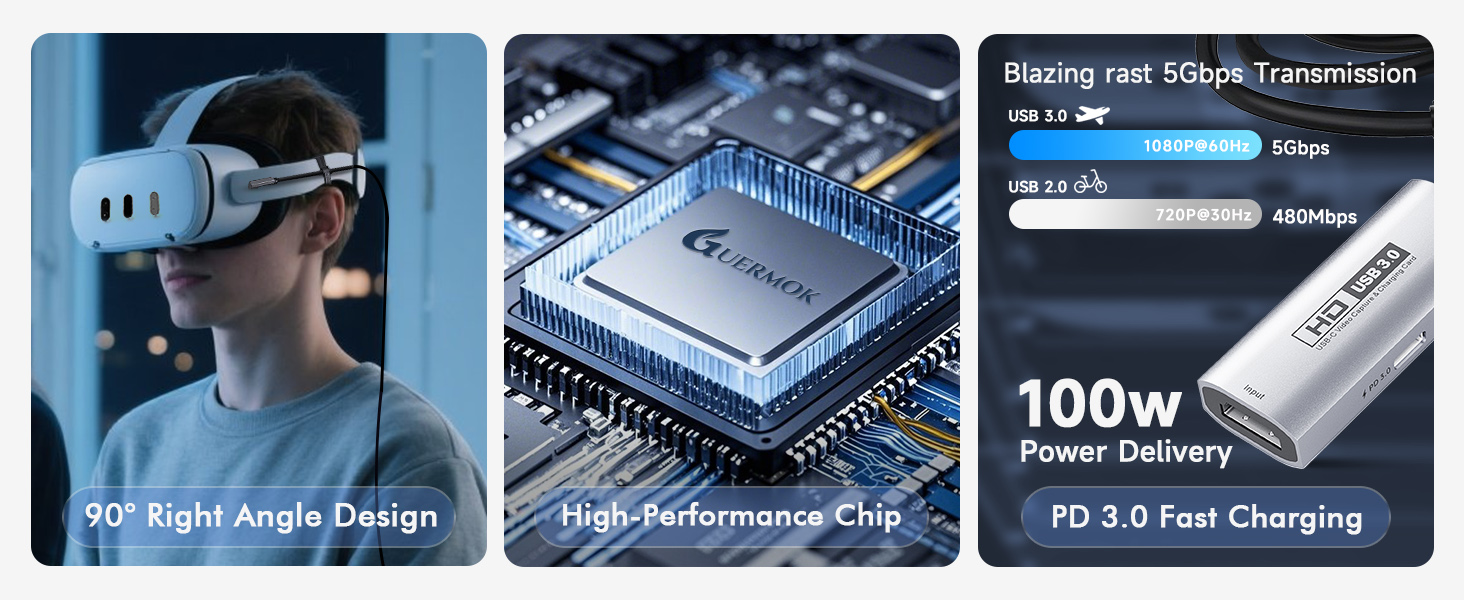
5Gbps Transport
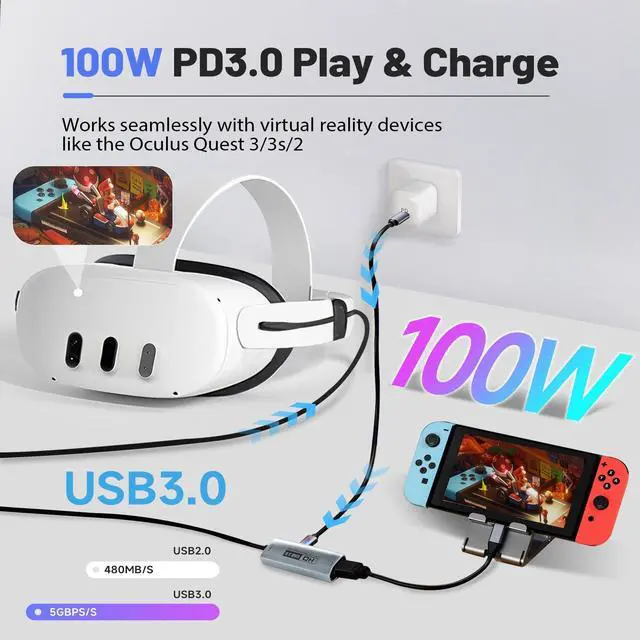
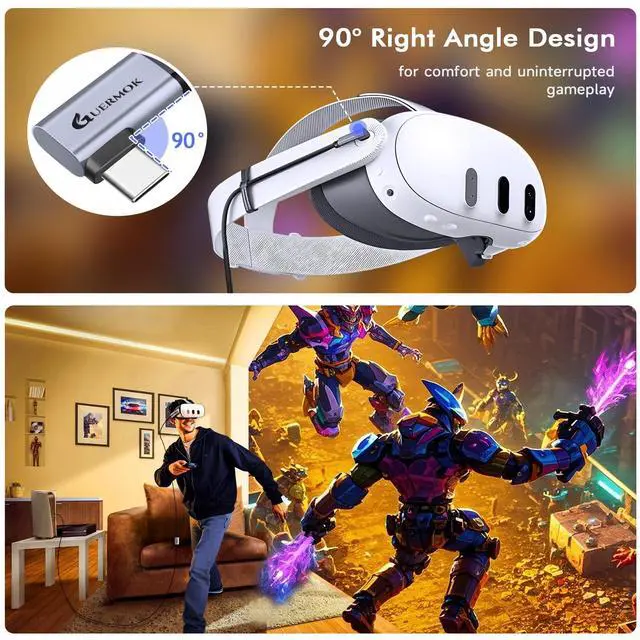
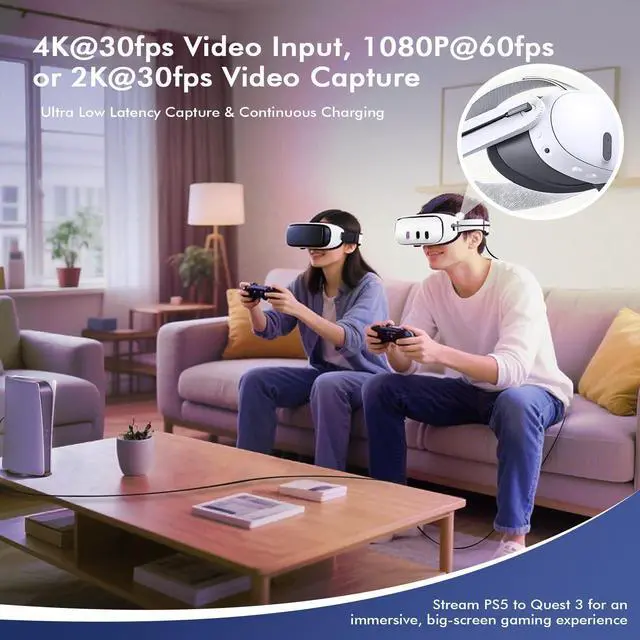
Designed for seamless Quest use: L-shaped USB-C for better fit, smart chip for stable signal, and PD 100W fast charging for uninterrupted VR sessions
USB 2.0 Recognition Fix
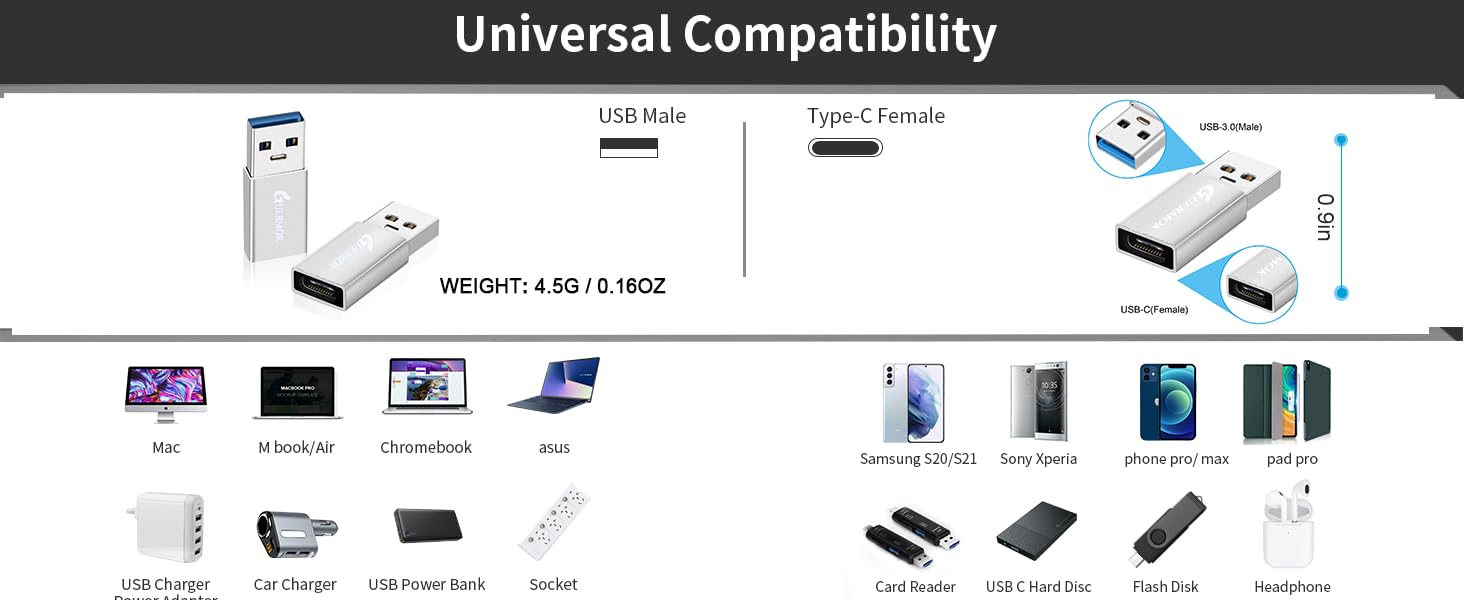
When using an adapter, if the device is recognized as USB 2.0, try using the other side with the USB-C port. Simply flip the capture card and reconnect it to be recognized as USB 3.0
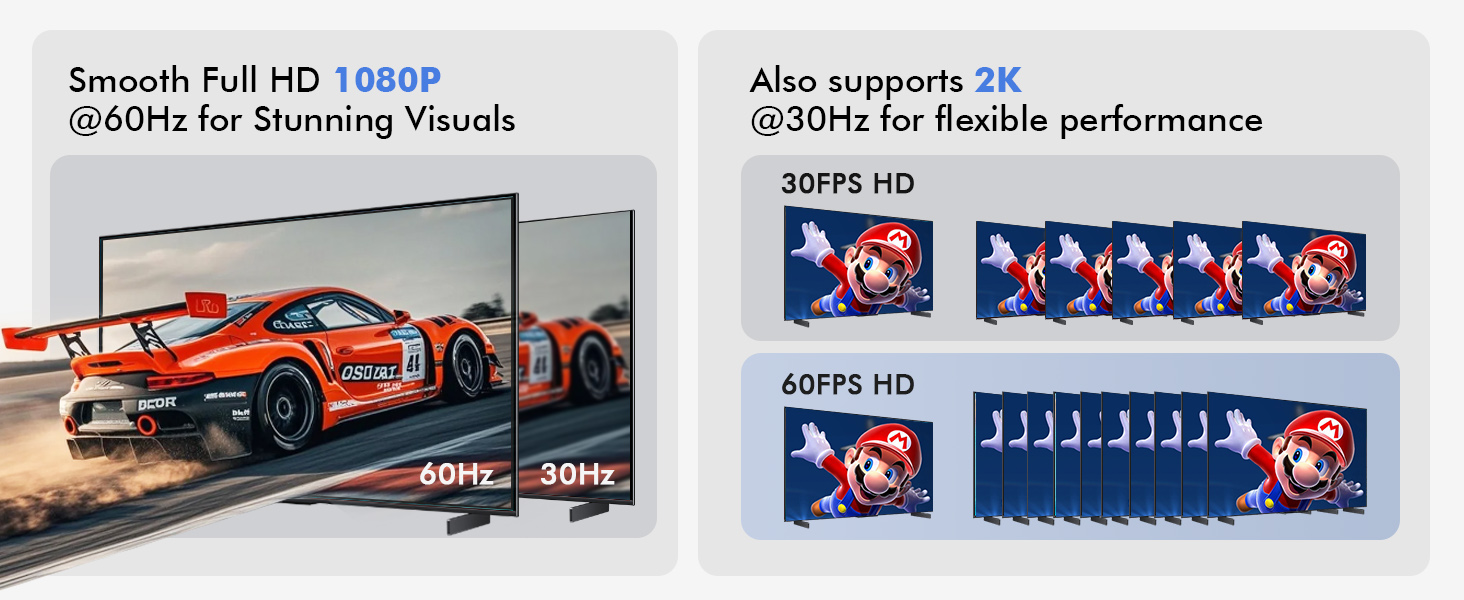
4K Input & 1080P Output
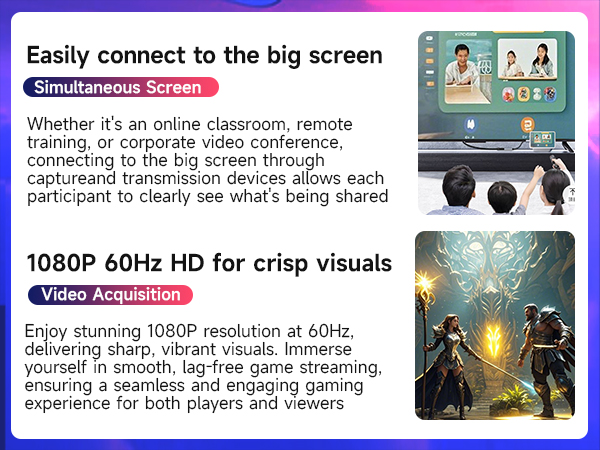
The product supports 4K input, but only 1080P output. Please ensure that the cable you are using supports the corresponding resolution, such as 1080P or 4K, to ensure optimal video quality
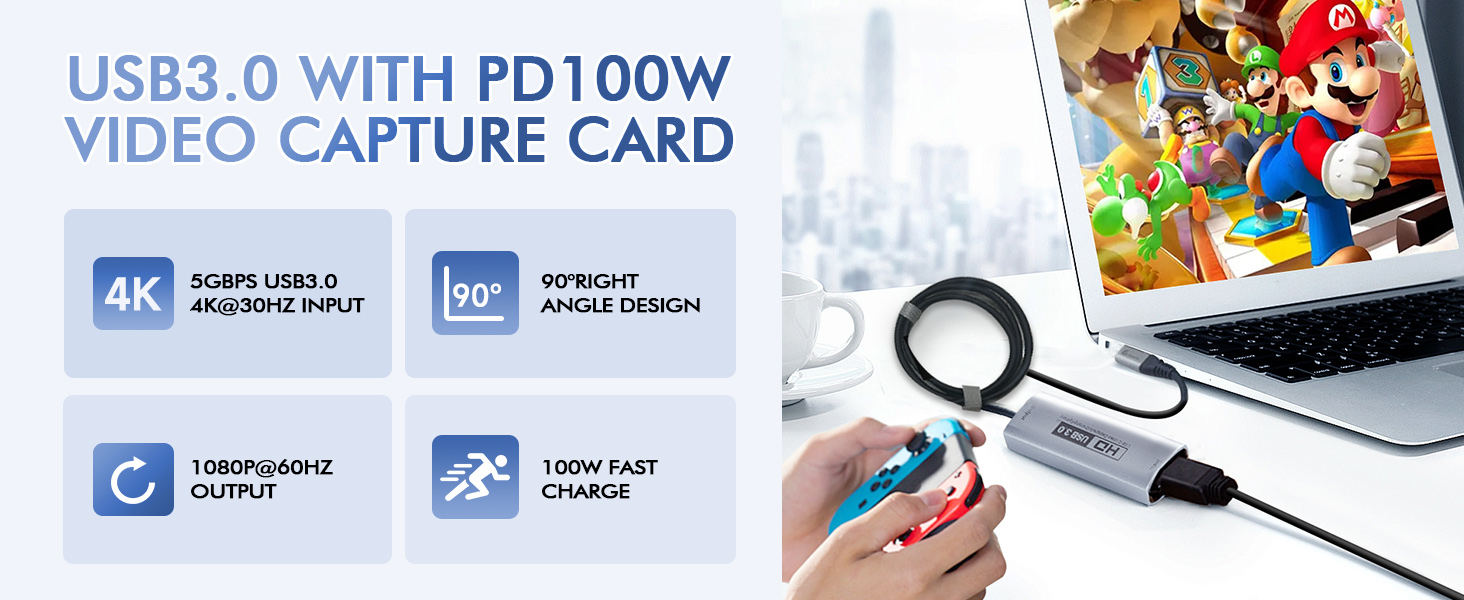
PD 100W Delivery
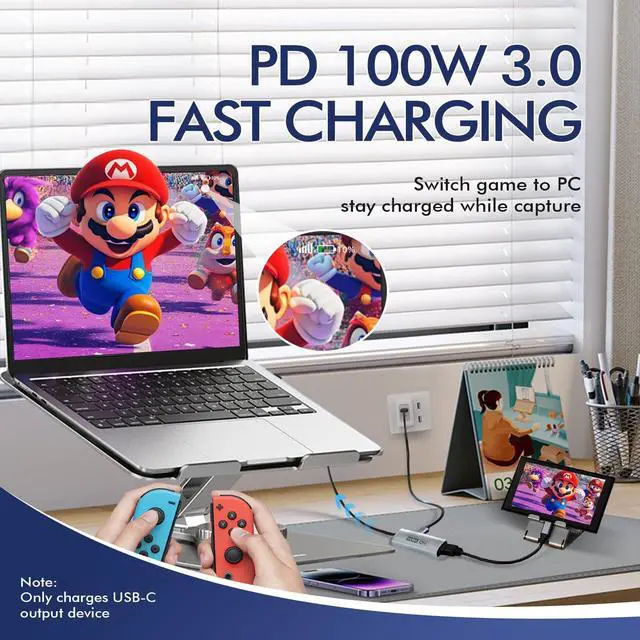
Supports PD 100W fast charging and USB 3.0 data transfer up to 5Gbps—ensuring stable power delivery and high-speed file transfers for efficient work and smooth streaming
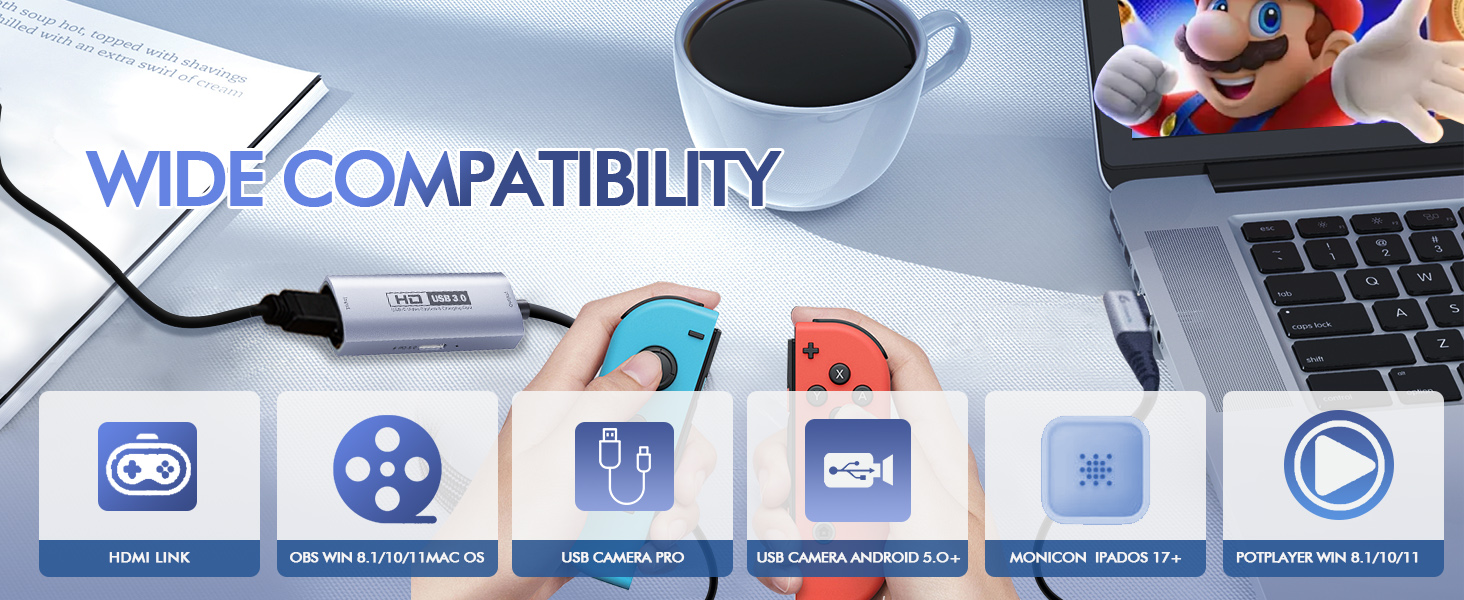
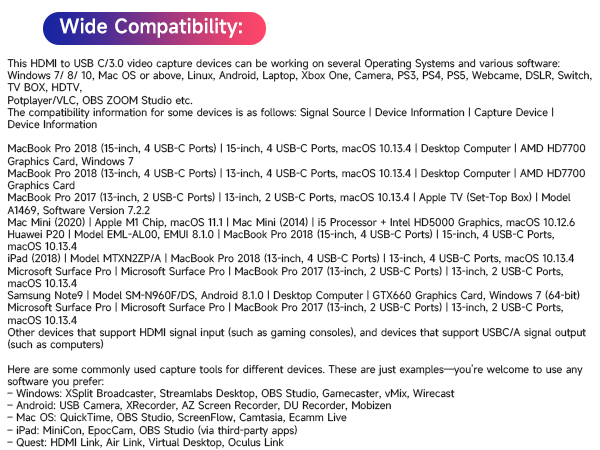
Wide Compatibility
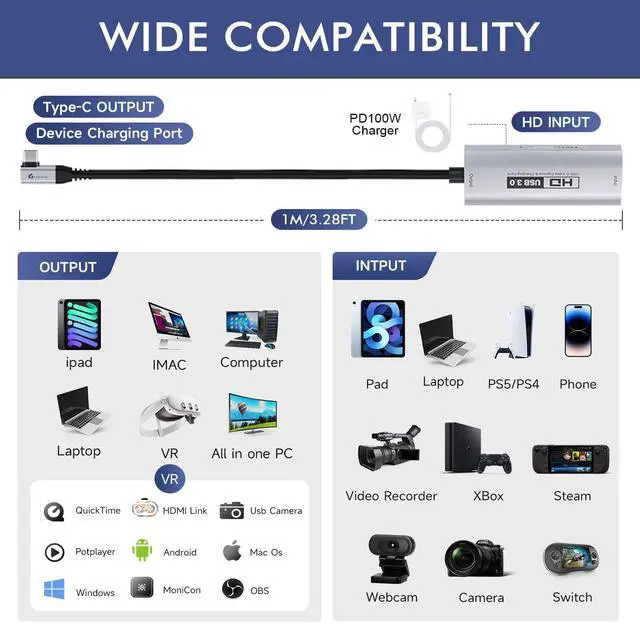
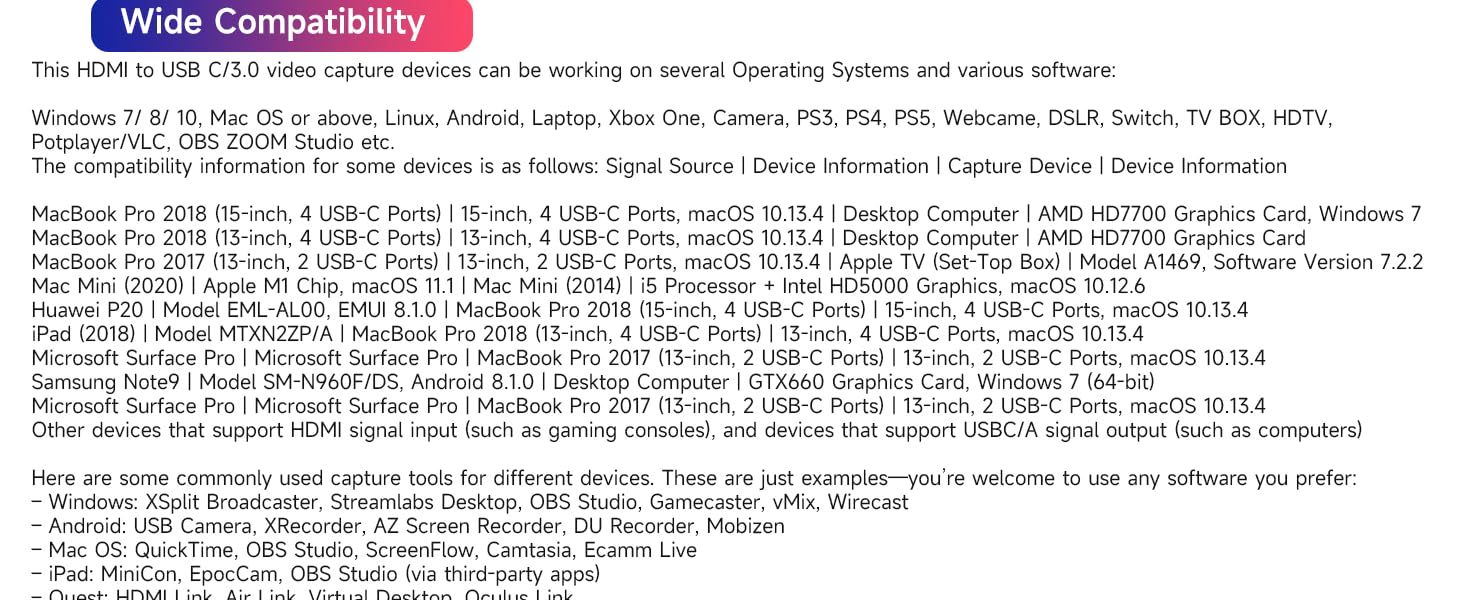
Please ensure your system is compatible. Some devices may need HDCP disabled
Confirm the output format matches the capture card. If there's still no signal, try another app after resetting everything
The USB-C port (or USB-A when using a USB-C to USB-A adapter) is for signal output.Please ensure your signal output device has corresponding video capture software, as OBS, to enable screen capture


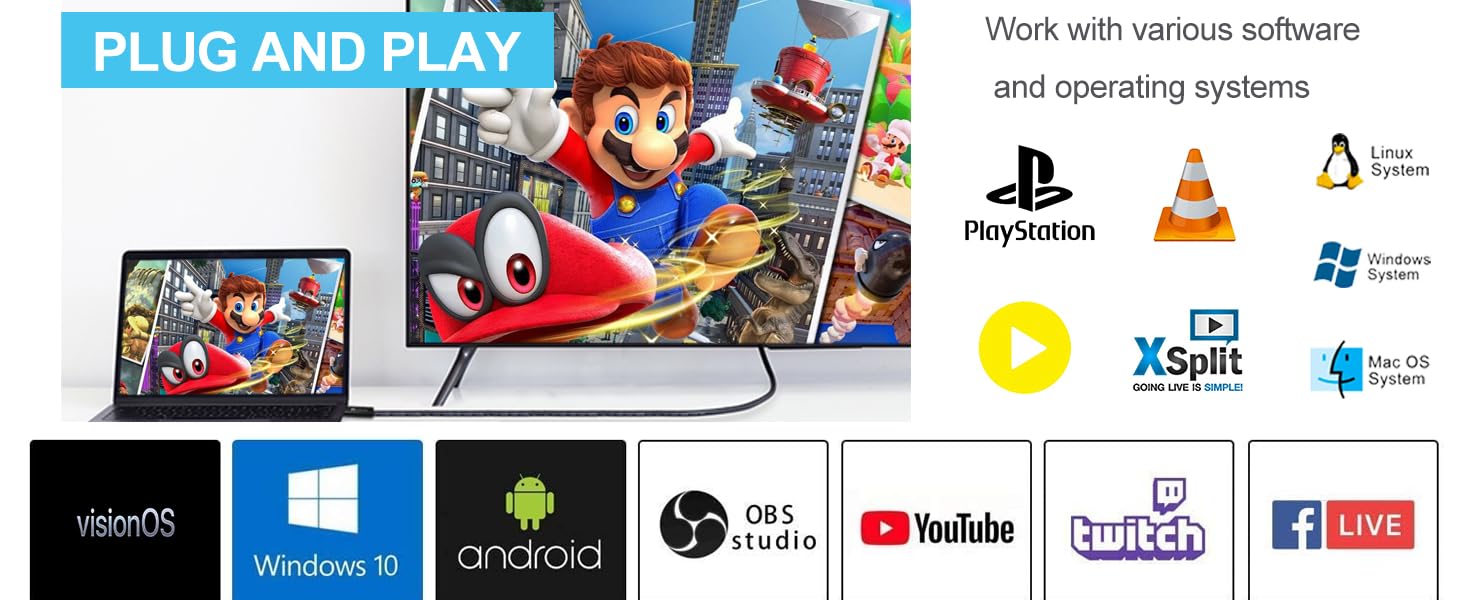
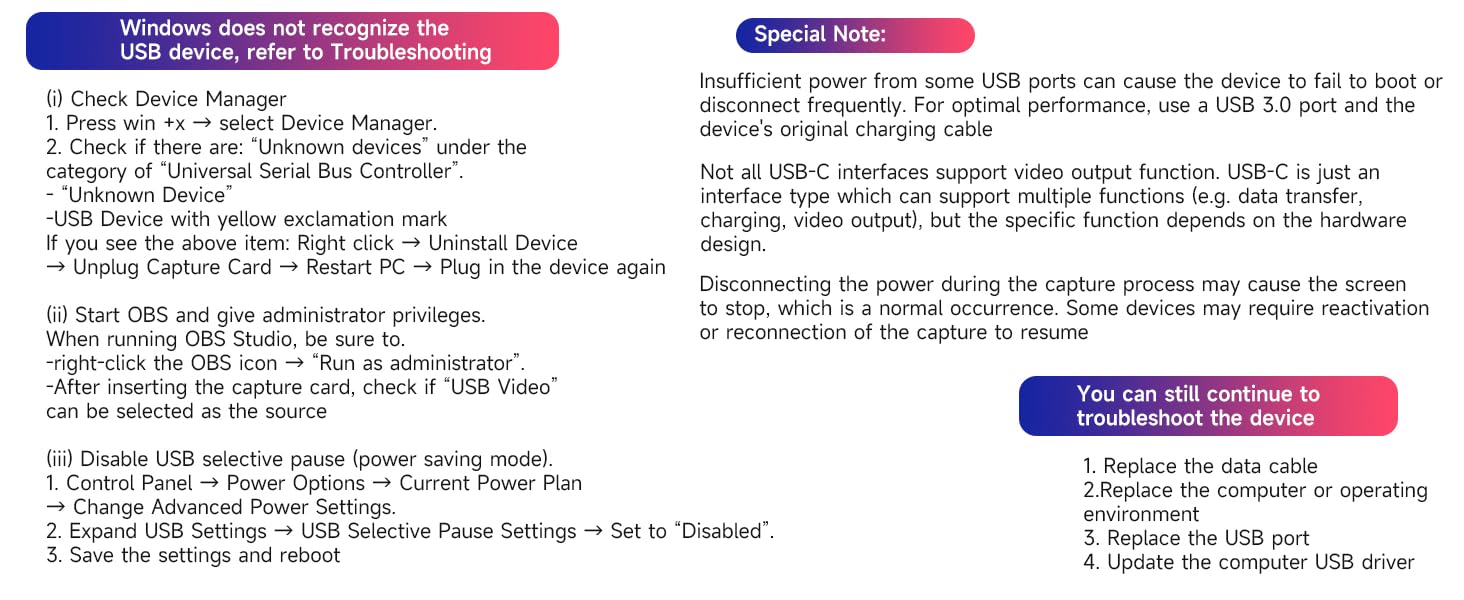


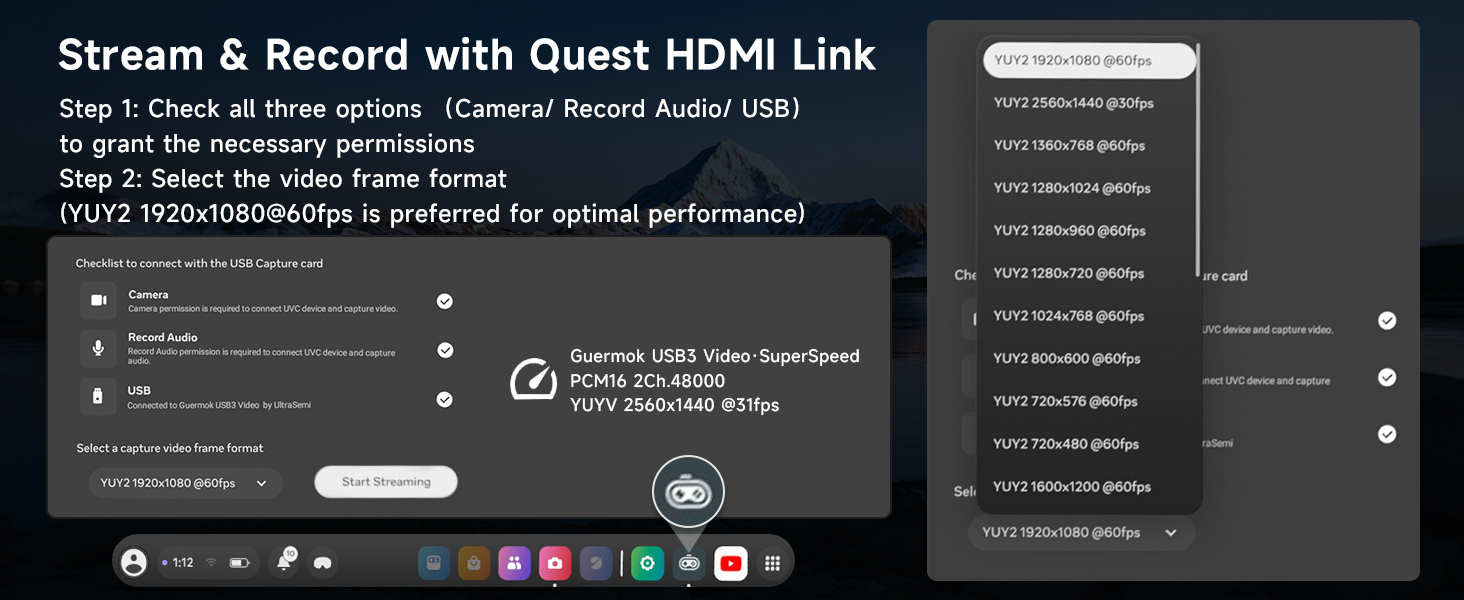
HDMI Link (Quest)
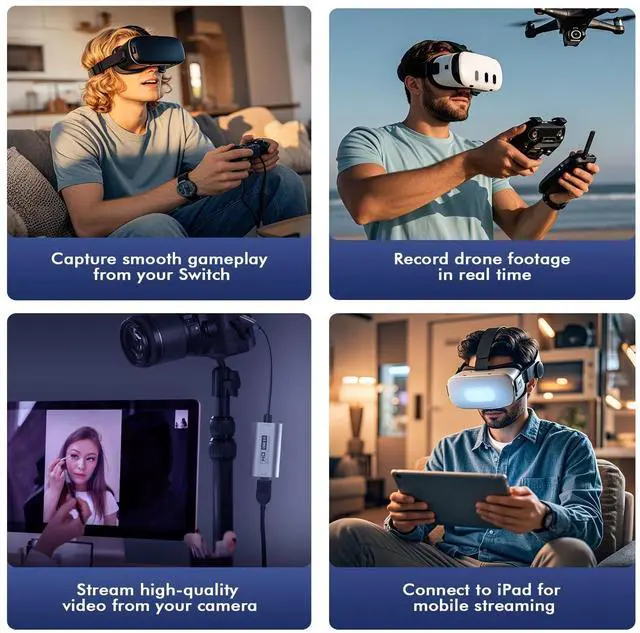
Capture every thrilling moment from your VR adventures with HDMI-enabled devices like Quest3/3s/2, allows you to seamlessly switch between gaming and office tasks, supporting multiple screens
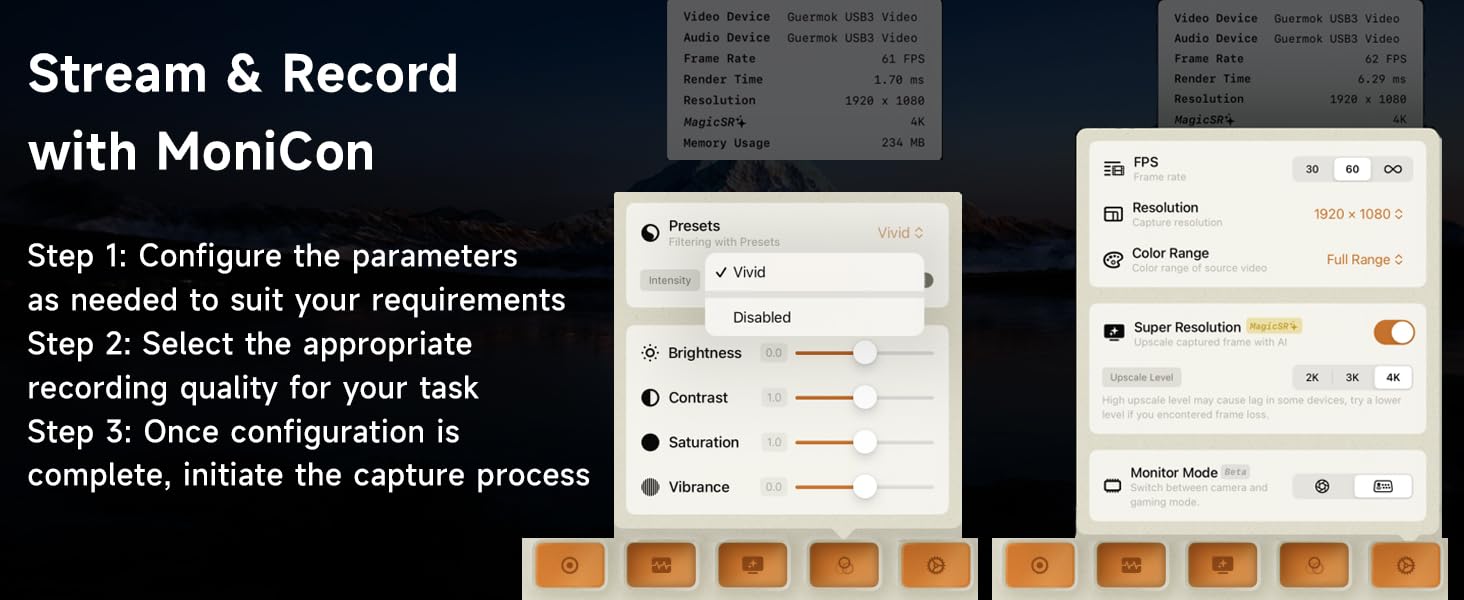
MiniCon (IPAD)
MiniCon allows you to transform your iPad into an external display, offering plug-and-play USB-C connection, low-latency performance, and crisp video—good for streaming and content creation on the go
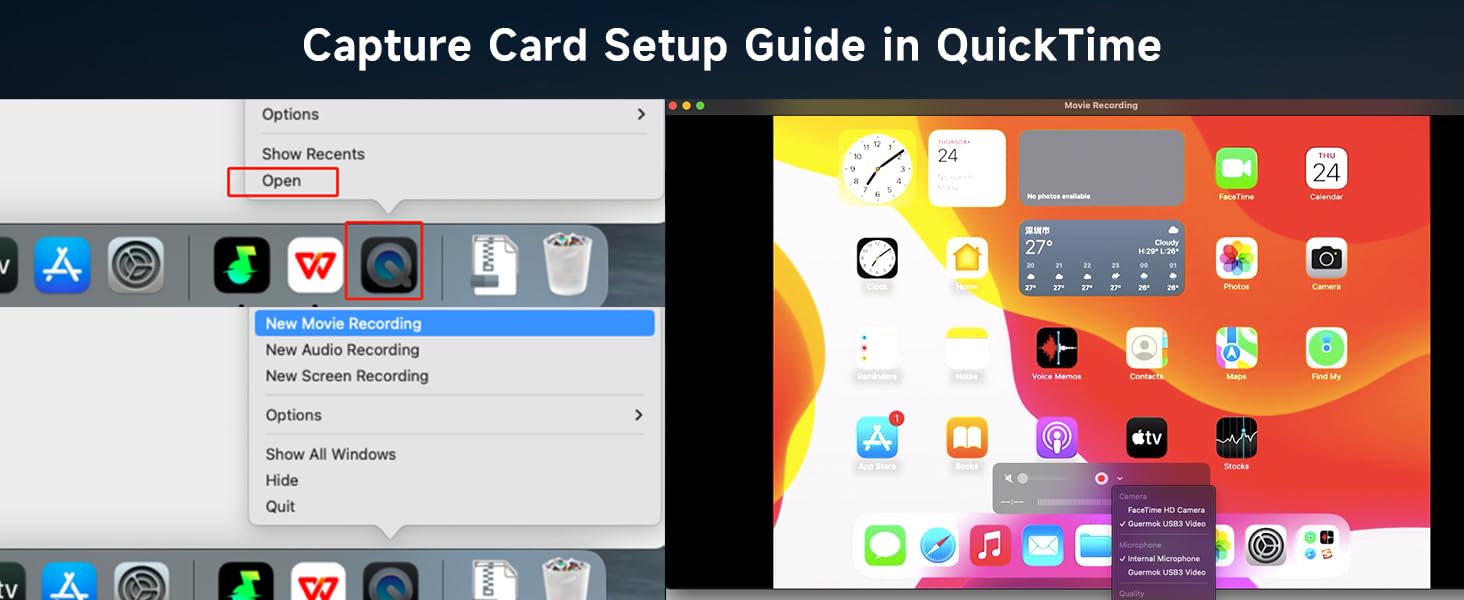
QuickTime (Mac OS)
Using a capture card with QuickTime on Mac OS allows seamless, high-quality video recording and streaming. It offers easy integration with Mac's native tools, providing smooth performance
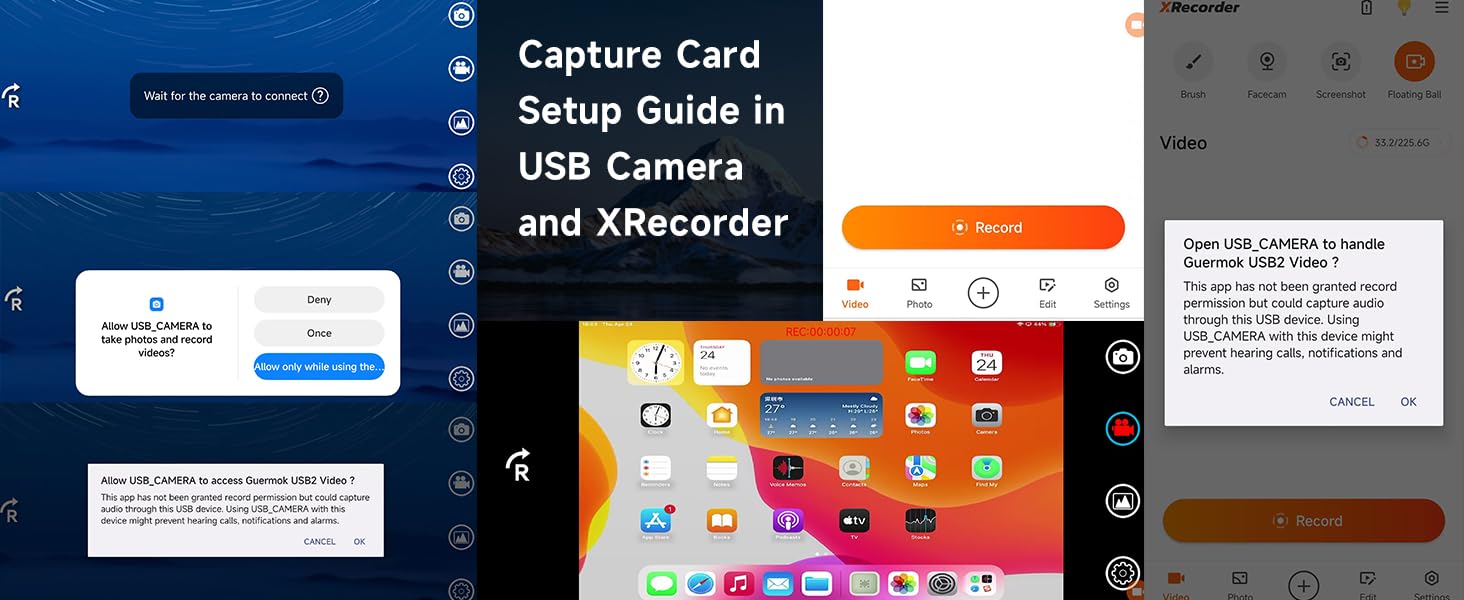
USB Camera & XRecorder (Android)
Record USB video and screen easily on Android with USB Camera & XRecorder. Easy plug & play setup, output via USB 2.0 or USB3.0, depending on the type of port on your phone or other devices
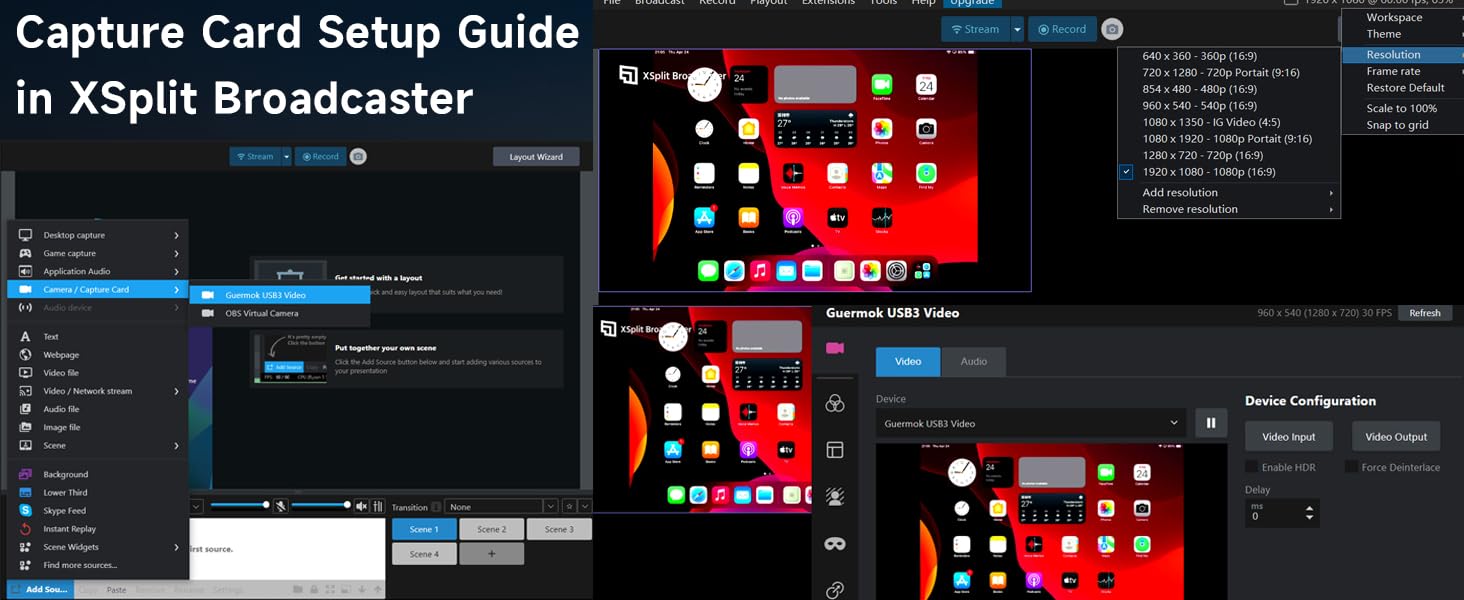
XSplit Broadcaster (Windows)
XSplit Broadcaster enhances capture card performance with seamless scene switching, pro-level audio/video mixing, and high-quality streaming or recording on PC
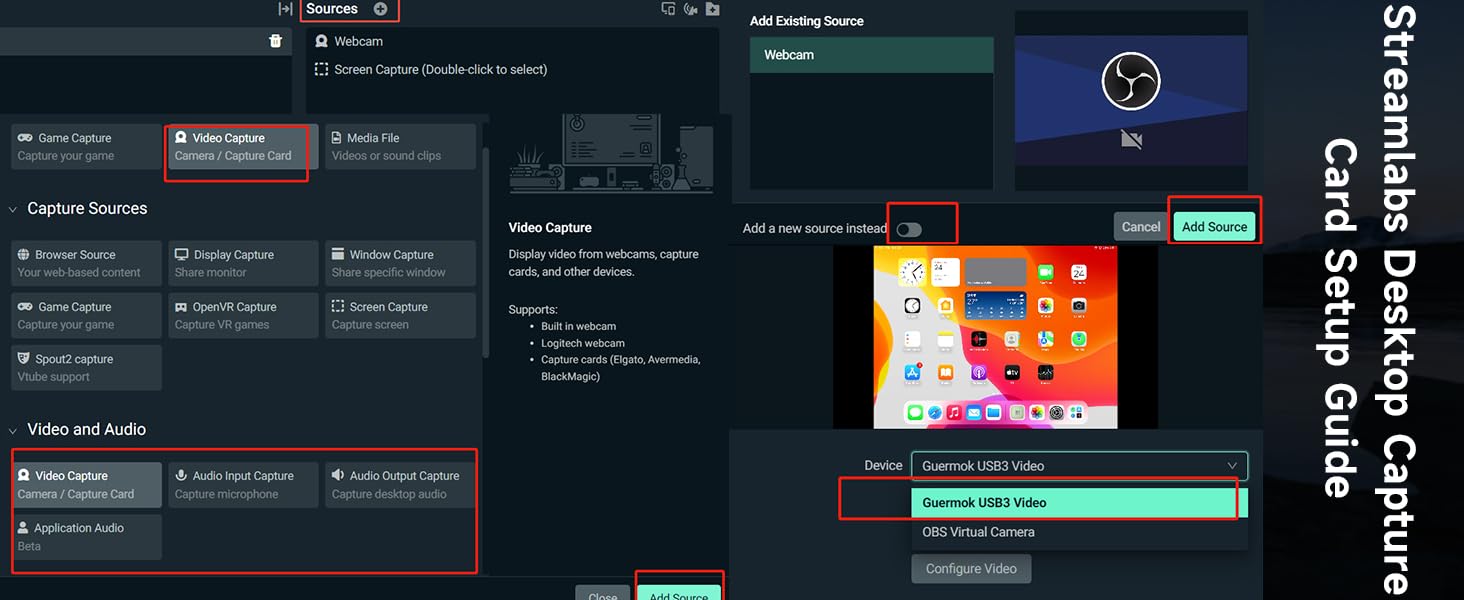
Streamlabs Desktop (Windows)
Streamlabs Desktop combines pro-level features with effortless setup for seamless streaming, making it easy to manage your live broadcasts and content creation all in one place
OBS Operating Instructions
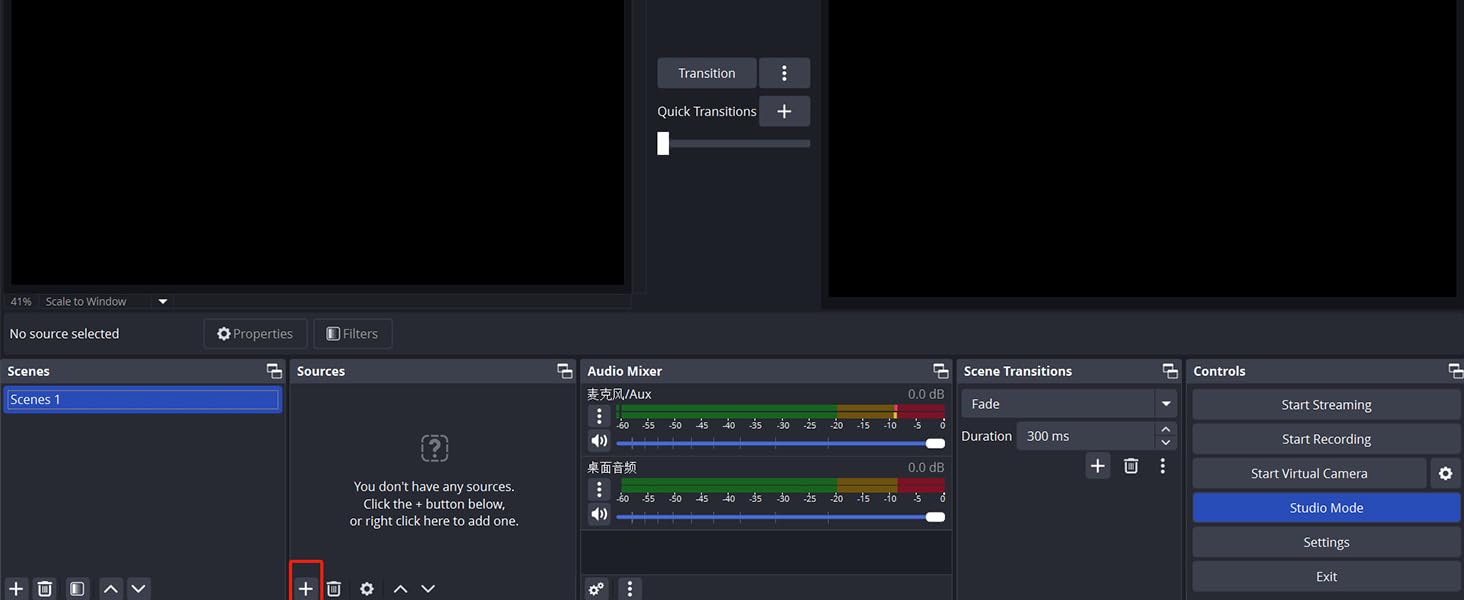
Audio Input Settings on OBS
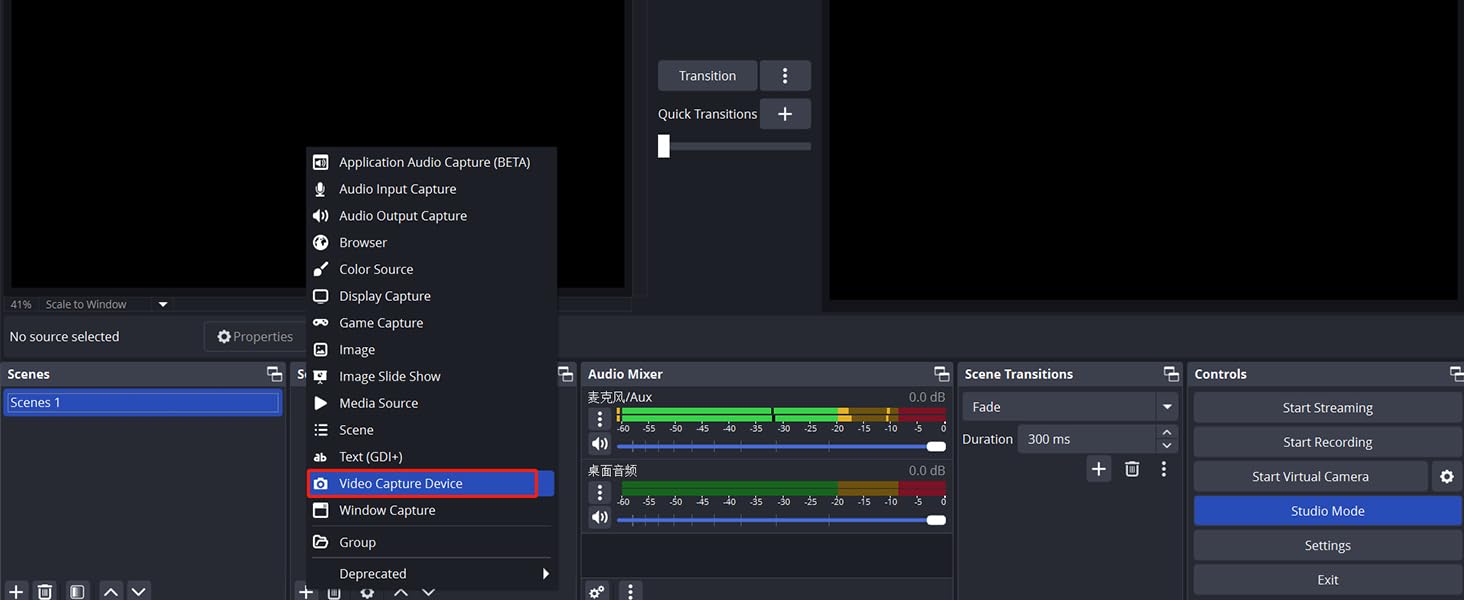
Add a new source
Audio Input Settings on OBS
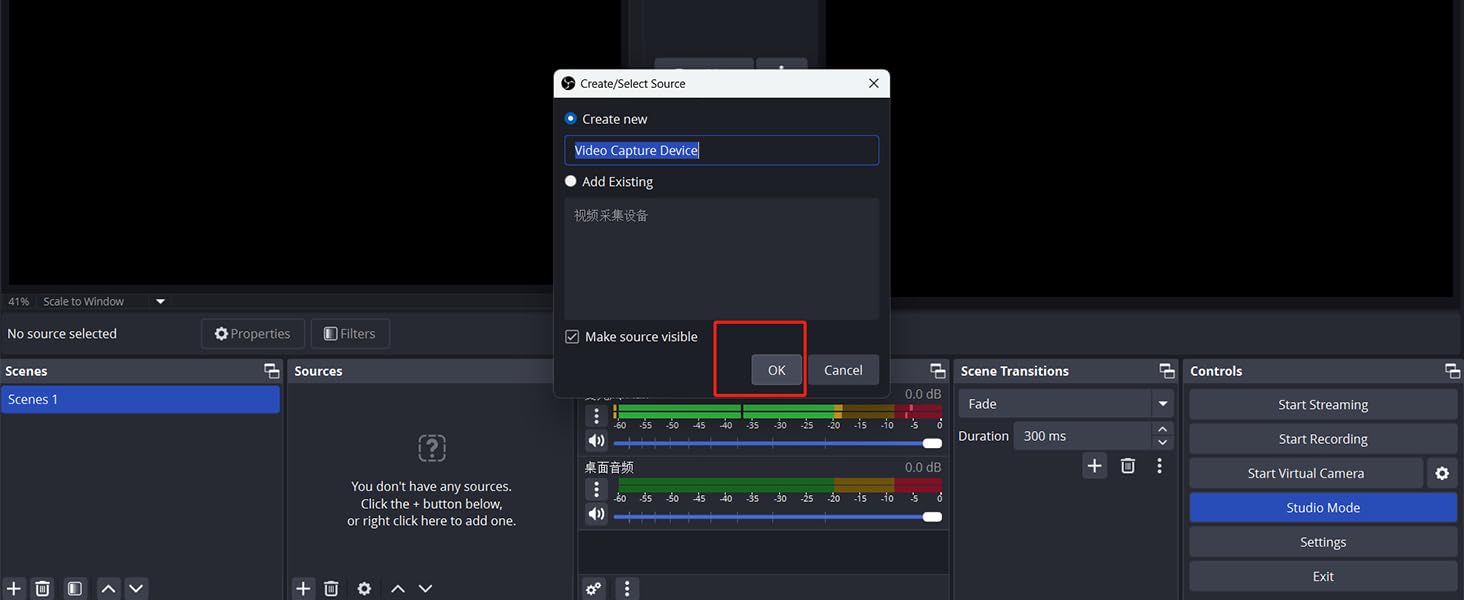
Select " video capture device"/ "audio and video input capture"
Video Signal Output Settings on OBS
Rename and Click "OK".If there are multiple video sources, it is recommended that you cancel all of them and keep only one, so as to ensure that the captured screen is displayed properly.
Video Signal Output Settings on OBS
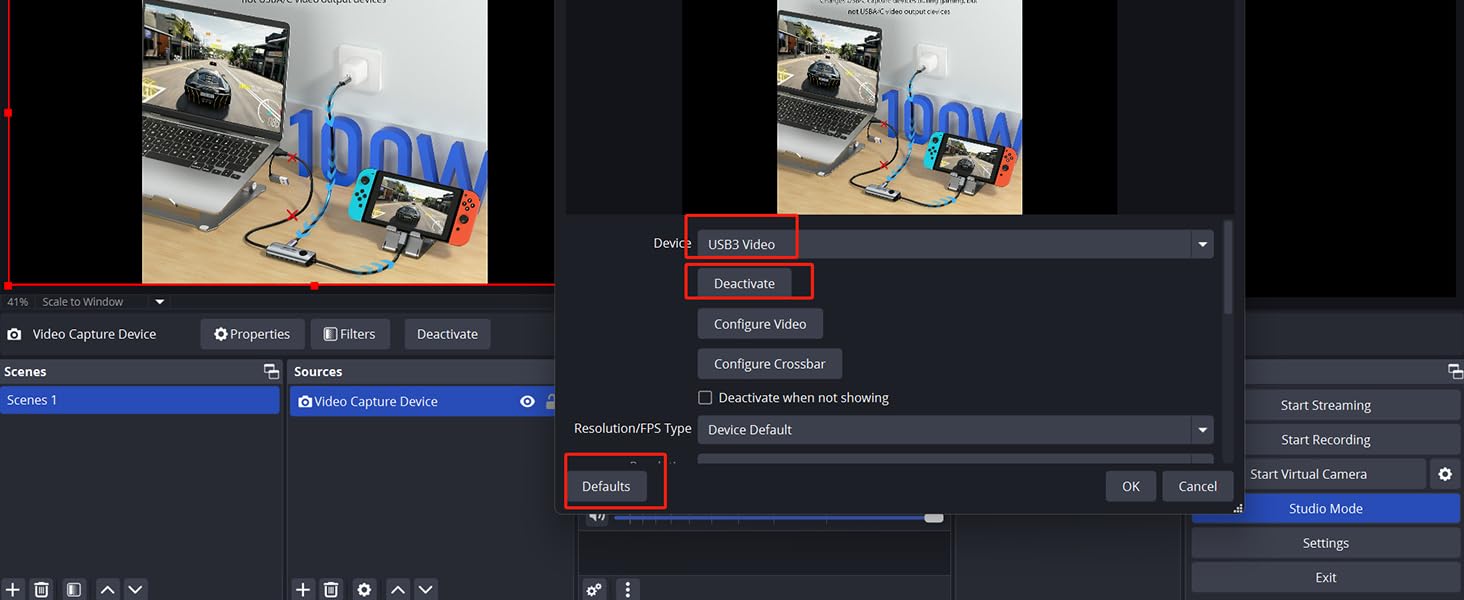
evice Choose “ USB3 Video”?Click “ activate”?Resolution/FPS choose “ customize”?Resolution select "1920 x 1080"?FPS choose “60”?Video format select " MJPEG"& Click “OK”. If no image, click "Defaults"
Start recording
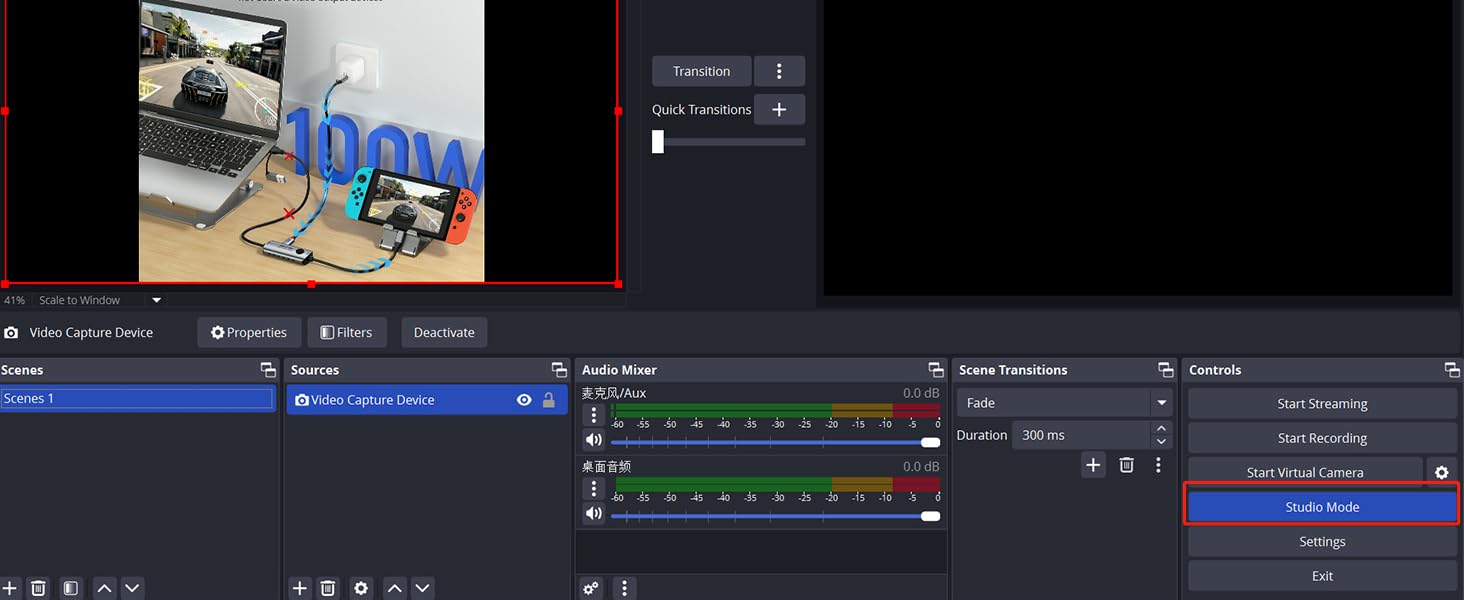
Select " Studio Mode"
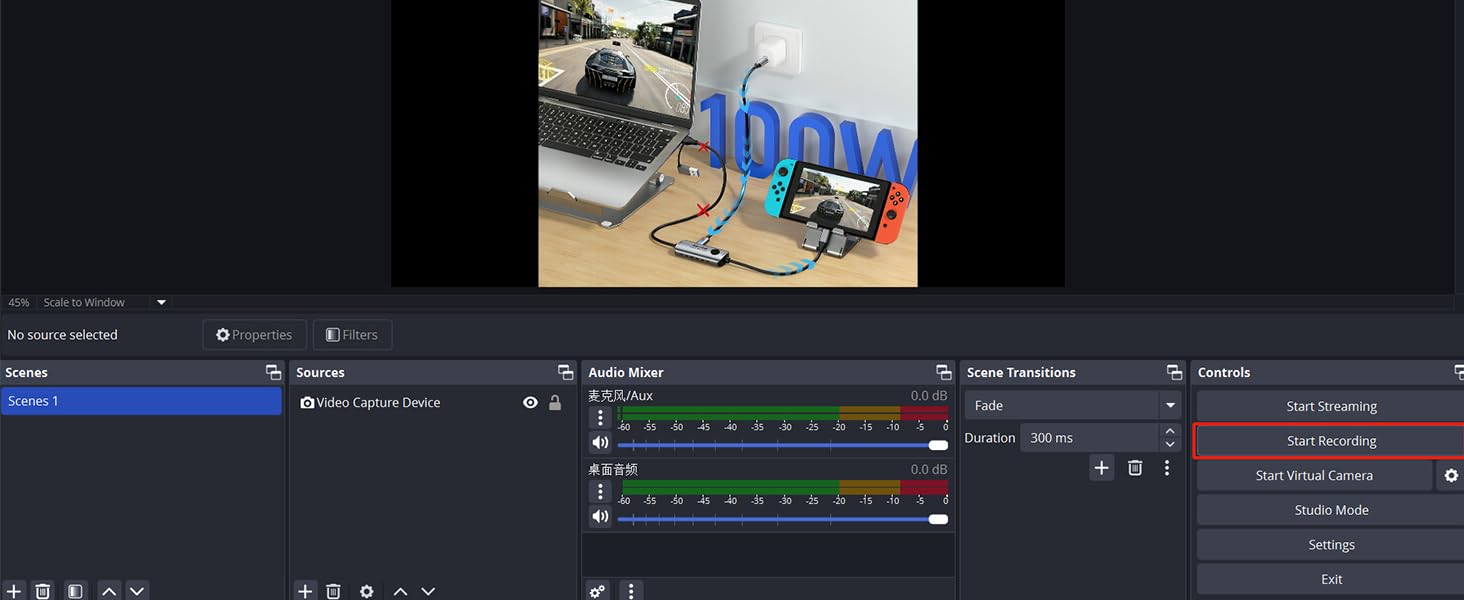
Start recording
Click " Start Recording"
If the acquisition screen appears for the first time when using OBS, close it and reopen to recognize USB 2.0. Restore default settings, or deactivate and reactivate to restore USB 2.0 recognition
GUERMOK HDMI TO USB C/USB A CAPTURE CARD
 Guermok USB3 Capture Card |  Guermok USB3 Capture Card |  Guermok USB3 Capture Card |  Guermok USB3 Capture Card |  Guermok USB3 Capture Card |  Guermok USB3 Capture Card |  Guermok USB3 Capture Card | |
|---|---|---|---|---|---|---|---|
Customer Reviews | — | — | — | — | — | — | — |
Price | — | — | — | — | — | — | — |
Power Delivery (PD) Support | ? | ? | ? | ? | ? | ? | ? |
Charging Port | USB-C Output Port ONLY | USB-C Output Port ONLY | USB-C Output Port ONLY | USB-C Input Port ONLY | ? | ? | ? |
Capture Resolution | 1080P@60Hz or 2k@30Hz | 1080P@60Hz or 2k@30Hz | 1080P@60Hz or 2k@30Hz | 1080P@60Hz or 2k@30Hz | 1080P@60Hz or 2k@30Hz | 1080P@60Hz or 2k@30Hz | 1080P@60Hz or 2k@30Hz |
Max Input Resolution | 4K@30Hz | 4K@30Hz | 4K@30Hz | 4K@30Hz | 4K@30Hz | 4K@30Hz | 4K@30Hz |
Compatibility | PS5/Switch/Camera/IPad/Quest | PS5/Switch/Camera/IPad/Quest | PS5/Switch/Camera/IPad/Quest | Switch/Camera/IPad/Quest | PS5/Switch/Camera/IPad/Quest | PS5/Switch/Camera/IPad/Quest | PS5/Switch/Camera/IPad/Quest |
Compatibility | PCs/Steam/Xbox/iphone/Android | PCs/Steam/Xbox/iphone/Android | PCs/Steam/Xbox/iphone/Android | iphone/Android/VR/PC | PCs/Steam/Xbox/iphone/Android | PCs/Steam/Xbox/iphone/Android | PCs/Steam/Xbox/iphone/Android |
Connector | HDMI to USB A/C | HDMI to USB A/C | HDMI to USB A/C | USB C to USB A/C | HDMI to USB A/C | HDMI to USB A/C | HDMI to USB A/C |
Video Capture Software | OBS Studio/Potplayer/VLC/Vmix | OBS Studio/Potplayer/VLC/Vmix | OBS Studio/Potplayer/VLC/Vmix | OBS Studio/Potplayer/VLC/Vmix | OBS Studio/Potplayer/VLC/Vmix | OBS Studio/Potplayer/VLC/Vmix | OBS Studio/Potplayer/VLC/Vmix |
Video Capture Software | USB Camera/XRecorder/MiniCon | USB Camera/XRecorder/MiniCon | USB Camera/XRecorder/MiniCon | USB Camera/XRecorder/MiniCon | USB Camera/XRecorder/MiniCon | USB Camera/XRecorder/MiniCon | USB Camera/XRecorder/MiniCon |
Video Capture Software | HDMI Link/Streamlabs Desktop | HDMI Link/Streamlabs Desktop | HDMI Link/Streamlabs Desktop | HDMI Link/Streamlabs Desktop | HDMI Link/Streamlabs Desktop | HDMI Link/Streamlabs Desktop | HDMI Link/Streamlabs Desktop |
Video Output Format | YUY2/MJPEG | YUY2/MJPEG | YUY2/MJPEG | YUY2/MJPEG | YUY2/MJPEG | YUY2/MJPEG | YUY2/MJPEG |
Audio | Mono; Stereo Not Supported | Mono; Stereo Not Supported | Mono; Stereo Not Supported | Mono; Stereo Not Supported | Mono; Stereo Not Supported | Mono; Stereo Not Supported | Mono; Stereo Not Supported |

GUERMOK For Your Eletronics
Redefining Gaming, Uniting Office Excellence, and Live Streaming Thrills

Our Genesis
Guermok's story unfolds at the intersection of passion for gaming, the pursuit of streamlined office life, and the captivating allure of live streaming. We believe that these realms aren't just separate activities but integral parts of modern living. Our commitment is to provide innovative products that fuse these elements harmoniously.
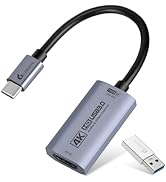
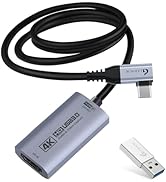
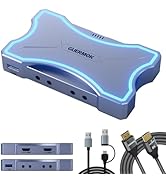
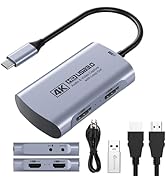
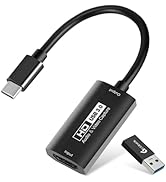
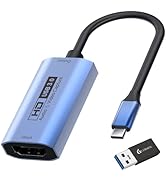
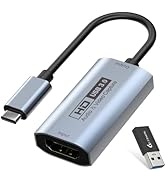
4K 60FPS capture card
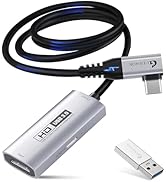
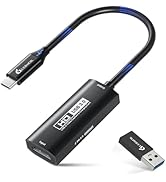
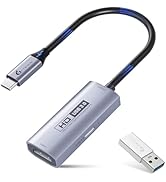
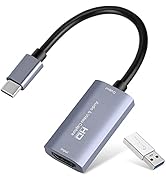
Live Streaming Excellence
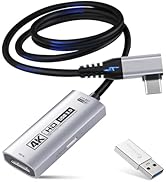
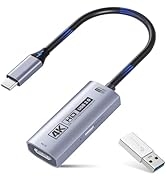
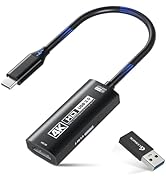
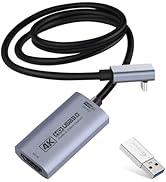
4K 60FPS Capture with PD100w
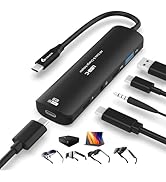
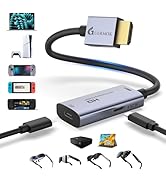
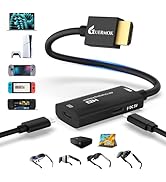
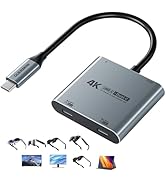
AR Glasses Converter (Switch2)
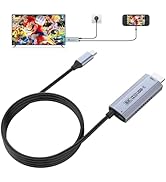
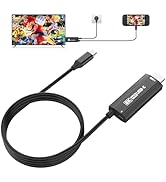
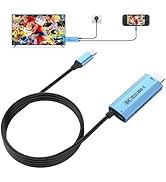
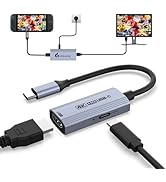
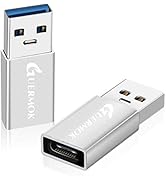
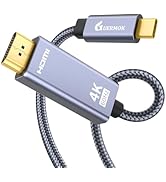
USBC to HDMI Adapter (Switch2)
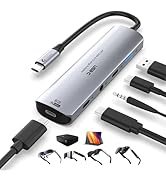

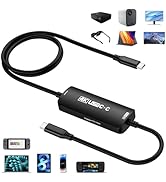
PD100W Fast Charging
Innovative Gaming Solutions
The Brand Philosophy
At Guermok, our brand philosophy is simple yet profound: make gaming a lifestyle, bring office excellence to the forefront, and infuse the thrill of live streaming into every moment. We encourage you to transcend boundaries and seamlessly integrate these facets into your daily life.

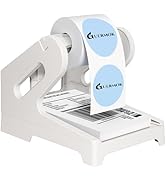
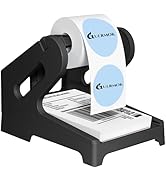
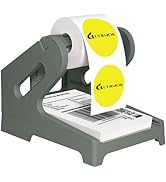
Empowering Office Life

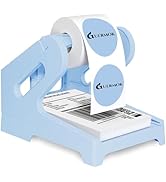


Label Holder

Live Gaming

Video Recorder

Live Streaming
Community-Centric
Guermok isn't just a brand; it's a community of like-minded individuals who understand the importance of balancing work, play, and entertainment. Our community encourages sharing, support, and the creation of unforgettable moments.
Thank You for Your Support
Guermok extends heartfelt gratitude to our customers, gamers, office professionals, and live streamers alike. Our mission is to empower you to seamlessly integrate these facets of modern life, ensuring you have the tools to succeed in work and play.
Guermok
where gaming, office, and live streaming unite in excellence.


Not all USB ports support 3.0 transmission. To ensure proper functionality, connect the device to a USB 3.0 port (often marked in blue or labeled "SS") and confirm your computer has the required USB 3.0 drivers installed
YUY2 vs MJPEG
5Gbps Transport
USB 2.0 Recognition Fix
4K Input & 1080P Output
PD 100W Delivery
Wide Compatibility


YUY2 provides uncompressed video with low latency, making it suitable for detailed visuals and smooth gameplay
MJPEG uses compression to reduce file size and support faster, stable performance
Designed for seamless Quest use: L-shaped USB-C for better fit, smart chip for stable signal, and PD 100W fast charging for uninterrupted VR sessions
When using an adapter, if the device is recognized as USB 2.0, try using the other side with the USB-C port. Simply flip the capture card and reconnect it to be recognized as USB 3.0
The product supports 4K input, but only 1080P output. Please ensure that the cable you are using supports the corresponding resolution, such as 1080P or 4K, to ensure optimal video quality
Supports PD 100W fast charging and USB 3.0 data transfer up to 5Gbps—ensuring stable power delivery and high-speed file transfers for efficient work and smooth streaming
Please ensure your system is compatible. Some devices may need HDCP disabled
Confirm the output format matches the capture card. If there's still no signal, try another app after resetting everything
The USB-C port (or USB-A when using a USB-C to USB-A adapter) is for signal output.Please ensure your signal output device has corresponding video capture software, as OBS, to enable screen capture


HDMI Link (Quest)
MiniCon (IPAD)
QuickTime (Mac OS)
USB Camera & XRecorder (Android)
XSplit Broadcaster (Windows)
Streamlabs Desktop (Windows)
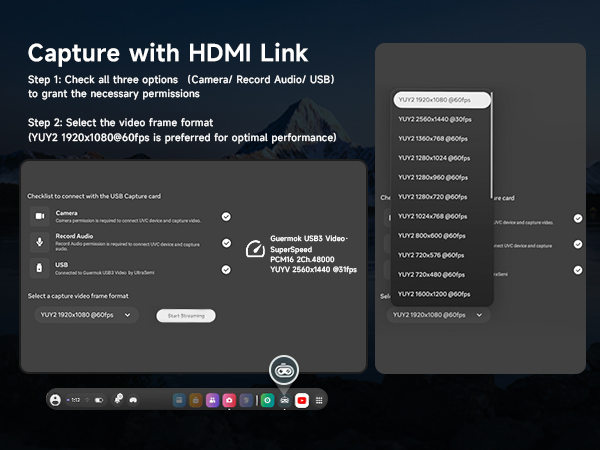


Capture every thrilling moment from your VR adventures with HDMI-enabled devices like Quest3/3s/2, allows you to seamlessly switch between gaming and office tasks, supporting multiple screens
MiniCon allows you to transform your iPad into an external display, offering plug-and-play USB-C connection, low-latency performance, and crisp video—good for streaming and content creation on the go
Using a capture card with QuickTime on Mac OS allows seamless, high-quality video recording and streaming. It offers easy integration with Mac's native tools, providing smooth performance
Record USB video and screen easily on Android with USB Camera & XRecorder. Easy plug & play setup, output via USB 2.0 or USB3.0, depending on the type of port on your phone or other devices
XSplit Broadcaster enhances capture card performance with seamless scene switching, pro-level audio/video mixing, and high-quality streaming or recording on PC
Streamlabs Desktop combines pro-level features with effortless setup for seamless streaming, making it easy to manage your live broadcasts and content creation all in one place
OBS Operating Instructions
Audio Input Settings on OBS
Audio Input Settings on OBS
Video Signal Output Settings on OBS
Video Signal Output Settings on OBS
Start recording
Start recording


Add a new source
Select " video capture device"/ "audio and video input capture"
Rename and Click "OK".If there are multiple video sources, it is recommended that you cancel all of them and keep only one, so as to ensure that the captured screen is displayed properly.
evice Choose “ USB3 Video”?Click “ activate”?Resolution/FPS choose “ customize”?Resolution select "1920 x 1080"?FPS choose “60”?Video format select " MJPEG"& Click “OK”. If no image, click "Defaults"
Select " Studio Mode"
Click " Start Recording"
If the acquisition screen appears for the first time when using OBS, close it and reopen to recognize USB 2.0. Restore default settings, or deactivate and reactivate to restore USB 2.0 recognition
GUERMOK HDMI TO USB C/USB A CAPTURE CARD
Guermok USB3 Capture Card | Guermok USB3 Capture Card | Guermok USB3 Capture Card | Guermok USB3 Capture Card | Guermok USB3 Capture Card | Guermok USB3 Capture Card | Guermok USB3 Capture Card |
|---|---|---|---|---|---|---|
| Customer Reviews | ||||||
| — | — | — | — | — | — | — |
| Price | ||||||
| — | — | — | — | — | — | — |
| Power Delivery (PD) Support | ||||||
| ? | ? | ? | ? | ? | ? | ? |
| Charging Port | ||||||
| USB-C Output Port ONLY | USB-C Output Port ONLY | USB-C Output Port ONLY | USB-C Input Port ONLY | ? | ? | ? |
| Capture Resolution | ||||||
| 1080P@60Hz or 2k@30Hz | 1080P@60Hz or 2k@30Hz | 1080P@60Hz or 2k@30Hz | 1080P@60Hz or 2k@30Hz | 1080P@60Hz or 2k@30Hz | 1080P@60Hz or 2k@30Hz | 1080P@60Hz or 2k@30Hz |
| Max Input Resolution | ||||||
| 4K@30Hz | 4K@30Hz | 4K@30Hz | 4K@30Hz | 4K@30Hz | 4K@30Hz | 4K@30Hz |
| Compatibility | ||||||
| PS5/Switch/Camera/IPad/Quest | PS5/Switch/Camera/IPad/Quest | PS5/Switch/Camera/IPad/Quest | Switch/Camera/IPad/Quest | PS5/Switch/Camera/IPad/Quest | PS5/Switch/Camera/IPad/Quest | PS5/Switch/Camera/IPad/Quest |
| Compatibility | ||||||
| PCs/Steam/Xbox/iphone/Android | PCs/Steam/Xbox/iphone/Android | PCs/Steam/Xbox/iphone/Android | iphone/Android/VR/PC | PCs/Steam/Xbox/iphone/Android | PCs/Steam/Xbox/iphone/Android | PCs/Steam/Xbox/iphone/Android |
| Connector | ||||||
| HDMI to USB A/C | HDMI to USB A/C | HDMI to USB A/C | USB C to USB A/C | HDMI to USB A/C | HDMI to USB A/C | HDMI to USB A/C |
| Video Capture Software | ||||||
| OBS Studio/Potplayer/VLC/Vmix | OBS Studio/Potplayer/VLC/Vmix | OBS Studio/Potplayer/VLC/Vmix | OBS Studio/Potplayer/VLC/Vmix | OBS Studio/Potplayer/VLC/Vmix | OBS Studio/Potplayer/VLC/Vmix | OBS Studio/Potplayer/VLC/Vmix |
| Video Capture Software | ||||||
| USB Camera/XRecorder/MiniCon | USB Camera/XRecorder/MiniCon | USB Camera/XRecorder/MiniCon | USB Camera/XRecorder/MiniCon | USB Camera/XRecorder/MiniCon | USB Camera/XRecorder/MiniCon | USB Camera/XRecorder/MiniCon |
| Video Capture Software | ||||||
| HDMI Link/Streamlabs Desktop | HDMI Link/Streamlabs Desktop | HDMI Link/Streamlabs Desktop | HDMI Link/Streamlabs Desktop | HDMI Link/Streamlabs Desktop | HDMI Link/Streamlabs Desktop | HDMI Link/Streamlabs Desktop |
| Video Output Format | ||||||
| YUY2/MJPEG | YUY2/MJPEG | YUY2/MJPEG | YUY2/MJPEG | YUY2/MJPEG | YUY2/MJPEG | YUY2/MJPEG |
| Audio | ||||||
| Mono; Stereo Not Supported | Mono; Stereo Not Supported | Mono; Stereo Not Supported | Mono; Stereo Not Supported | Mono; Stereo Not Supported | Mono; Stereo Not Supported | Mono; Stereo Not Supported |
GUERMOK For Your Eletronics
Redefining Gaming, Uniting Office Excellence, and Live Streaming Thrills
Our Genesis
Guermok's story unfolds at the intersection of passion for gaming, the pursuit of streamlined office life, and the captivating allure of live streaming. We believe that these realms aren't just separate activities but integral parts of modern living. Our commitment is to provide innovative products that fuse these elements harmoniously.
4K 60FPS capture card
Live Streaming Excellence
4K 60FPS Capture with PD100w
AR Glasses Converter (Switch2)
USBC to HDMI Adapter (Switch2)
PD100W Fast Charging
Innovative Gaming Solutions
The Brand Philosophy
At Guermok, our brand philosophy is simple yet profound: make gaming a lifestyle, bring office excellence to the forefront, and infuse the thrill of live streaming into every moment. We encourage you to transcend boundaries and seamlessly integrate these facets into your daily life.
Empowering Office Life
Label Holder
Live Gaming
Video Recorder
Live Streaming
Community-Centric
Guermok isn't just a brand; it's a community of like-minded individuals who understand the importance of balancing work, play, and entertainment. Our community encourages sharing, support, and the creation of unforgettable moments.
Thank You for Your Support
Guermok extends heartfelt gratitude to our customers, gamers, office professionals, and live streamers alike. Our mission is to empower you to seamlessly integrate these facets of modern life, ensuring you have the tools to succeed in work and play.
Guermok
where gaming, office, and live streaming unite in excellence.