





iClever KP10 Bluetooth Number Pad
External numpad for your keyboard
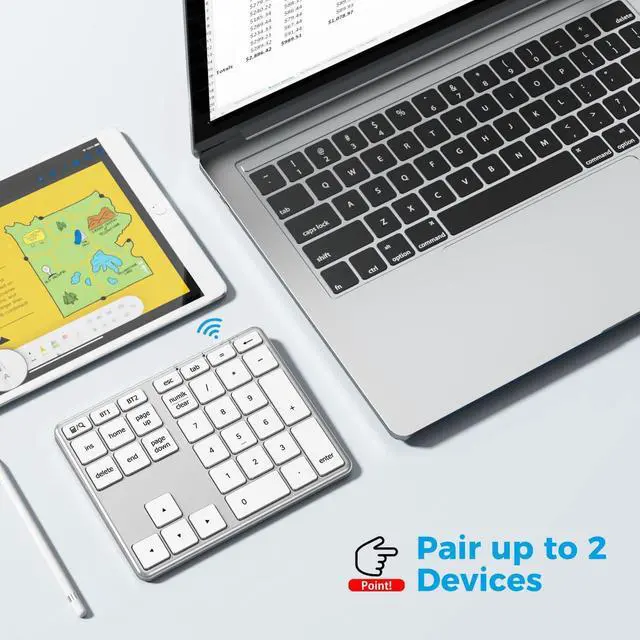
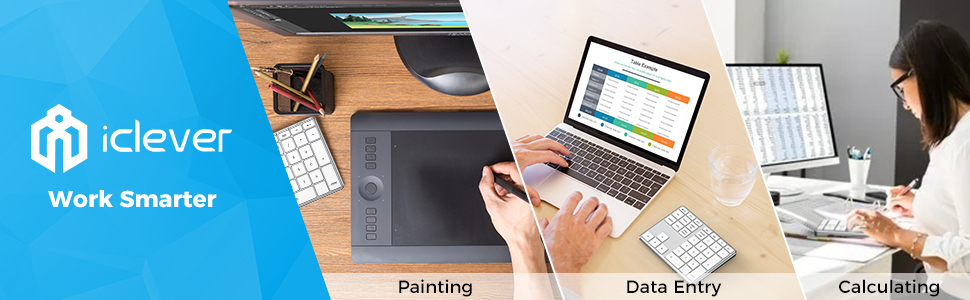
Partner For Laptops
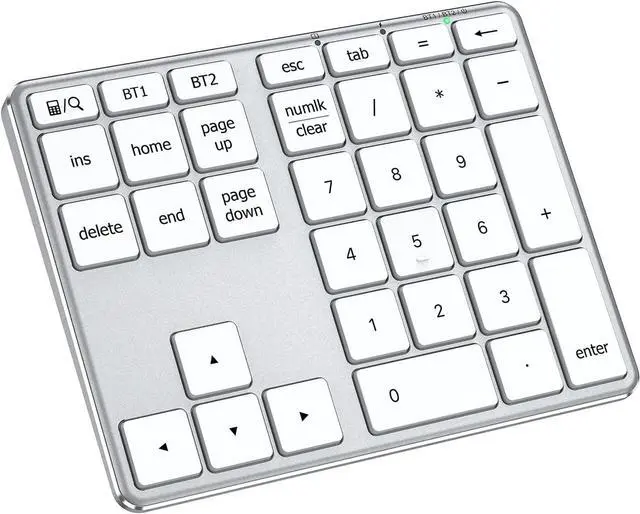
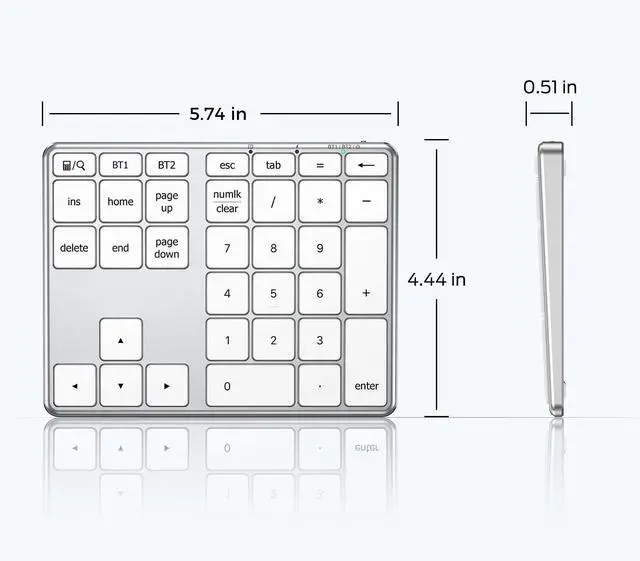
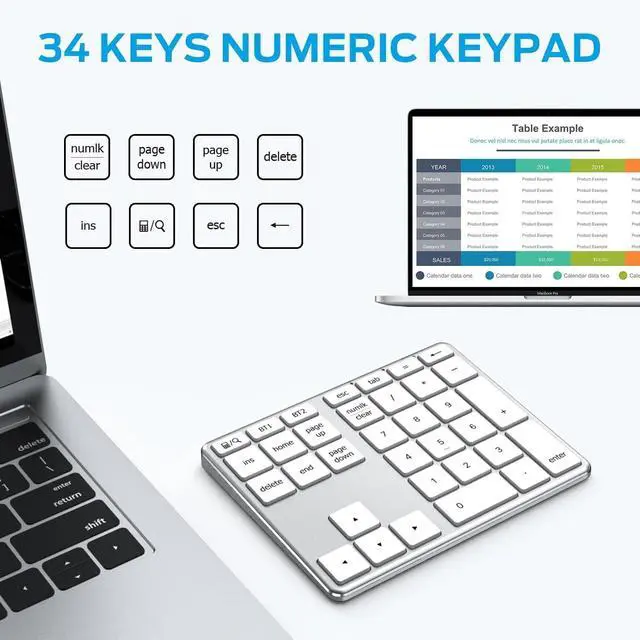
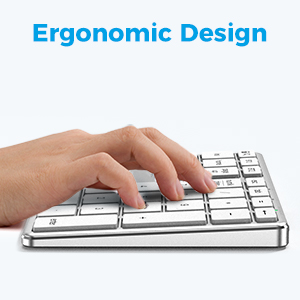
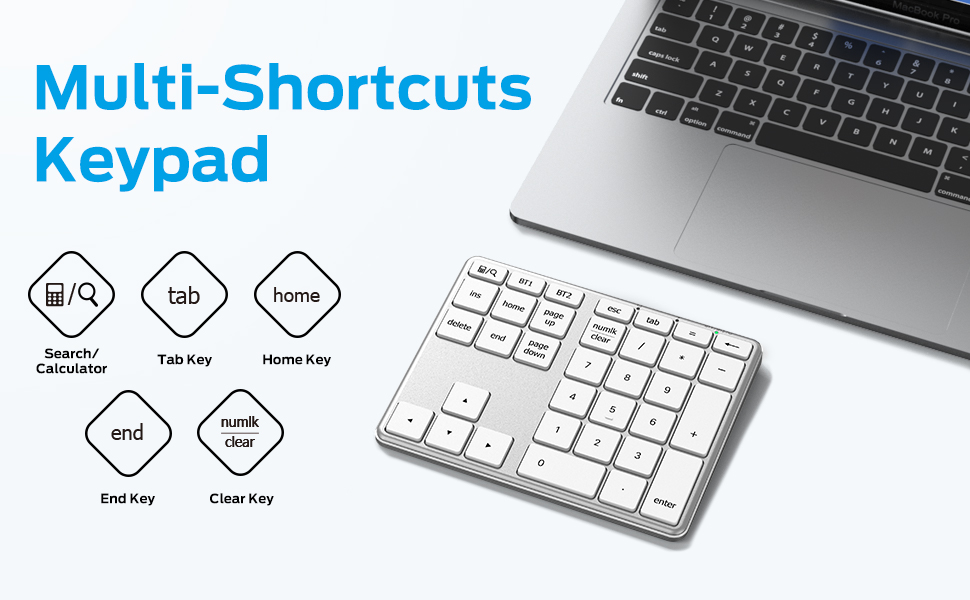
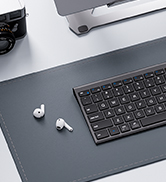
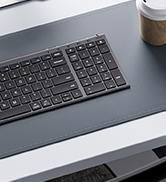
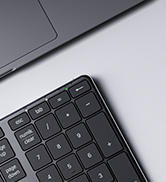
This 34-keys wireless number pad equipped with multiple useful shortcuts which can meet all you need of a number keyboard! It also perfect for left-handed users.
Kindly Note
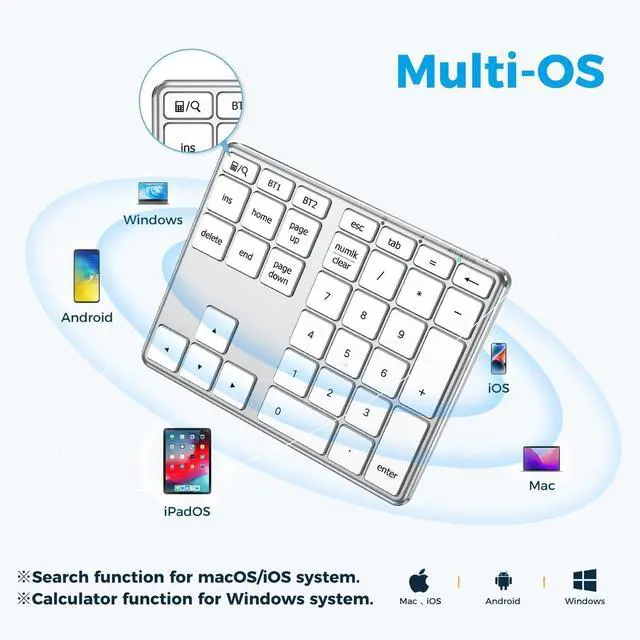
- Works as a calculator apply to Windows system
- Works as search function apply to macOS/iOS system
Features
- Bluetooth Number Pad
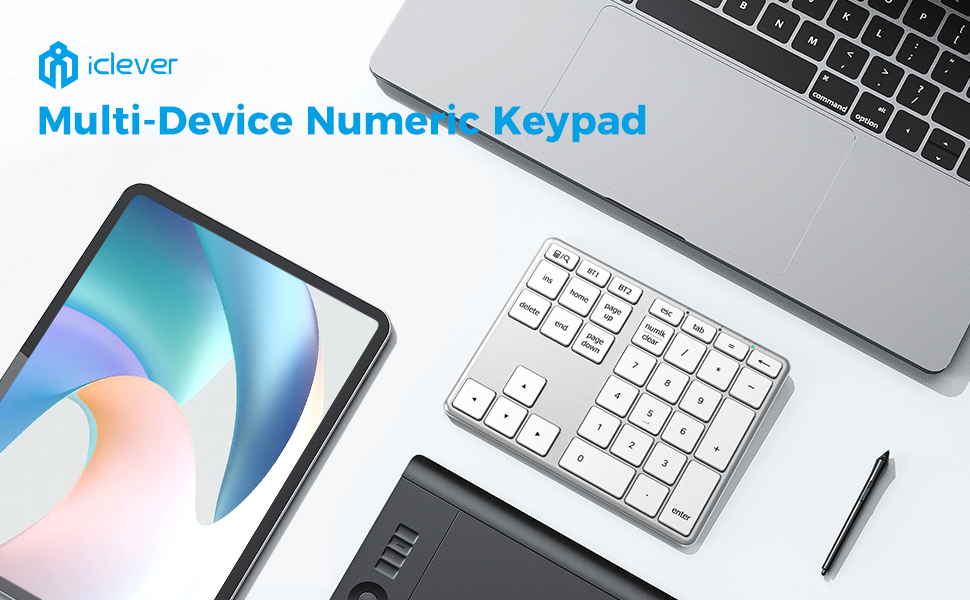
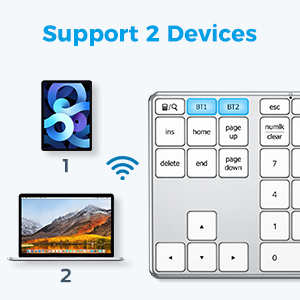
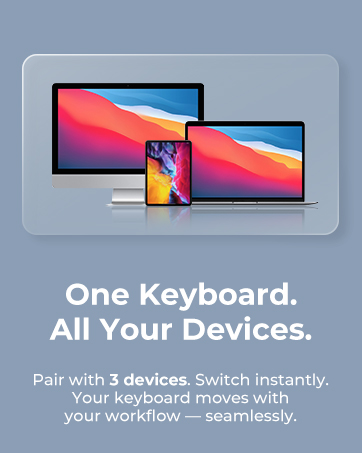
- Multi-Devices Connection
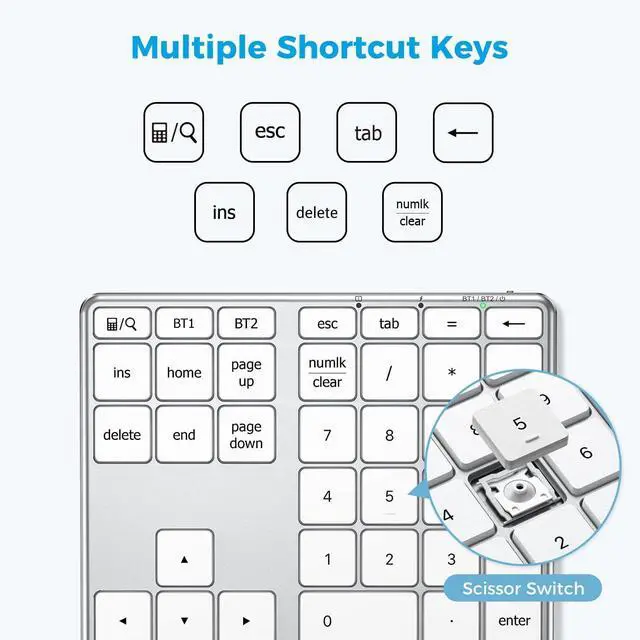
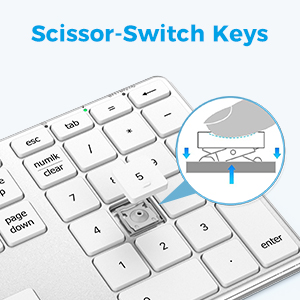
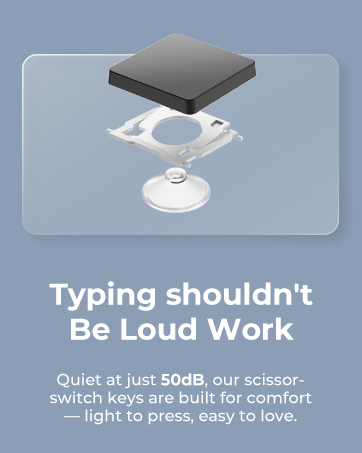
- 34 Scissor Switch Keys
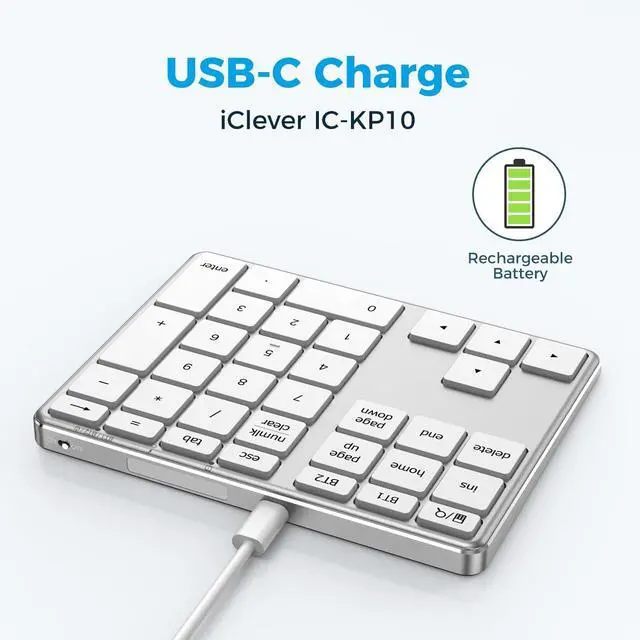
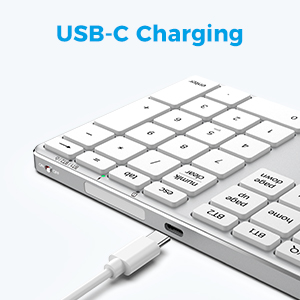
- USB-C Charging
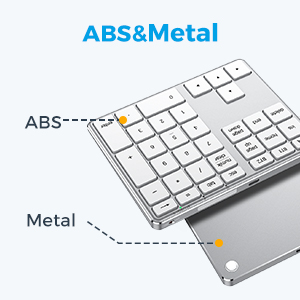
- Metal Build
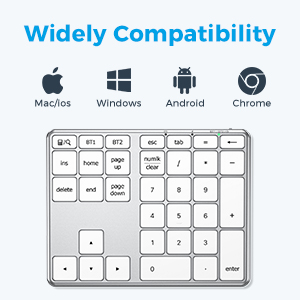
- Broad Compatibility
Q: Calculator key or Numlk key doesn’t work
The calculator key works as “Calculator” on Windows and works as “Search” on macOS/iOS.
The Numlk key works as “Number lock” on Windows and works as “Clear” on macOS.
Q: Keyboard gets delayed frequently/input repeats
Lag and repeat problems are usually caused by signal interference, please use the following troubleshooting to solve the issue.
1. Verify the iClever is connected to the built-in Bluetooth instead of an external Bluetooth adaptor.
2. Make sure that the iClever and your device are within close proximity.
3. Try moving away from metal and other sources of wireless signal.
- Any device that could emit wireless waves: cordless phone, wireless speaker, WiFi router, computer power supplies.
- Metal or metal wiring in the wall
4. Try disconnecting ALL other wireless accessories to verify the interference issue.
5. Charge the iClever for an hour.
6. Try using it on another device to verify the issue
Note: the input smoothness could be affected in the following situations
- Multiple wireless accessories that the device connects
- First few seconds after you switch over devices or wake them up
- PC case placed under the desk, signal blocked
Q: Charging tips
The charging indicator would stay red while charging and turn green after fully charged.
Please charge the keyboard with a charger’s voltage below 5V or with a computer USB port. Otherwise, it would probably cause the keyboard to shut down.
Q: Can’t operate the computer by the USB cable
The USB cable serves for charging only. You can’t use it to operate your device.





iClever KP10 Bluetooth Number Pad
External numpad for your keyboard
Partner For Laptops
This 34-keys wireless number pad equipped with multiple useful shortcuts which can meet all you need of a number keyboard! It also perfect for left-handed users.
Kindly Note
- Works as a calculator apply to Windows system
- Works as search function apply to macOS/iOS system
Features
- Bluetooth Number Pad
- Multi-Devices Connection
- 34 Scissor Switch Keys
- USB-C Charging
- Metal Build
- Broad Compatibility
Q: Calculator key or Numlk key doesn’t work
The calculator key works as “Calculator” on Windows and works as “Search” on macOS/iOS.
The Numlk key works as “Number lock” on Windows and works as “Clear” on macOS.
Q: Keyboard gets delayed frequently/input repeats
Lag and repeat problems are usually caused by signal interference, please use the following troubleshooting to solve the issue.
1. Verify the iClever is connected to the built-in Bluetooth instead of an external Bluetooth adaptor.
2. Make sure that the iClever and your device are within close proximity.
3. Try moving away from metal and other sources of wireless signal.
- Any device that could emit wireless waves: cordless phone, wireless speaker, WiFi router, computer power supplies.
- Metal or metal wiring in the wall
4. Try disconnecting ALL other wireless accessories to verify the interference issue.
5. Charge the iClever for an hour.
6. Try using it on another device to verify the issue
Note: the input smoothness could be affected in the following situations
- Multiple wireless accessories that the device connects
- First few seconds after you switch over devices or wake them up
- PC case placed under the desk, signal blocked
Q: Charging tips
The charging indicator would stay red while charging and turn green after fully charged.
Please charge the keyboard with a charger’s voltage below 5V or with a computer USB port. Otherwise, it would probably cause the keyboard to shut down.
Q: Can’t operate the computer by the USB cable
The USB cable serves for charging only. You can’t use it to operate your device.
WorkMate
FoldMate
NumMate
SilentTap
